🌬️ PC Airflow Calculator
Calculate total CFM, pressure balance & cooling efficiency for your PC case
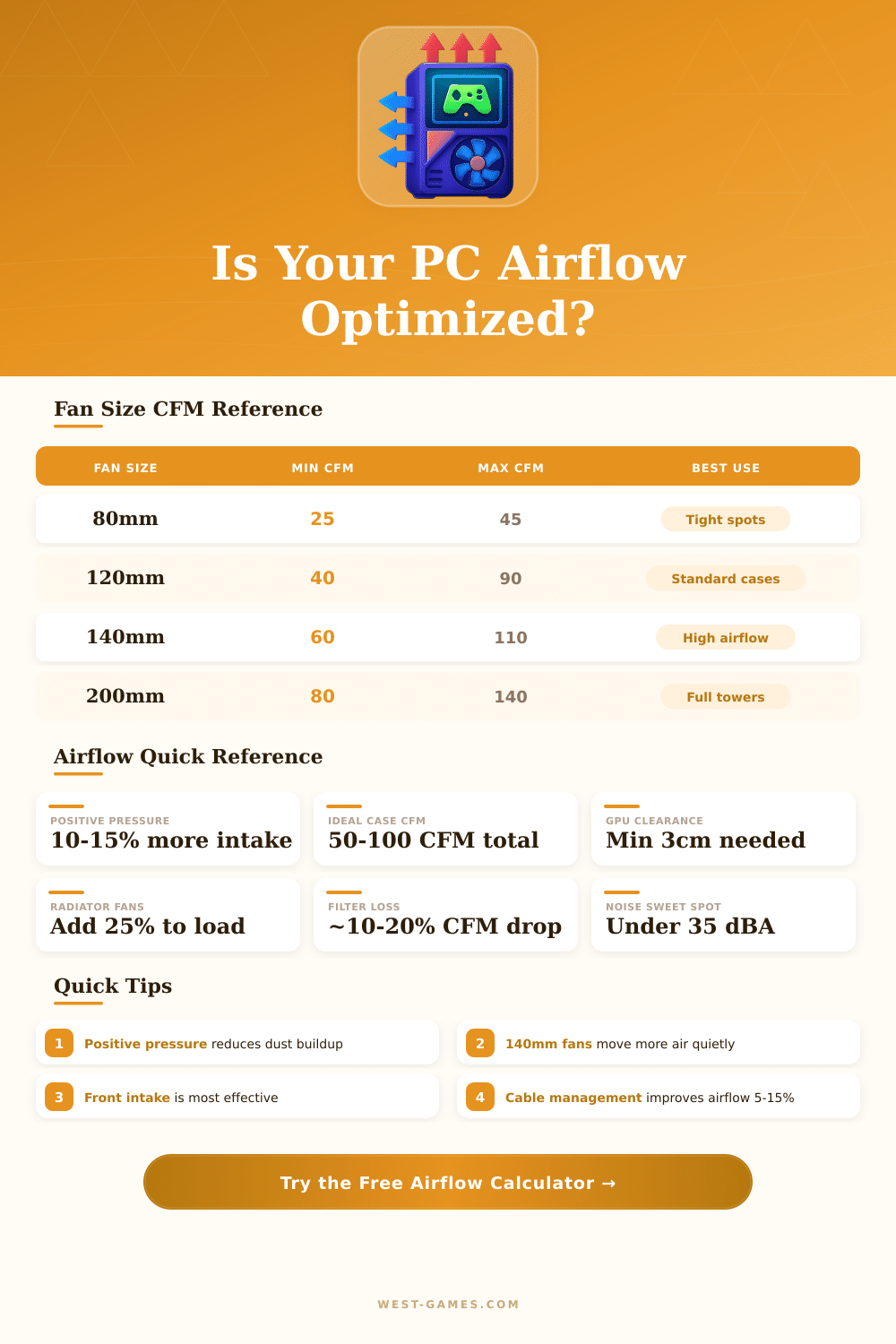
| Fan Size | Speed (RPM) | CFM (Imperial) | m³/h (Metric) | Noise (dBA) | Best Application |
|---|---|---|---|---|---|
| 80mm | 1000 RPM | 18–25 | 30–42 | 20–25 | SFF / tight spots |
| 80mm | 2000 RPM | 30–45 | 51–76 | 28–35 | SFF aggressive |
| 120mm | 800 RPM | 30–40 | 51–68 | 18–22 | Silent intake |
| 120mm | 1200 RPM | 45–65 | 76–110 | 22–27 | Standard intake/exhaust |
| 120mm | 1800 RPM | 65–85 | 110–144 | 28–34 | High performance |
| 140mm | 800 RPM | 45–60 | 76–102 | 17–21 | Quiet intake |
| 140mm | 1200 RPM | 68–90 | 115–153 | 22–26 | Balanced performance |
| 140mm | 1600 RPM | 90–110 | 153–187 | 27–32 | High airflow |
| 200mm | 800 RPM | 80–110 | 136–187 | 18–22 | Full tower, low noise |
| 200mm | 1200 RPM | 110–140 | 187–238 | 24–28 | Full tower performance |
| Configuration | Pressure Type | Dust Buildup | Cooling Efficiency | Best For |
|---|---|---|---|---|
| More intake than exhaust | Positive (+) | Low (dust filters work) | Good | Dusty environments |
| Equal intake & exhaust | Neutral (0) | Moderate | Very Good | General builds |
| More exhaust than intake | Negative (-) | High (air sneaks in) | Good (if well-sealed) | Hot components, open cases |
| Front intake + rear exhaust | Slight positive | Low | Excellent | GPU-heavy gaming rigs |
| Bottom intake + top exhaust | Neutral | Low | Excellent (natural convection) | High-TDP workstations |
| No rear exhaust (top only) | Variable | Moderate | Moderate | Cases without rear fan slot |
| Component Type | Example | Typical TDP (W) | Cooling Need |
|---|---|---|---|
| Budget CPU | Intel Core i3 / Ryzen 3 | 65–95W | Low |
| Mid-range CPU | Intel Core i5 / Ryzen 5 | 95–125W | Moderate |
| High-end CPU | Core i9 / Ryzen 9 | 125–253W | High |
| Budget GPU | RTX 3060 / RX 6600 | 100–170W | Moderate |
| Mid GPU | RTX 4070 / RX 7700 XT | 170–220W | High |
| High-end GPU | RTX 4090 / RX 7900 XTX | 300–450W | Very High |
| Motherboard + RAM | Standard ATX build | 30–60W | Low |
| Storage (NVMe) | PCIe 4.0 / 5.0 SSD | 5–15W | Minimal |
Keeping a PC fresh is one of the most important parts of building or setting up a PC. Good Airflow helps the CPU and GPU stay at safe temperatures, allows the best system output and extends the life of parts. When building a PC, the main way to keep low temperatures is to ensure good Airflow through the whole case.
Airflow is simply motion of air. So that air enters the box, it must can exit. And to exit, it needs to enter.
How to Set Up Good Airflow in Your PC
Intake fans push fresh air inward, while exhaust fans drive warm air outside. Every fan has an intake and exhaust side, and its direction decides how it directs the air in the case.
The main target of fan placement is to form an Airflow channel from the front or right side of the case to the upper left or back part. That channel must push fresh air over the CPU, GPU and other heat-sensitive parts. The front fans draw air inward, while the back fans push it outside.
Exhaust fans usually sit left and maybe up, to push warm air away. This replaces the warm air around parts wiht fresh outside air.
Modern cases commonly include extra mounts for fans up and below. Upper fans work commonly as exhaust, especially in the back-upper place. Bottom fans almost always sit as intake.
That helps to keep the direction of Airflow from bottom to top and use the natural trend of warm air rising. The more near the floor the air is, the less warm it usually is, so PSUs and GPUs commonly have fans placed below.
One problem with bottom intake fans is hairs of pets. If the PC stands on the floor and pets are around, hairs can cover the intakes. Also cable management is important.
Make sure that all cables are well folded and moved, so they don’t block the Airflow. Pulling air from the back of a PC does not help, because cables block the flow hear.
More entering air than exiting creates positive pressure. That keeps dust away from the case. For many cases the best setup is front and bottom as intake, with upper and back as exhaust.
If upper fans fight each other, one pushes and the other pulls, that creates turbulence, which hurts the Airflow. Sometimes six fans work better than nine, because extra upper ones can actually block the flow. Bad Airflow can cause warm spots, crashes during playing of games and general problems.
Good choice ofcase and fans ensures steady temperatures and system stability.