🖥️ PPI Calculator — Monitor Pixel Density
Calculate pixels per inch (PPI) for any monitor, TV, or screen using resolution and display size
| Monitor / Display | Resolution | Screen Size | PPI | Quality Rating |
|---|---|---|---|---|
| Dell SE2422H | 1920×1080 | 23.8" | 93 PPI | Comfortable |
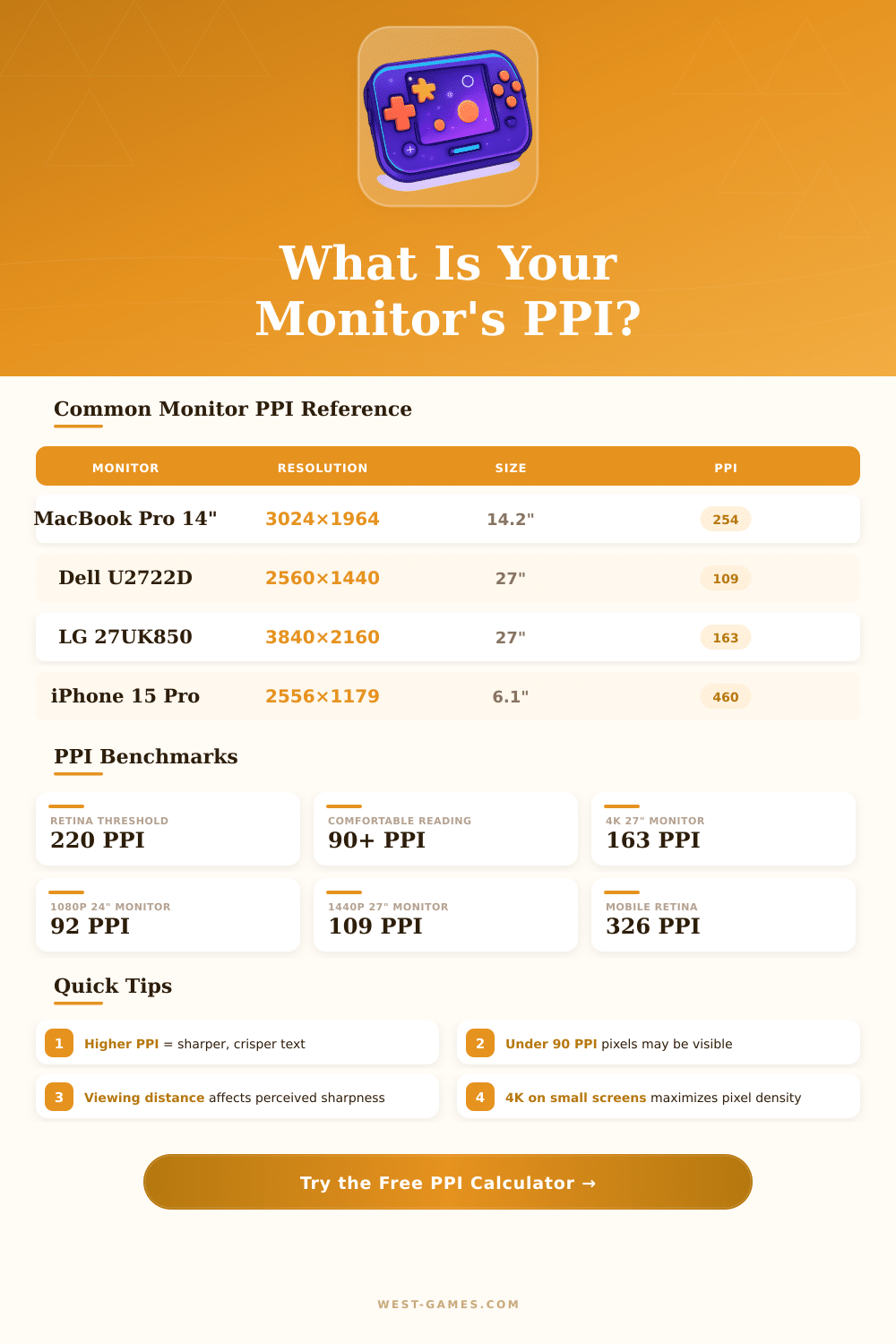
| LG 27GL850 | 2560×1440 | 27" | 109 PPI | Good |
| LG 27UK850 (4K) | 3840×2160 | 27" | 163 PPI | Very Sharp |
| Dell U3223QE (4K) | 3840×2160 | 31.5" | 140 PPI | Sharp |
| Apple Pro Display XDR | 6016×3384 | 32" | 218 PPI | Retina |
| MacBook Pro 14" (M3) | 3024×1964 | 14.2" | 254 PPI | Retina |
| Samsung 49" Ultrawide | 5120×1440 | 49" | 109 PPI | Good |
| Samsung 55" 4K TV | 3840×2160 | 55" | 80 PPI | Basic |
| Device | Resolution | Screen Size | PPI |
|---|---|---|---|
| iPhone 15 Pro | 2556×1179 | 6.1" | 460 PPI |
| Samsung Galaxy S24 | 2340×1080 | 6.2" | 416 PPI |
| Google Pixel 9 | 2424×1080 | 6.3" | 422 PPI |
| iPad Pro 12.9" (M2) | 2732×2048 | 12.9" | 264 PPI |
| iPad Air 11" (M2) | 2360×1640 | 11" | 264 PPI |
| Samsung Galaxy Tab S9 | 2560×1600 | 11" | 274 PPI |
| Screen Size | 1080p PPI | 1440p PPI | 4K PPI | 8K PPI |
|---|---|---|---|---|
| 21.5" | 102 | 136 | 204 | 409 |
| 24" | 92 | 122 | 183 | 367 |
| 27" | 82 | 109 | 163 | 326 |
| 32" | 69 | 92 | 138 | 275 |
| 40" | 55 | 73 | 110 | 220 |
| 55" | 40 | 53 | 80 | 160 |
| Use Case | Min. PPI | Recommended PPI | Ideal Setup |
|---|---|---|---|
| Office / Productivity | 80 PPI | 100–120 PPI | 1440p 27" |
| Gaming (FPS / Action) | 90 PPI | 109–163 PPI | 1440p or 4K 27" |
| Photo / Video Editing | 100 PPI | 140–220 PPI | 4K 27"–32" |
| Graphic Design | 110 PPI | 150–218 PPI | 4K 27" or Pro XDR |
| Laptop / Portable | 130 PPI | 200–300 PPI | 2K or 4K 13"–15" |
| Home Theater TV | 40 PPI | 60–80 PPI | 4K 55"–65" |
PPI-calculator gives fast estimate, how many pixels answer for every inch of your screen. It, or pixels each inch is the most basic tool for estimate the real density of your monitor. The good thing about such programs is that they take the resolution of your screen and its diagonal size, to later point, how sharp the image looks actually.
To start to use such calculator, you need two things: the number of pixels by horizontal and vertical, together with the diagonal screen size in inches. Makers usually mention that diagonal somewhere. For example 13,3 inches or 6,7 inches.
How to Use a PPI Calculator
Later the calculator finds the diagonal in pixels by means of this formula: one squares the width, square the height, adds them and take the square root. Sharing that result by the real screen size, one receives the PPI.
Besides only the PPI, the most many of those tools add extra features. One can receive pixel-pitch, screen ratio, sizes of the screen, whole pixel count and even pixels each sqaure inch… Everything in one place.
Some of them are flexible about units: enter values in inches and you will have PPI, change to centimetres and you will receive pixels each centimetre. Such flexibility makes them truly practical, whether one thinks metric or imperial.
Choosing a monitor, the PPI truly matters. A normal 24-inch 1080p monitor reaches around 91,79 PPI, what works well for the most many folks. If one stretches same resolution too 27 inches, the density drops clearly.
On the other hand, jumping to 2560×1440 on a 27-inch screen, one reaches 108,79 PPI. That makes text and icons a bit more small, so maybe you will have to expand your scaling settings. Some folks feel themselves entirely comfortable at 85 PPI, while others do not accept less than 120.
Gaming setups commonly favour a 27-inch 1440p monitor, that sits at around 109 PPI. It reaches sweet balance, where one can reach high frame rates easily, without needing the most expensive graphics card. Naturally, individual pixels could show, if one looks at it too closely, but truly they disappear, when you dive into the game.
In graphical work and printing the PPI matters also a lot. There are converters, that help to exchange pixels, DPI, millimeters and other units. In Photoshop one can control PPI and print size under Image, later Image Size.
About VR headsets? Truly, PPI matters less here, because the key is pixels each degree, that depends on pixel density, screen size and the distance of the optics to your eyes, whatrequires its own calculation.
To find a PPI-calculator online, you need only around thirty seconds. Simply search “PPI calculator” and you will find a set of free options.