🏎️ F1 25 FOV Calculator
Calculate your perfect Field of View for F1 25 based on your screen size, viewing distance & aspect ratio
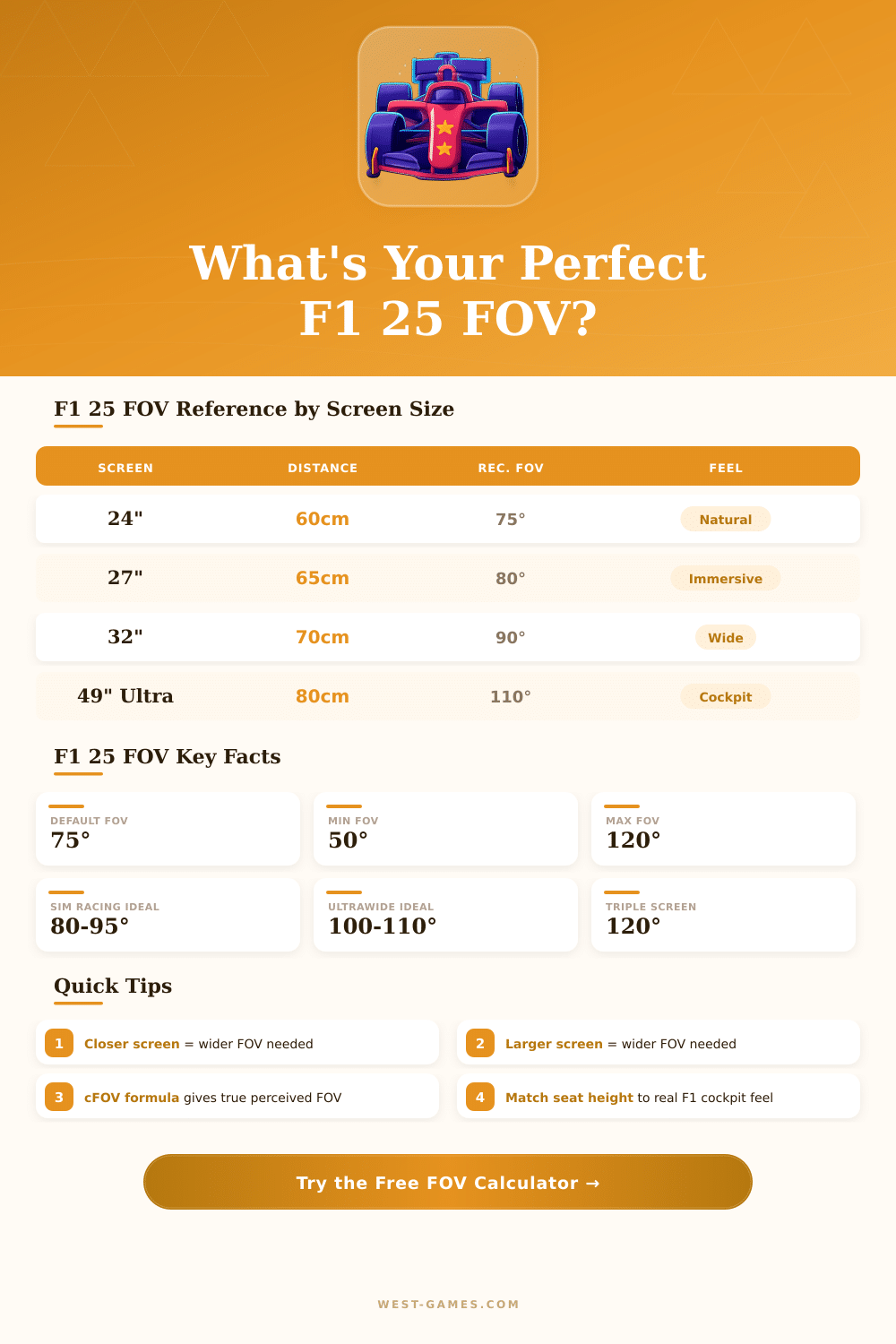
| Screen Size | Distance | Aspect Ratio | Recommended FOV | Feel |
|---|---|---|---|---|
| 24" | 60cm / 24" | 16:9 | 74° – 76° | Natural |
| 27" | 65cm / 26" | 16:9 | 78° – 82° | Immersive |
| 32" | 70cm / 28" | 16:9 | 87° – 93° | Immersive |
| 34" | 70cm / 28" | 21:9 | 95° – 102° | Wide |
| 49" | 80cm / 31" | 32:9 | 108° – 115° | Cockpit |
| 27" x3 | 65cm / 26" | 48:9 | 115° – 120° | Cockpit |
| 55" TV | 200cm / 79" | 16:9 | 55° – 65° | Cinematic |
| 15.6" Laptop | 45cm / 18" | 16:9 | 72° – 78° | Natural |
| Camera View | Typical FOV Range | Best For | Speed Perception |
|---|---|---|---|
| T-Cam (TV Camera) | 55° – 70° | Casual / Broadcast feel | Low |
| Cockpit (default) | 70° – 85° | Sim racing immersion | Medium |
| Nose Cam | 75° – 90° | Spatial awareness | Medium-High |
| Bumper Cam | 80° – 95° | Aggressive feel | High |
| Custom High FOV | 100° – 120° | Ultrawide / Triple screens | Very High |
Note: Here some tips from real experiences, that the sim-community freely shares.
Setting your FOV for F1 25 can truly change how the whole experience looks. FOV stands for Field of View, simply said, it defines whether your camera angle seems broad and natural or narrow like a tunnel. Many players reckon that a value around -10 does everything quite a lot safer immediately outside the normal.
How to Set FOV in F1 25
But here comes the catch: the ideal depends on your personal gear. The size of your screen and how far you sit affect that strongly. For instance, if you sitting 90 centimetres before a 55-inch monitor, something like -4 commonly feels perfect.
Rather than simply guess, a calculator for FOV removes the troubles, you enter the size of your monitor, its dimensions and distance from the eyes, and it gives a number fit for you. That formula works for single screens, doubles or even those fancy three-screen setups, and it covers games like F1 25, iRacing, Assetto Corsa, ACC, Automobilista 2, Le Mans Ultimate, rFactor 2, BeamNG.Drive and more.
Most calculators require your screen ratio, whether 16:9, 21:9 or 32:9… Together with the size in inches and your sitting distnace in centimetres or inches. Serious sim-racers will not even start a race without the right FOV set before, so certainly worth investing time for it.
I saw one good camera setup with FOV at -2, that keeps horizontal tilt at 0, while vertical tilt goes to 15 and bottom corner to -9. The clip for near objects stays at 0, mirror corner around 2, and camera shake and motion blur at 20, with frame limit at 7. There is also a famous TV-cabin view with -10 FOV, +15 height and -15 corner.
For the cockpit view, move upward the Y-axis with FOV of 12 and turning the steering wheel can surprisingly please.
The truth is that calculators for FOV do not always hit the target on the first try. With three screens, you maybe receive -11 as advice, but really it can seem different when you compare it side by side with how others have the write FOV. In standard cockpit view, they sometimes offer -13, yet -19 commonly fits more well with the curve of the road, as it should show.
You have freedom to max FOV only for TV cabin or for TV-adjusted view, if that pleases you. Simply warning: the feeling of speed does get very strong at those values, and it will need time to adapt.
For lovers of VR, F1 25 works surprisingly. Dropping the vertical FOV through Virtual Desktop can give better speed to your setup. One method uses Meta Quest 3 with Virtual Desktop and AV1 codec, with vertical FOV set at 80 percent.
There is also a simple trick for the VR config file, change quality of AA and AA value to 1, although theresults range based on the device.