🖥 Ultrawide FOV Compensation Calculator
Convert a 16:9 FOV into 21:9, 32:9, or custom aspect play while checking Hor+, Vert-, monitor distance, perceived zoom, sensitivity multiplier, and distortion risk.
Original horizontal FOV and sensitivity reference.
Keeps vertical FOV and expands side vision.
Super ultrawide view with stronger edge stretch.
Keeps horizontal FOV but crops top and bottom.
| Mode | Horizontal FOV | Vertical FOV | Scale result | Practical read |
|---|
| Aspect | Resolution examples | Ratio | FOV behavior to check |
|---|---|---|---|
| 16:9 | 1920×1080, 2560×1440, 3840×2160 | 1.78 | Baseline for most game FOV sliders. |
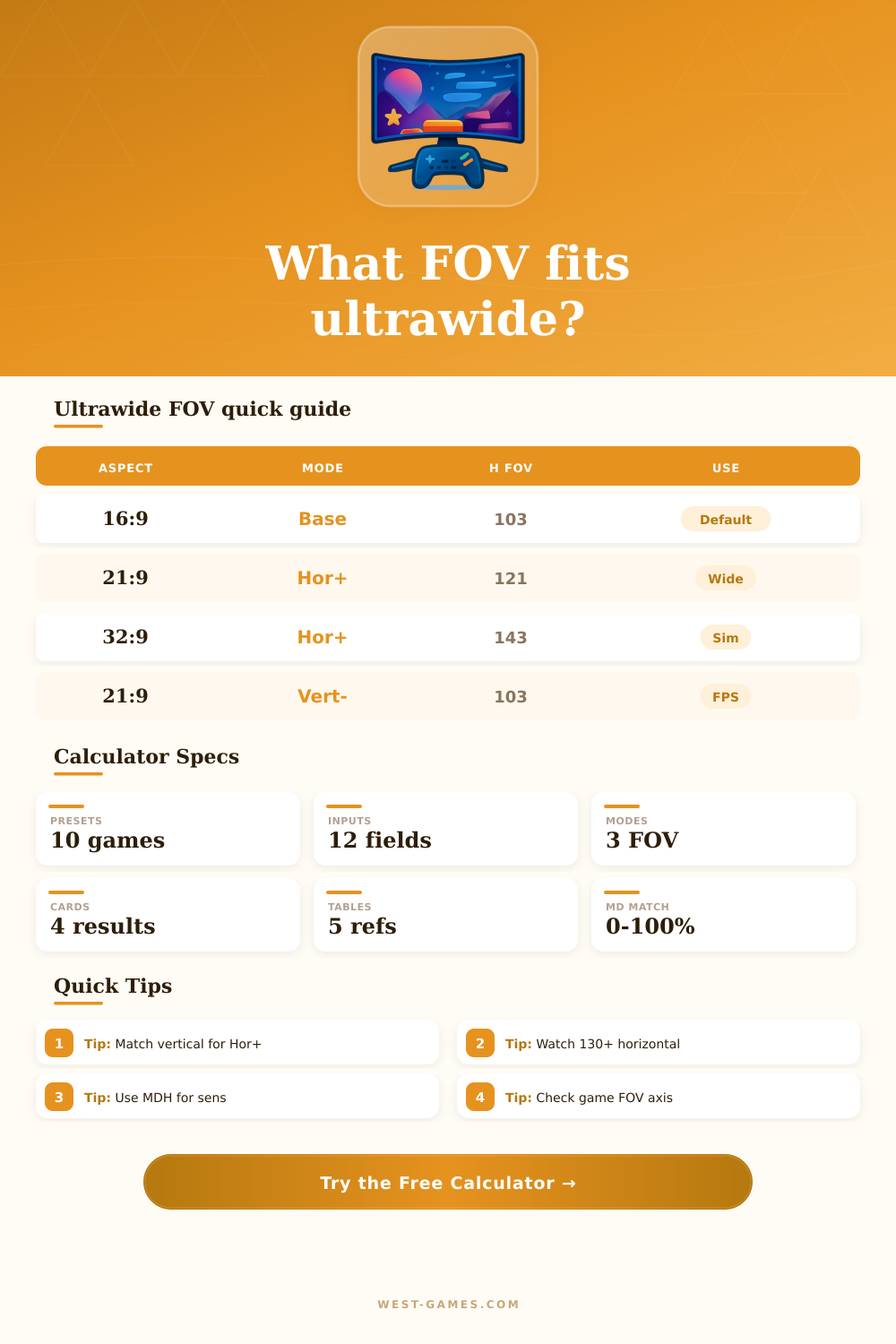
| 21:9 | 2560×1080, 3440×1440 | 2.33 | Usually feels natural with Hor+ support. |
| 64:27 | 3440×1440, 5160×2160 variants | 2.37 | Slightly wider than exact 21:9 math. |
| 24:10 | 3840×1600 | 2.40 | Taller ultrawide, often easier than 32:9. |
| 32:10 | 3840×1200, 4320×1350 | 3.20 | Wide cockpit feel with less height than 32:9. |
| 32:9 | 3840×1080, 5120×1440 | 3.56 | Excellent peripheral view, but distortion is easy to notice. |
| 16:9 horizontal | 16:9 vertical | 21:9 Hor+ | 32:9 Hor+ |
|---|---|---|---|
| 90° | 58.7° | 107.5° | 130.4° |
| 100° | 67.7° | 118.5° | 141.3° |
| 103° | 70.5° | 121.5° | 143.7° |
| 110° | 77.5° | 129.0° | 150.0° |
| 120° | 88.5° | 139.6° | 158.9° |
| Setup | Typical distance | Physical view | Risk cue |
|---|---|---|---|
| 27 inch 16:9 desk | 24-32 in | 43-56° | Comfortable baseline. |
| 34 inch 21:9 desk | 26-34 in | 55-70° | Good immersion if FOV is not too high. |
| 38 inch 24:10 | 28-36 in | 60-74° | Tall ultrawide usually feels balanced. |
| 49 inch 32:9 desk | 30-42 in | 80-104° | Close seating can exaggerate edge stretch. |
| Triple-screen sim | 24-34 in | 100°+ | Use game-specific projection when available. |
| Behavior | What stays fixed | Ultrawide effect | Calculator mode |
|---|---|---|---|
| Hor+ | Vertical FOV | More horizontal view | Use Hor+ mode. |
| Vert- | Horizontal FOV | Less vertical view | Use Vert- mode and check crop. |
| Pixel-based UI crop | Game viewport varies | Menus or HUD can crop | Use as warning, not exact gameplay FOV. |
| Fixed FOV cap | Slider maximum | May stop before ideal ultrawide value | Compare target against game cap. |
| Multi-projection | Camera frustums | Less side distortion | Prefer sim-specific tools if supported. |
| Preset | Aspect | Base FOV | Mode | Monitor | Main check |
|---|---|---|---|---|---|
| Valorant 16:9 Baseline | 16:9 | 103 H | Baseline | 27 in | Reference feel before changing aspect. |
| CS2 21:9 Check | 21:9 | 90 H | Vert- check | 34 in | Competitive height and sensitivity check. |
| Apex 21:9 Hor+ | 21:9 | 110 H | Hor+ | 34 in | Wide peripheral view with tracking sens. |
| Warzone 32:9 | 32:9 | 105 H | Hor+ | 49 in | Side stretch and large horizontal angle. |
| Cyberpunk 21:9 | 21:9 | 95 H | Hor+ | 34 in | Immersion without extreme distortion. |
| Forza 32:9 Sim | 32:9 | 90 H | Hor+ | 49 in | Cockpit view and monitor-distance match. |
| Flight Sim 32:9 | 32:9 | 100 H | Hor+ | 49 in | Wide cockpit with edge caution. |
Transitioning from a regular 16:9 monitor to an ultrawide display is like learning to drive a new vehicle. Your new monitor’s increased width increases your peripheral awareness, benefiting simulators as well as competitive shooters. However, if you don’t change any settings, the transition will feel a lot more like learning to drive a different car due to how speed and distance perception change.
If they doesn’t change anything, most people simply turn up their field of view until things look normal. Unfortunately, this typically leads to aim sensitivity that feels off or stretched out edges that is distorted. Ultrawide FOV compensation calculator takes care of all the math. It adjusts your new FOV to match muscle memory you developed with your previous set-up. This tiny adjustment saves hours of frustration from tweaking and readjusting.
How to Fix Your Settings for Ultrawide Monitors
The thing is that’s not quite right, the pixels-to-degrees-of-vision math doesn’t hold up when you change aspect ratios. Stretching out a 16:9 field of view with a 103 degree horizontal FOV to 21:9 won’t look naturaly. There are two main ways games do that (and knowing which way your game does it is step one). In the most common method today on PCs, the game adjusts to maintain a fixed field of view vertically but increases the horizontal view. That means you get wider views on the sides but retain the feeling of height. That’s called Hor+ mode. With Vert- mode, the game holds the horizontal view constant but crops top and bottom. It’s typically used if a game letterboxes itself or doesn’t scale well for wide screens. You can switch back and forth between those modes using the calculator. This way, you know exactly what your screen will display before committing to a setting.
After you upgrade your hardware, most people stumble on sensitivity scaling. When you increase your field of view, your mouse stays the same, so now each inch of mouse movement take up more degrees of vision. You feel like your aiming is imprecise and loose because you’re rotating quicker than expected. On the flip side, when FOV gets cropped or drops, your aim feels slow and sticky. The tool figures out exactly how much you need to multiply the exact amount to maintain equivalent angular coverage as you move your mouse in real life. Input your base sensitivity and it will output your compensated sensitivity which compensates for perspective change. It’s not about making things look wider, it’s about maintaining eye/hands sync.
Surprisingly, your sense of comfort on an ultrawide display has a lot to do with actual physical space. A 34-inch monitor at a twenty-inch distance might seem like a decent compromise but it looks huge. The visual tunnel it creates can be uncomfortable and eye straining, especially as your peripheral vision gets distorted near the edges. To calculate a physical approximation of what angle your screen takes up, the calculator considers both your viewing distance and monitor size. If you sit closer than recommended, even a mathematically accurate FOV adjustment can be overwhelming. Your eyes will struggle to keep up as objects move around your periphery. Sitting further back will mitigate this discomfort but may result in smaller-looking UI elements. It’s not as much a question of precise optics as it is finding that sweet spot for personal comfort. The included reference table will give you some guidance for common viewing distances so you can determine whether or not you should of tinker with your graphics settings or just shift your chair instead.
The last obstacle is edge distortion. Ultrawide displays extend geometry out to the edges, which obviously stretches things at the edges. This can make you feel like you are aiming inaccurately at enemies on the edges. Certain games adds special ultrawide support to fix this projection, but many do not. Depending on your inputs, the calculator will flag if you’re likely to see extreme edge stretch. In that case, you may wish to move back a bit more or reduce your FOV a bit.
There is always a tradeoff between keeping your aim clear versus having max peripheral vision. And you’ll rarely find one setting that works perfectly across all game engines. But you seek to find the best compromise where you retain both spatial awareness and reaction time. That compromise is what the math takes out of the equation.
So really, going ultra-wide comes down to learning to trust a different canvas. Your brain needs to get used to it. And that’s where having the correct sensitivity and FOV settings helps connect the equipment and the experience. After you dial those in, the wider view becomes second nature once more, and the distortion falls away into the background. It’s not about pixels anymore; it’s about what’s happening on screen. That immersive ease of play; that’s why you got the monitor in the first place. Now you’ve got the means to truly achieve it.