🖥 Optimal Monitor Distance Calculator
Find a practical viewing distance from screen size, resolution, aspect ratio, pixel density, visual acuity, target FOV, desk depth, and gaming style.
Distance where one pixel is near the selected visual acuity threshold.
Distance needed for the selected competitive, balanced, or cinematic angle.
Estimated eye-to-panel distance from desk depth, panel setback, and seating offset.
Higher PPD looks sharper; lower PPD feels bigger but exposes pixels sooner.
| Setup | Typical distance | Horizontal FOV | Best fit |
|---|---|---|---|
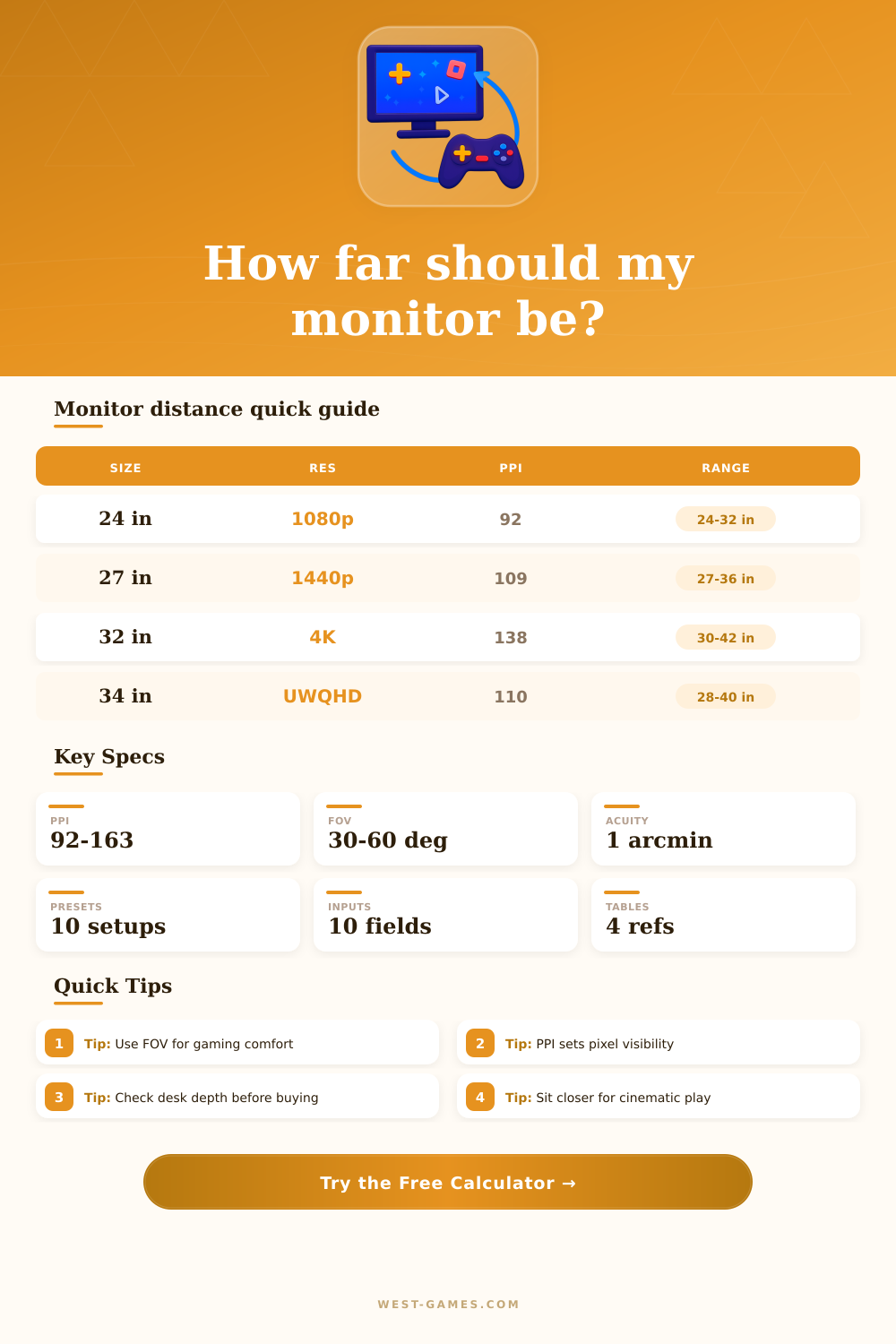
| 24-25 in 1080p | 24-32 in | 32-42° | Competitive FPS, small desks, low eye travel. |
| 27 in 1440p | 27-36 in | 36-48° | Balanced PC gaming and desktop work. |
| 32 in 4K | 30-42 in | 38-52° | Sharp 4K gaming, RPGs, and controller play. |
| 34 in ultrawide | 28-40 in | 46-62° | Immersive RPG, racing, and multitasking. |
| 42 in 4K OLED | 36-52 in | 44-62° | Desk console setup with deeper seating. |
| 49 in 32:9 | 32-48 in | 66-88° | Simulation, racing, and wraparound workspace. |
| Monitor | PPI | 20/20 acuity | Practical note |
|---|---|---|---|
| 24 in 1080p | 92 | 37 in | Pixels are easier to notice when sitting close. |
| 27 in 1080p | 82 | 42 in | Better for distance than close desktop reading. |
| 27 in 1440p | 109 | 32 in | Comfortable balance for most PC desks. |
| 32 in 1440p | 92 | 37 in | Large image, less crisp text up close. |
| 32 in 4K | 138 | 25 in | Sharp enough for closer 4K desktop use. |
| 27 in 5K | 218 | 16 in | Pixel structure is rarely the limiting factor. |
| Target | FOV band | Typical distance cue | Tradeoff |
|---|---|---|---|
| Competitive FPS | 30-38° | Sit farther or use a smaller screen. | Fast scanning, less immersion. |
| Balanced gaming | 38-48° | Most 27-32 in desktop setups land here. | Good mix of awareness and scale. |
| Cinematic RPG | 48-60° | Closer seating or a larger screen. | More immersion, more edge movement. |
| Simulation rig | 60-85° | Curve, wrap, or triple displays help. | High immersion, more tuning needed. |
| Productivity | 28-42° | Text comfort matters more than spectacle. | Less neck and eye travel. |
| Desk depth | Panel setback | Eye offset | Approx max distance |
|---|---|---|---|
| 24 in | 5 in stand | 4 in | 23 in, tight for 32 in displays. |
| 30 in | 4 in arm | 6 in | 32 in, good for 27-32 in monitors. |
| 30 in | 8 in stand | 6 in | 28 in, better for 24-27 in screens. |
| 36 in | 4 in arm | 8 in | 40 in, strong for 32 in 4K and ultrawide. |
| 42 in | 6 in stand | 10 in | 46 in, useful for 42 in OLED desk play. |
| Preset | Size / aspect | Resolution | Target | Why it is useful |
|---|---|---|---|---|
| 24.5 in 1080p 240 FPS | 24.5 in 16:9 | 1920 x 1080 | Competitive | Classic esports layout with modest FOV and easy eye scanning. |
| 27 in 1440p 165 Hz | 27 in 16:9 | 2560 x 1440 | Balanced | Common gaming monitor size where PPI and FOV often align. |
| 27 in OLED 1440p 240 | 27 in 16:9 | 2560 x 1440 | Competitive | Fast refresh with a slightly closer, high-focus seating style. |
| 32 in 4K 144 | 32 in 16:9 | 3840 x 2160 | Balanced | Higher PPI supports closer seating without obvious pixel structure. |
| 34 in Ultrawide 175 | 34 in 21:9 | 3440 x 1440 | Cinematic | Wider horizontal FOV for RPGs, racing, and multitasking. |
| 49 in Super Ultrawide | 49 in 32:9 | 5120 x 1440 | Simulation | Wraparound field benefits from curve and deeper seating. |
| 42 in 4K OLED Console | 42 in 16:9 | 3840 x 2160 | Cinematic | Large desk TV setup that needs real depth to stay comfortable. |
| 27 in 5K Creator | 27 in 16:9 | 5120 x 2880 | Productivity | Text sharpness is high, so FOV and posture decide distance. |
Gaming for long periods of time causes neck strain, and it’s a function of how far away your screen is from your eyes and what resolution that screen is running at on what sized monitor. It might be lit properly and have the perfect frame rate, but its sitting way up in your grill causing all sorts of eye fatigue while also making you miss stuff as you’re constantly turning your head around. There’s a sweet spot where it gets both comfy and crisp enough to see everything, but that number change depending on who you are.
It is the same math for everyone though. To figure it out, the calculator look at 3 things: physical space, field of view, and pixel visibility. How close can you be to the screen without noticing individual pixels? How much of the screen do you naturaly see in one glance? Desk depth limits both. And if you drop any of those 3 variable, calculation goes out the window.
How to Find the Best Distance for Your Gaming Screen
One variable in the equation is visual acuity. Most people have standard sight, which can sees detail to about an arcminute. That means that’s what sharp looks like. With high PPI screens you can get up close and not see individual pixels. With lower PPI screens, you have to back away until they are blurred together into a clear picture. For instance, a 27-inch 1440p monitor feels comfortabley at arm’s length, while a 1080p screen at that same distance look blocky. The tool lets you tweak your sharpness setting, but the default should of work for most 20/20-sighted users.
The right FOV depends on gaming style. A tight horizontal angle help competitive shooters stay focused: everything happens in your central vision. This way you can see all pixels without having to shift your gaze. Wide fields (above 60 degrees) are movie-like game territory, where immersion beats reaction time. The calculator takes such preferences into account and tunes its suggestion accordingly. Even though the monitor’s the same, a racing sim calls for a different distance then a tactical shooter.
What can I do? And nope, physical limitations apply here too. Maybe 40 inches was the perfect number for you. But your desk is just 30 inches deep. How will it work? That’s where this tool comes in. It takes into account how far back you want your panels set and how far out you want to sit from them (seating offset). Then it tells you if your dream setup will fit in your actual room so you know before purchasing. So you don’t make the mistake of ordering some huge screen that forces you to sit on the floor.
The presets makes it easy to check common setups. There’s a preset for 32-inch 4K display and another for 24-inch esports panels, for example. The presets illustrate where ergonomics fit with industry norms. At 1080p, you can get away with sitting closer on a 24-inch monitor than you could on something larger without losing pixels. That makes sense for fast-action gaming situations. With 32 inches of 4K, you can still sit close-ish and not lose any crispness.
Ultimately, the goal is to reach a state where you forget about the ideal distance away. It’s not the distance at which the text is sharpest, nor the distance at which your eyes are pointed. The screen ought to feel natural, as though it were not a big sign at all. You shouldn’t have to crane your neck, nor squint to make out chat logs. Your monitor height and chair position is set to match those rules. They turn specs into usability.