🖥 Monitor Height Eye Level Calculator
Calculate monitor stand height, eye-line alignment, screen PPI, tilt, and viewing distance from your desk, chair, eye height, screen size, aspect ratio, and resolution.
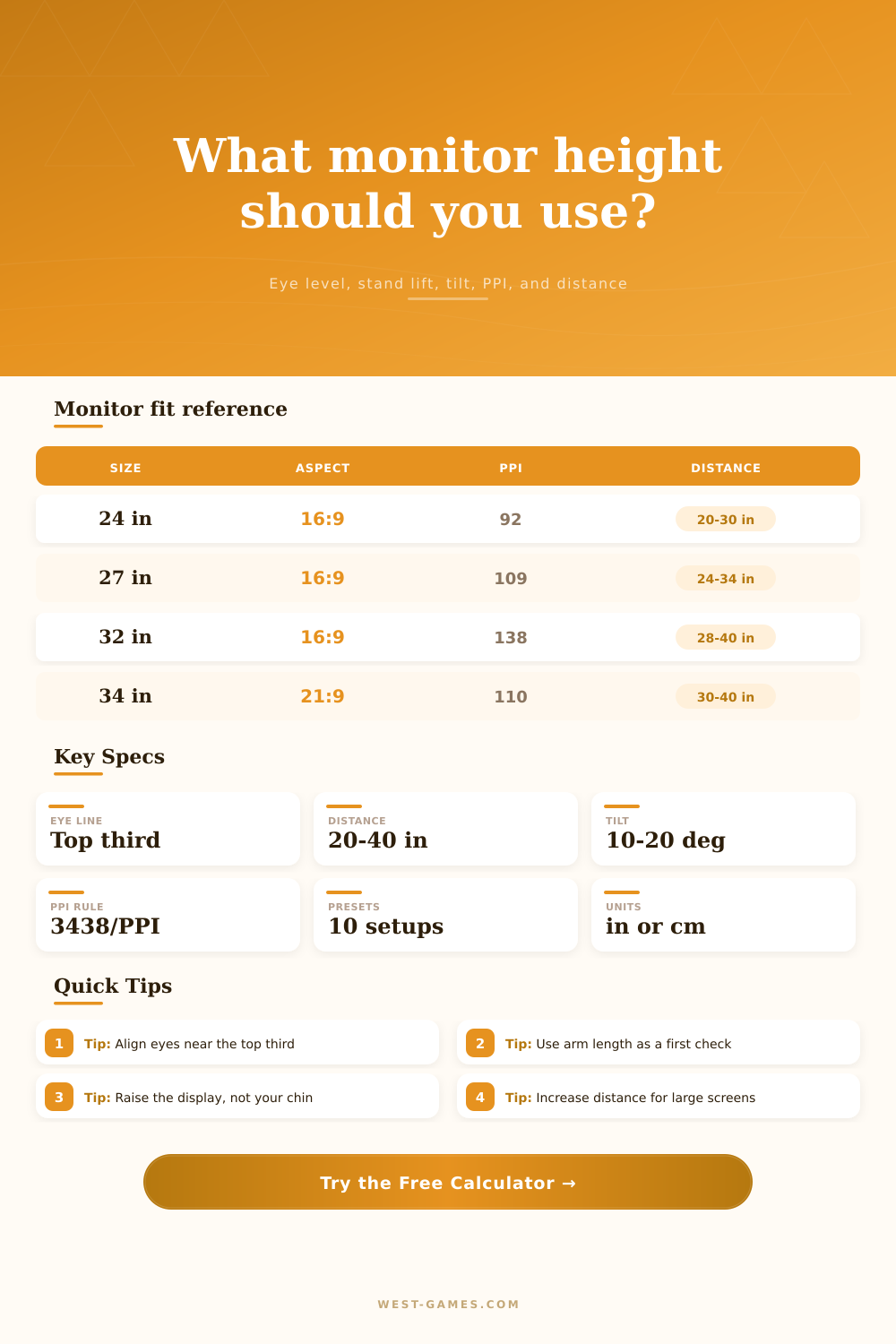
| Monitor class | Resolution | Approx PPI | 1 arcmin pixel distance | Desk distance note |
|---|---|---|---|---|
| 24 in 16:9 desktop | 1920 x 1080 | 92 PPI | 37.4 in | Pixels may be visible at close gaming distances. |
| 24.5 in 16:9 esports | 1920 x 1080 | 90 PPI | 38.2 in | Popular for high refresh, often used around 22 to 30 in. |
| 27 in 16:9 QHD | 2560 x 1440 | 109 PPI | 31.5 in | Sharp at normal desk distance with 100% to 125% scaling. |
| 27 in 16:9 4K | 3840 x 2160 | 163 PPI | 21.1 in | Pixel structure is hard to see; UI scaling matters more. |
| 32 in 16:9 4K | 3840 x 2160 | 138 PPI | 24.9 in | Works well farther back, often 28 to 40 in. |
| 34 in 21:9 ultrawide | 3440 x 1440 | 110 PPI | 31.2 in | Similar density to 27 in QHD, but needs more side clearance. |
| 49 in 32:9 super ultrawide | 5120 x 1440 | 109 PPI | 31.7 in | Distance is usually set by width and neck sweep, not PPI alone. |
| Setup | Typical distance | Height target | Tilt target | Use case note |
|---|---|---|---|---|
| General office monitor | 20 to 40 in | Top at or below eye level | 10 to 20 deg back | Use readable text without leaning forward. |
| Competitive 24 in gaming | 22 to 30 in | Eye line near upper third | 8 to 15 deg back | Closer distance improves detail but can increase eye movement. |
| 27 in QHD or 4K desk | 24 to 34 in | Top third alignment | 10 to 18 deg back | Good balance for games, browsing, and split windows. |
| 32 in 4K monitor | 28 to 40 in | Top edge near eye height | 10 to 20 deg back | Larger panel usually needs extra depth. |
| 34 in ultrawide | 30 to 40 in | Upper third of center area | 10 to 20 deg back | Keep primary work near the center, not at far edges. |
| Stacked laptop and monitor | 24 to 36 in | Main screen gets priority | 10 to 20 deg back | Use the lower screen for quick reference tasks. |
Staring at a screen too long does make your neck stiff. But it’s not always about how long; its also about the angle of your gaze. The way most people place their monitor are convenient (or instinctive) rather than based off the physical fact of how your spine works with your eyes: they plug the cord in, drop the stand onto their desk and go to work.
No worries. Just use the calculator above. It’ll do the math for you. It translates your screen specs and desktop dimensions into a precise ergonomic plan, eliminating guesswork needed to find that sweet spot between clarity and comfort.
How to Place Your Monitor Correctly
It’s an idea so easy that no one seems to get it. Instead of having top third of the screen in your line of sight (the center), you want the main content of the screen to be just below your eyes. Why? Because it goes against everything we’ve learned, look straight ahead! But after eight hours of staring at something, looking straight ahead mean your neck stays stiffly upright and your eyelids stay half-open.
If you let your eyes dangle a bit lower, the cervical spine settle, the facial muscles loosen and a piece of paper, or a computer monitor, if you have the right tool, would of show you, down to the trigonometry, where to raise the bottom of the screen so that it lines up with your eyes, which, remember, depends on how tall you are when seated.
Surprisingly, there’s also a role for pixel density here. If your display has a high resolution, you’ll be able to sit closer before noticing its pixels; for example, you could sit pretty close on 27-inch monitor running at 1440p because the pixels are packed in tightly. If that same physical screen were 1080p, though, it would look grainy from that distance.
The page has a handy table showing what distance is comfortable based off pixels-per-inch (PPI). It makes clear why sitting closer changes entire height calculation. I don’t think many people know that sitting further away means you must sit back, causing a chain reaction of adjustments.
The active display area on most monitors doesn’t extend all the way to the outside edge of plastic shell. Most people don’t even factor in stand mechanism or the bezel when measuring out their distance. The calculator takes both into consideration. It asks for amount of bezel allowance below the monitor, measuring from the bottom of the monitor casing, and your existing stand’s adjustment range.
In case its recommended lift is outside of what your arm can travel, it also notes that restriction and saves you from purchasing a new arm only to find out your existing one cant actualy get there.
Another thing that no one thinks about is tilt. Tilting it ten to twenty degrees back from straight ahead makes up for looking down by keeping the screen perfectly perpendicular to your gaze, eliminating distortion as well as glare.
You can’t take the same measurement when standing that you would when seated. Your eye level completely alter based off your posture. For this reason, the tool has presets for various postures (standing vs. Sitting) and will automatically adjust target height to align with where your eyes are vertically located, whether you’re in a chair or elevated at a raised station.
This applies equally well to things like text scaling. At one hundred percent on your 4K screen, that text gets really small, so you’ll sit closer to your screen to be able to read it comfortabley. Except now, your posture is shot! By bumping the text size up, you can sit further back while still reading what’s on the screen. That changes the equation of “how clear” versus “how far away” from the screen.
Although it’s a minor change, it count toward reducing the number of micro-adjustments you make with your body as you sit down. It’s not about being in comfort, it’s about having something that doesn’t war against you as a work space over time.
When you get the screen dialed-in, the rigidity go away. The screen is no longer a burden; its now a portal into another world. Your posture relaxes. The shape fits your body well. The calculator shows the numbers. The reward is the lack of discomfort, which is what many people overlook.