🥊 Rollback Frames to MS Calculator
Convert fighting-game rollback frames, input delay frames, FPS, ping, jitter, prediction window, and correction coverage into practical netplay feel.
Input delay frames plus local display and device lag.
One-way ping plus jitter before the input-delay buffer absorbs timing.
Rollback and prediction time before jitter is added to total correction.
Likelihood that late inputs, packet loss, or re-simulation show up on screen.
| FPS | 1 frame | 2 frames | 3 frames | 6 frames |
|---|---|---|---|---|
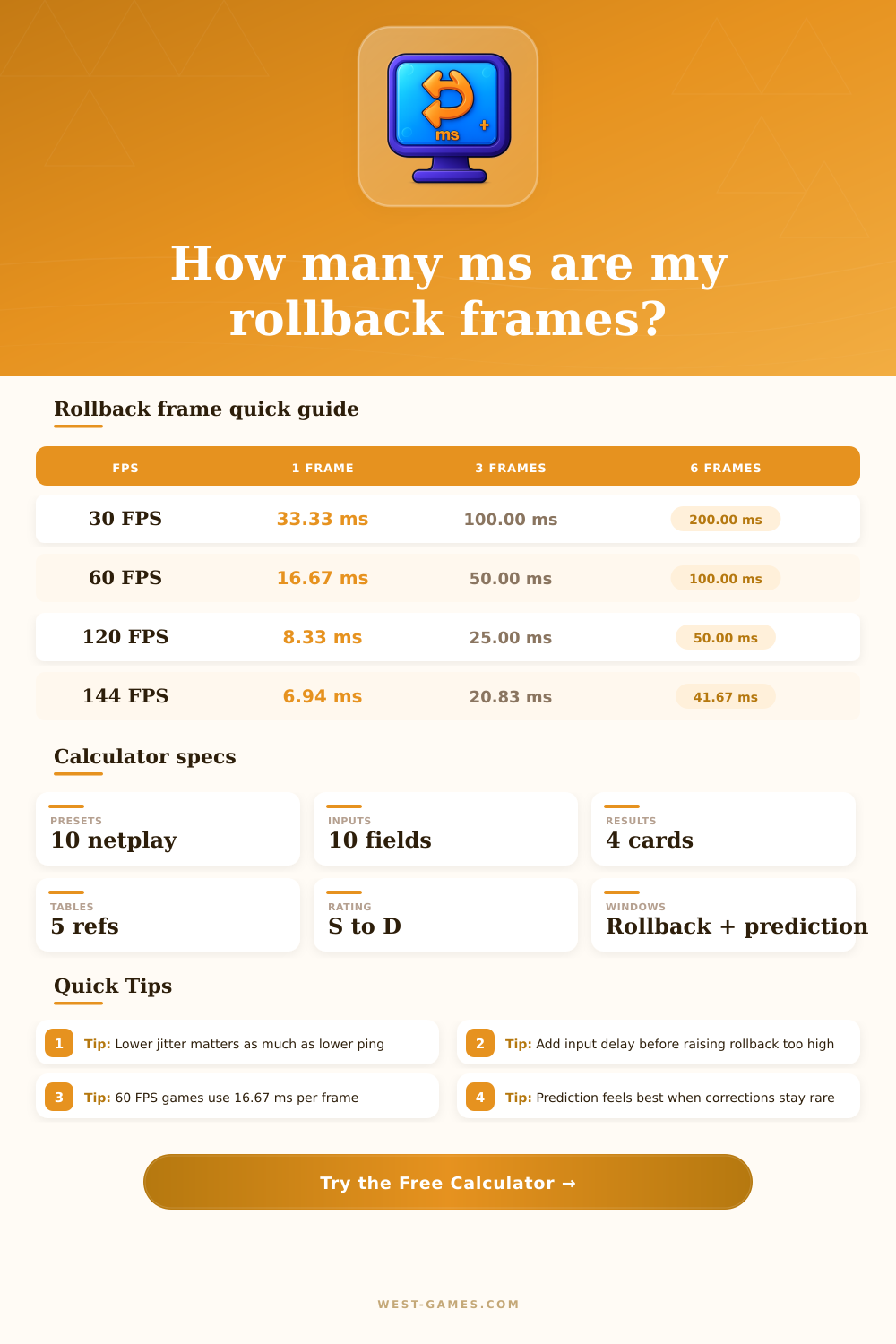
| 30 | 33.33 ms | 66.67 ms | 100.00 ms | 200.00 ms |
| 60 | 16.67 ms | 33.33 ms | 50.00 ms | 100.00 ms |
| 90 | 11.11 ms | 22.22 ms | 33.33 ms | 66.67 ms |
| 120 | 8.33 ms | 16.67 ms | 25.00 ms | 50.00 ms |
| 144 | 6.94 ms | 13.89 ms | 20.83 ms | 41.67 ms |
Formula: milliseconds per frame = 1000 / FPS.
| Rollback | MS window | Typical use | Feel |
|---|---|---|---|
| 0-1f | 0-16.67 ms | Offline or excellent LAN | Instant, low coverage |
| 2-3f | 33.33-50.00 ms | Good wired regional matches | Clean ranked play |
| 4-6f | 66.67-100.00 ms | Longer distance or uneven routing | Playable with corrections |
| 7-10f | 116.67-166.67 ms | High ping sets | Visible warps likely |
Rollback capacity helps only when the game and hardware can re-simulate quickly.
| Delay | MS | Best for | Tradeoff |
|---|---|---|---|
| 0f | 0.00 ms | Training, LAN, perfect links | Remote inputs need more rollback |
| 1f | 16.67 ms | Most good online matches | Small weight on reactions |
| 2f | 33.33 ms | Moderate ping or mild jitter | Noticeably heavier defense |
| 3f+ | 50.00 ms+ | Unstable sets or legacy feel | Combos and confirms feel late |
A little input delay can be better than constant snap-back corrections.
| Connection | Ping | Jitter | Expected feel |
|---|---|---|---|
| Excellent wired | 0-40 ms | 0-3 ms | S to A, very few corrections |
| Good regional | 40-80 ms | 3-8 ms | A to B, playable ranked feel |
| Borderline | 80-130 ms | 8-18 ms | B to C, prediction becomes visible |
| Unstable | 130 ms+ | 18 ms+ | C to D, warps and drops likely |
Jitter is often the hidden reason a low-average-ping match still feels wrong.
| Rollback frames | Rollback ms | Current delay | Current prediction | Correction if used |
|---|
This table updates from the selected FPS and helps compare common 1-10 frame settings.
Your character lunges across screen as you press forward to punch. For a split-second everything is crisp. Then your opponent blocks an attack they should of blocked. Your combo’s momentum break as your confidence snaps too.
It’s not a glitch in your reflexes, though. It’s network code trying to hide the inevitable delay caused by distance by snapping characters back into place and dropping frame.
Why Your Game Feels Laggy Even With Good Ping
To understand what’s going on here means digging deeper than raw ping number shown in lobby. You need to dig down into actual timing mechanics that control how your inputs travel across a distance, wait, and then act on two different screen.
All this means that after plugging your own numbers into the calculator above (which does all the work for you), you don’t have to guess at whether your connection is technicaly connected, or if it’s actualy good enough to play with.
Newcomers might not understand how frames translate to real-world time, either, since they often treat them as abstract units rather than measurable chunks of time. For instance, if you’re playing at sixty frames per second, and most moddern fighting games operate on this figure these days; each individual frame is equal to about sixteen point seven milliseconds. That’s important: It’s the smallest amount of time that makes up one thing happening in-game.
And so if you’ve got your rollback set to three frames, you’re giving engine fifty milliseconds to compensate for any late inputs before it must roll back and resimulate the match state.
And that’s what it’s getting right: people think “Oh my ping was good” when they saw 30ms and assume their connection was solid. But the real cause is usualy jitter. Most people don’t know about it, but it makes your connection feel worse even if the average is only thirty instead of seventy.
Jitter is measured in milliseconds, as the difference between one packet and the next. If you have a steady baseline travel time then prediction algorithm has something to go off of and knows where your opponent should be pretty accurately. But if your ping goes up or down twenty or thirty ms at random intervals every second or two, engine doesn’t know what’s happening. It constantly has to re-predict, causing those snapbacks and warps we see that kill the flow.
This page has a reference table that shows all these variables and how they work together. It explains why a shaky connection sometimes need more rollback frames to become playable, even if average numbers still look okay.
The other lever that’s counter intuitive but exists for good reason is input delay. A frame (or sometimes two) of local input buffer can make your control feel a little heavy because it’s acting like a shock absorber against network inconsistency. It hides small latency spikes so that the engine doesn’t need to correct visibly. The key here is to understand what exactly you’re measuring and realize you’re giving up a little bit of tactile responsiveness while reducing a lot of screen chaos.
If you think about it, a predictably behaving character that is a little slow is almost always better than an instantly responsive character who suddenly teleports back a few feet whenever they get a late packet in ranked play.
To make things even more complicated there’s an additional hardware factor which isn’t reflected in pure network numbers. When a rollback happen, you need to re-simulate all those lost frames. The time it takes to do that (re-simulation cost) can sometimes be greater than frame time itself. For example, if you have an overlay or some other program running that’s using too much processing power for your system, your CPU might struggle to keep up when it suddenly need to crunch through a bunch of data and drop frames as a result.
That’s where you experience the type of stutter that has no bearing whatsoever on your internet service provider. That’s also why you see some of these tournament players turning off their RGB lights and closing down unneeded programs prior to a match. It’s not about chasing looks, it’s about leaving enough headroom on system to chew through the data smoothly.
Those are all combined by the tool’s feel rating system into one number, which is why I encourage people to examine those breakdown cards so they know what tradeoffs exist for any given grade. It may seem like an OK grade, but the correction risk score tells a different story: if your correction window is larger than your ability to predict what happens, you’ll spend less time actualy playing the game and more time staring at the rewind indicator.
Stability is what you’re after, not perfection. A little extra latency without visibly warped lines isn’t as disruptive to muscle memory and immersion as a connection that is constantly being visually corrected.
Playing any kind of game online is also about setting realistic expectations. While you can’t control your ISP’s route or the speed of light, you can adjust your settings so you eliminate as much visual noise from your decision making process as possible. Prioritize minimizing jitter over reducing your ping. Treat rollback frames not as a handicap but as a buffer to make experience smoother.
There will be the occasional snapback because distance always has an effect. But the right calibration makes those instances into rare interruptions, not constant obstacles to overcome, letting you concentrate on the matchup and not the monitor.