💾 Page File Size Calculator
Estimate a stable Windows page file from RAM amount, workload type, crash dump need, peak commit charge, VRAM spill, SSD free space, min/max sizing, and safety margin.
Best default when SSD space is comfortable and crash dump requirements are normal.
Predictable minimum and maximum for gaming, creator apps, or controlled SSD use.
Prioritizes dump capture so blue-screen analysis has enough page file space.
Smallest practical range when drive space is tight and measured commit is modest.
| Installed RAM | Typical page file | Heavy page file | Notes |
|---|---|---|---|
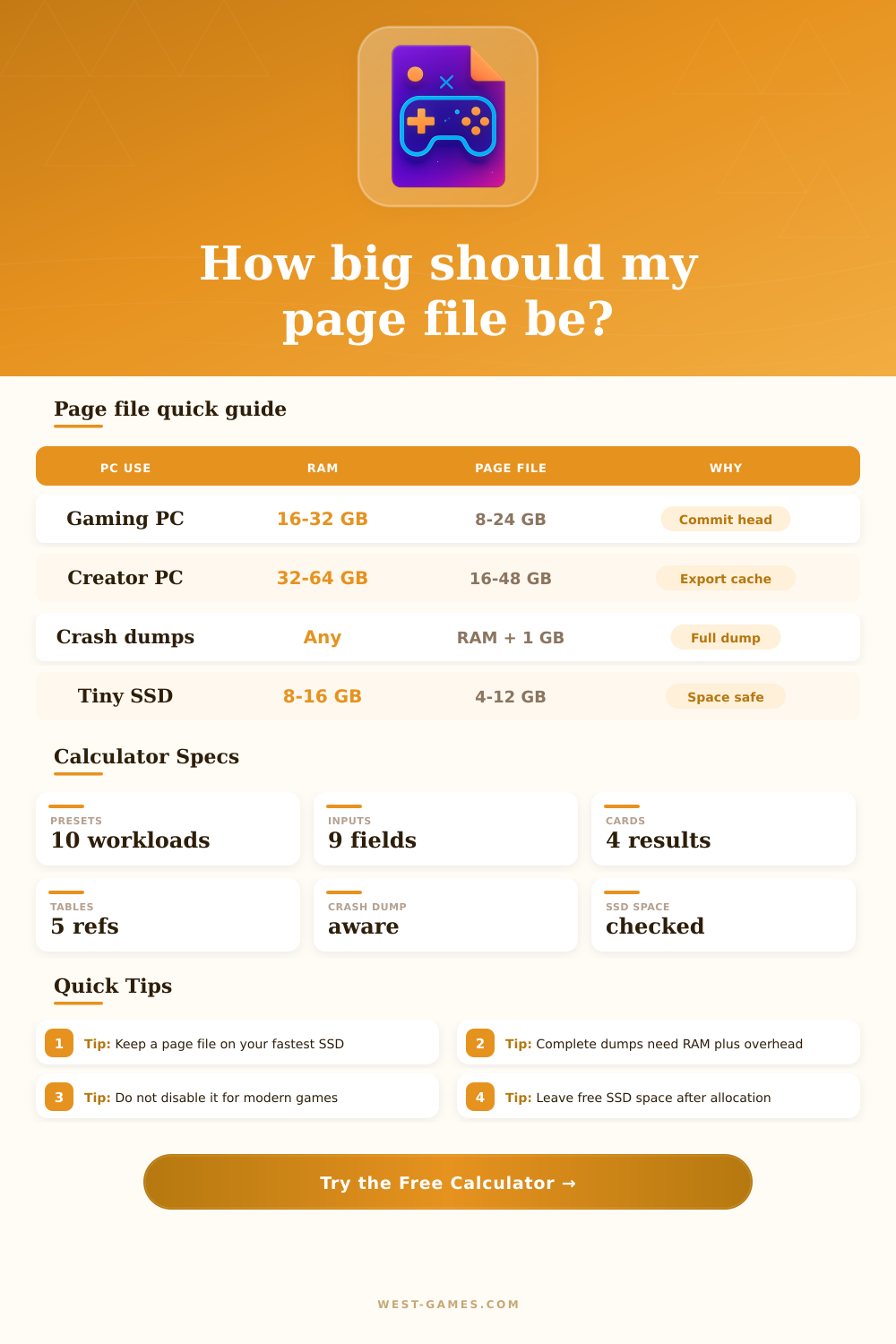
| 8 GB | 8-16 GB | 16-24 GB | Low-RAM systems benefit from a real page file. |
| 16 GB | 8-24 GB | 24-32 GB | Common gaming baseline with launchers and browsers. |
| 32 GB | 8-24 GB | 24-48 GB | Good for modern games and mixed creator workloads. |
| 64 GB | 8-32 GB | 32-80 GB | Measure commit before reserving a huge file. |
| 128 GB+ | 8-32 GB | 64 GB+ | Usually workload-specific, not ratio-based. |
| Dump type | Boot page file floor | Best for | Tradeoff |
|---|---|---|---|
| Small dump | 1-2 GB | Basic error codes | Little context. |
| Kernel dump | About 40% RAM, min 4 GB | Drivers and kernel debugging | Moderate space use. |
| Automatic dump | Kernel-sized, Windows-managed | Most PCs | Size can change. |
| Active dump | About 60% RAM, min 8 GB | Modern client debugging | More space than kernel. |
| Complete dump | RAM + 1 GB | Deep memory analysis | Large boot drive requirement. |
| Workload | Typical pressure | Page file behavior | Watch for |
|---|---|---|---|
| Light desktop | Low | Small fixed range is fine | Browser tab explosions. |
| Modern gaming | Medium | Keep 8-24 GB available | VRAM overflow and shader caches. |
| Streaming | Medium-high | Add reserve for OBS and browsers | Capture, overlays, replay buffers. |
| Creator apps | High | Scale with export and cache size | 4K/8K timelines and large PSD files. |
| VMs / Docker | High | Measure peak commit under full stack | Reserved guest memory. |
| Local AI | Very high | Allow large burst headroom | Model loads and data preprocessing. |
| Free after max | Status | Action | Why |
|---|---|---|---|
| 25%+ | Comfortable | Use calculated max | Updates and caches have room. |
| 15-25% | Acceptable | Check large games and recordings | Space can tighten quickly. |
| 8-15% | Tight | Lower max or move data | Performance and updates may suffer. |
| Under 8% | Risky | Free space before growing page file | Low disk space can cause instability. |
| Choice | Use when | Strength | Weakness | Suggested setting |
|---|---|---|---|---|
| System managed | Most Windows PCs | Adapts automatically | Less predictable disk use | Leave enabled on fastest SSD |
| Calculated manual | You know peak commit and SSD budget | Predictable min/max | Needs periodic review | Use this calculator's range |
| Crash dump first | You troubleshoot blue screens | Preserves diagnostics | Can require large boot file | Use dump floor as minimum |
| Space saver | Small SSD or handheld PC | Protects free drive space | Less burst headroom | Only after measuring commit |
| Disabled | Rare lab cases only | Saves disk space | Commit failures and app crashes | Avoid for gaming and creator PCs |
Reference values are planning estimates. For final tuning, run your heaviest game, export, VM stack, or model load and compare against the measured committed memory peak.
The era of setting virtual memory manually is long gone, but the mechanics of how Windows manage physical RAM versus disk storage remain surprisingly complex. There’s an active safety net called the page file that makes sure applications don’t crash by gobbling up all their available resources. You need to understand this balancing act if you’re editing video or playing today’s games.
Yes, thirty-two gigabytes of RAM sounds great but that doesn’t necessarily mean you should of turn off the page file altogether. Why? Games tend to reserve more memory then they actualy use, which is why it’s called commit charge. When that commitment outstrips your physical RAM and there’s no page file backing things up, boom (instant game crash). And it’ll happen during a high-stakes match or right after you’ve taken down a boss.
Why You Should Not Turn Off Page File
After plugging in your specs, the calculator does all the math for you. By considering your real-world workload pressure, it eliminate guesswork involving conversions and coefficients. The tool is also designed with common edge cases that many overlook, such as VRAM spill field, which deals with a particular issue found in moddern gaming PCs with graphics cards.
On systems where the GPU’s dedicated video memory fills up, Windows dumps texture data into system RAM before possibly spilling over to page file. This happens fast if you’re pushing your graphics card to the max or using an integrated GPU. In those situations, the calculator include a reserve that regular RAM counters lack. Instead of just measuring raw capacity, it considers burst handling and temporary spikes in demand.
Because you can’t have a huge page file when your drive is stuffed full, this also ties into storage space, which is another big limitation. You don’t want to have too little space left on an SSD. The tool will check and tell you how much free space you have and what your recommended reserve percent should be.
SSDs get really slow as they fill up. When it’s almost full, an NVMe drive is going to suffer severely. And when it slows, it slows everything else down, especially if your system want to start swapping some memory out to disk or writing crash information. Your game might stutter for no apparent reason, it’s not your graphics card, not your CPU, but the storage controller choked on an I/O operation.
If you ever encounter a blue screen and want to dig into it, then there’s yet one more wrinkle: crash dumps. Depending on how Windows is configured, a full-on dump takes nearly as much room on disk as your actual RAM. This means you’ll need to set aside some page file space for Windows to capture the memory state when the crash occur. So, those settings in the calculator specifically account for debug scenarios.
But if you’re only going to game, chances are you don’t really need all that extra space. On the flipside, if you maintain a server or build your own PC, that diagnostic info can be priceless. It’s always a trade-off: instant space gains vs. This could help with future troubleshooting. The page lays this requirement out nicely on its reference tables based off user profile. A person who uses the internet can get away with less headroom compared to a developer who runs virtual machines.
And there’s no one magic answer that fits all. Instead, think of it as finding a range where your apps are happy while still leaving enough space on your drive so they don’t run out. It’s sort of like a balance between having more memory and preserving storage space. Basically, the page file is a form of insurance against worst case scenarios. To avoid having to worry about your system crashing, you pay a little bit of a price in terms of disk space.
But armed with a calculator that tracks SSD health and commit charge, you’ve gone from guesswork to planning. From making sure your system has enough wiggle room to deal with unexpected peaks during heavier loads. Keep a reasonable safety margin. Your machine will run smoother when you need it to run smoothest. Just knowing what exactly you’re measuring helps.