🎮 Integer Scaling Calculator
Find the largest whole-number scale for retro games, pixel art, handheld captures, emulators, FPGA consoles, and crisp nearest-neighbor output on modern displays.
Crisp pixels with black borders when the screen is larger than the scaled image.
Preserves aspect ratio but uses fractional scaling, so pixel edges can shimmer or blur.
Uses the whole panel but changes the source aspect ratio when X and Y differ.
Checks whether your chosen whole-number scale fits the selected display.
| System | Source | Scale | Active |
|---|---|---|---|
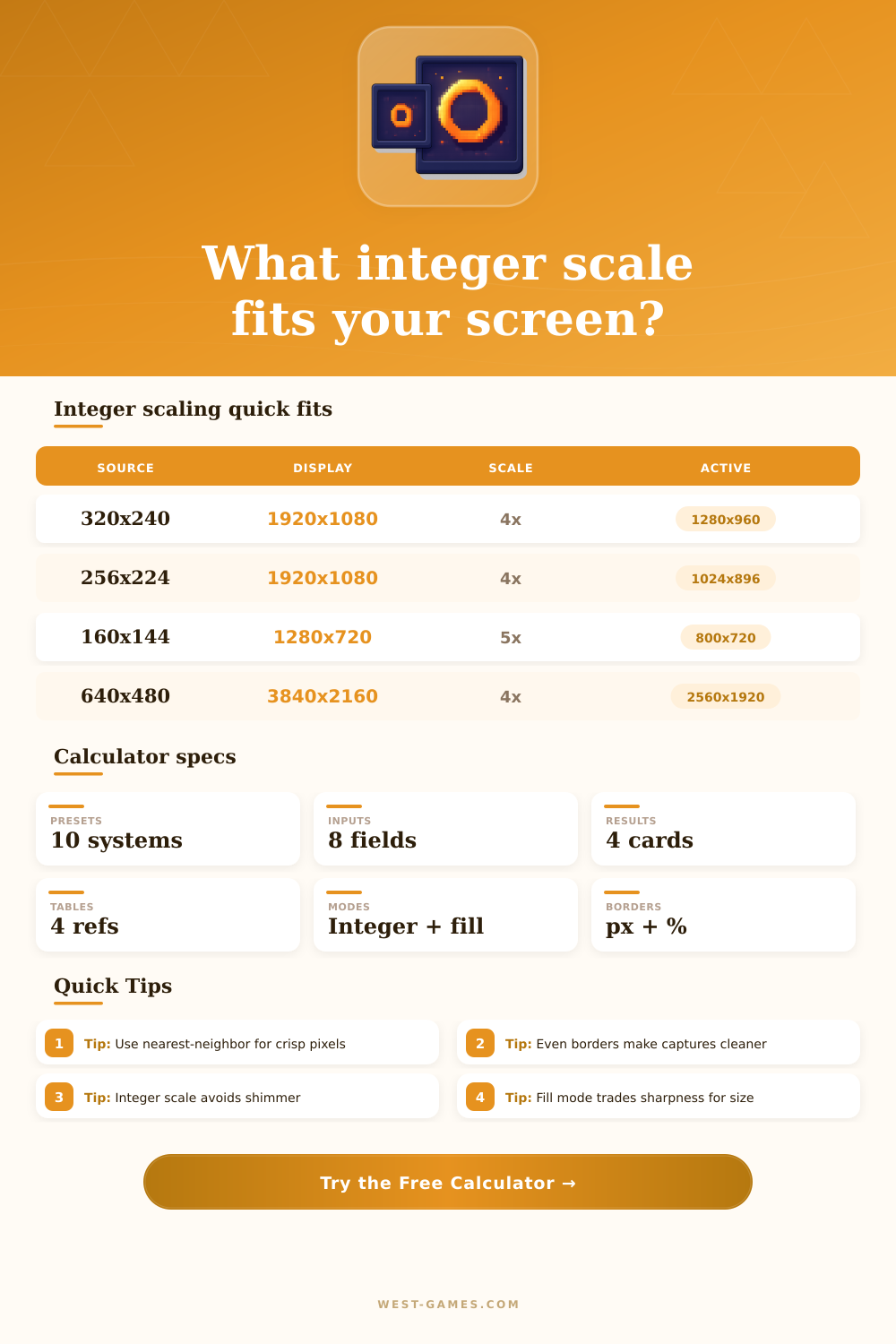
| NES / SNES common | 256x224 | 4x | 1024x896 |
| Genesis common | 320x224 | 4x | 1280x896 |
| Arcade / DOS VGA | 320x240 | 4x | 1280x960 |
| PlayStation low-res | 320x240 | 4x | 1280x960 |
| Game Boy Advance | 240x160 | 6x | 1440x960 |
| Device | Display | Good source | Fit |
|---|---|---|---|
| Game Boy style 720p | 1280x720 | 160x144 | 5x, 800x720 |
| Miyoo Mini Plus | 640x480 | 160x144 | 3x, 480x432 |
| Analogue Pocket | 1600x1440 | 160x144 | 10x, 1600x1440 |
| Steam Deck | 1280x800 | 320x240 | 3x, 960x720 |
| Switch handheld | 1280x720 | 256x224 | 3x, 768x672 |
| Source | Max scale | Active size | Borders each side |
|---|---|---|---|
| 256x224 | 9x | 2304x2016 | 768 px / 72 px |
| 320x240 | 9x | 2880x2160 | 480 px / 0 px |
| 640x480 | 4x | 2560x1920 | 640 px / 120 px |
| 854x480 | 4x | 3416x1920 | 212 px / 120 px |
| 1280x720 | 3x | 3840x2160 | 0 px / 0 px |
| Mode | Pixel clarity | Screen use | Best for |
|---|---|---|---|
| Integer + nearest | Excellent | May have borders | Pixel art, emulation, FPGA |
| Integer + shader | Excellent base | May have borders | CRT masks, LCD grids |
| Fill preserve aspect | Mixed | Large image | Casual play on TVs |
| Full stretch | Mixed | Full display | When aspect distortion is acceptable |
| Manual integer | Excellent if it fits | User chosen | OBS scenes and overlays |
| Use case | Source | Canvas | Integer plan | Why it works |
|---|---|---|---|---|
| 1080p retro stream | 320x240 | 1920x1080 | 4x centered | Leaves room for overlays without fractional blur. |
| GBA capture | 240x160 | 1920x1080 | 6x centered | Large sharp image with 240 px side borders. |
| Game Boy showcase | 160x144 | 1280x720 | 5x exact height | Uses full vertical panel with clean side borders. |
| 4K arcade cabinet | 320x240 | 3840x2160 | 9x exact height | Huge integer image with no top or bottom border. |
Here’s how it works: You want clean, retro action on your high-definition television. Instead, what you get is a blurry, soft mess. That’s because todays displays attempt to squeeze old pixel into places where they don’t naturaly fit. A game outputs three hundred and twenty by two hundred and forty; a display need one thousand nine hundred and twenty by one thousand and eighty. Left alone, a graphics card fill in the middle using fractional math, smearing every edge. You’re left with watercolors when you wanted sharp squares. It’s as if someone spilled some ink on a photo.
The solution is integer scaling. With this approach, every pixel in the source image get multiplied by an integer. Each block of old pixels ends up as a bigger, perfectly square grid of new ones. 2 times 2 equals 4; 4 times 4 equals 8; all nice and clean with no softness around edges.
How to Keep Retro Games Sharp and Clear
The math is straightforward division… Except that screens never divide exactly into old console resolution. And thus we arrive at the price of purity: borders. They’re those black bars at the top and bottom (or on the sides) when a retro game resolution doesn’t divide evenly into your screen’s dimensions. Some people find them distracting, but without them you get the shimmering artifacts that plague fractional scaling.
As soon as you input your display size and your native game resolution into this calculator above, it do all the work for you. That includes finding the largest whole-number multiplier that won’t stretch your game into an oval image larger than your panel. It also ensures the image stay entirely within your panel. You input your source width and height; i.e., the raw output of whatever’s feeding your game image into your setup, be it an FPGA console or an emulator. And then you specify the destination, whether it’s an OBS canvas for streaming purposes, a handheld monitor, or even just your big ole livig room TV. It also factors in safe zones, allowing you to set aside some pixels on each edge in case your emulator adds overlays onto the UI.
Pixel art is aligned with a grid, and borders matter. You can’t scale by three point five times without some pixel falling halfway between hardware sub-pixels, which means the screen has to guess at what color to show them. The result is noise; something integer scaling eliminate completely. It leaves us forced to choose between losing clarity or living with the black bars. Enthusiasts usually chose the latter because it’s an honest representation of the games aspect ratio. Stretching the picture to fit all four corners distorts the perspective, making the characters appear wider then they should. That kind of distortion shatters your sense of immersion in a way that no static border ever will.
Take also the pre-sets offered by typical systems: on a normal Full HD display, a game like a Nintendo Entertainment System at its native two hundred and fifty-six by two hundred and twenty-four pixels is scaled to fit a four time scale. The resulting image size is then one thousand twenty-four by eight hundred and ninety-six, with some padding on the sides. When the same game is scaled up to nine times on a wider Four K panel, the image covers most of the vertical but still leaves ample room on the sides. In both cases, the resolution restrictions determines how the games will be presented: you can’t stretch a square peg into a rectangular hole without distorting it.
The last element to consider is the filters used. Here, nearest-neighbor interpolation is the default, which tells the graphics hardware to just grab the nearest source pixel instead of averaging its color; this keeps the desired blockiness. A few people apply some sort of CRT shaders after the fact for added scanline and curvature simulation, but it look best on a clean integer base. If you apply blur beforehand then the shader won’t be able to help out with all that detail.
The calculator lets you see what your active area will look like against the entire display canvas, and so helps you visualize the setup. And then there’s capturing the video itself. For streamers, that means getting their game to fit nicely in whatever resolution they’re broadcasting at. This is typically 3840 x 2160 or 1920 x 1080. Too big? You cut off parts of your UI. Too small? The whole stream starts to look tinier. Integer scaling is the solution to improve clarity. With the tool, you get the perfect-fit image calculated for you. It lets you know exactly how much space on the screen you have available for chat boxes, health bars, or overlays. It goes from guesswork to precise layout planning.
It’s all about honoring the original intent. Retro games were designed around the limitations of their time. Smartly scaling them today respects those limitations instead of hiding them behind the smoothing algorithms of moddern games. It doesn’t matter if you use big theater screens or small handhelds: you get clean lines and honest color. The calculator at the top helps you find a balance between resolution and nostalgia. It would of taken away the game’s soul, but it also won’t show the sharp pixels that make old memories look too perfect for today.