FSR Render Resolution Calculator
Convert output resolution and AMD FSR mode into internal render size, pixel load, sharpening guidance, FPS estimate, and image quality notes.
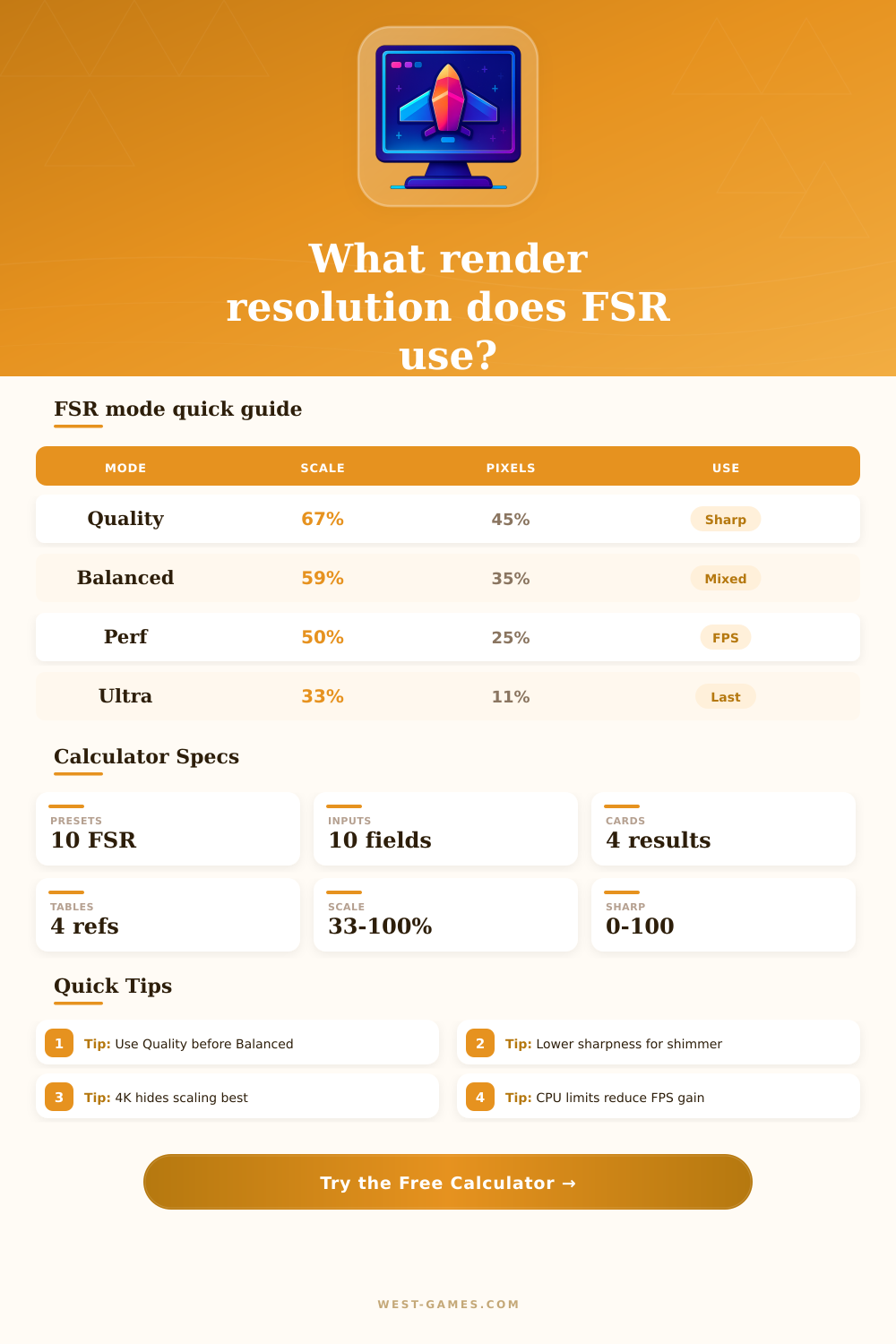
| Mode | Width scale | Pixel load | Best use |
|---|---|---|---|
| Native AA | 100% | 100% | Maximum clarity when FPS is already fine. |
| Quality | 67% | 45% | Best first step for 1440p and 4K gaming. |
| Balanced | 59% | 35% | Useful when Quality is close but not enough. |
| Performance | 50% | 25% | Large FPS gain, better at 4K than 1080p. |
| Ultra Performance | 33% | 11% | Last resort for very high output resolution. |
| Output | Quality | Balanced | Performance |
|---|---|---|---|
| 1920x1080 | 1286x724 | 1133x637 | 960x540 |
| 2560x1440 | 1715x965 | 1510x850 | 1280x720 |
| 3440x1440 | 2305x965 | 2030x850 | 1720x720 |
| 3840x2160 | 2573x1447 | 2266x1274 | 1920x1080 |
| 5120x1440 | 3430x965 | 3021x850 | 2560x720 |
| Sharpness | Look | Use with | Watch for |
|---|---|---|---|
| 0-25 | Soft | High-res output | Blurred foliage or UI textures. |
| 30-55 | Balanced | Quality mode | Usually the cleanest starting range. |
| 60-75 | Crisp | Balanced mode | Thin-line shimmer in motion. |
| 80-100 | Harsh | Small screens | Ringing, grain, and aliasing sparkle. |
| Target | Start mode | Drop to | Reason |
|---|---|---|---|
| 1080p monitor | Native or Quality | Balanced | Lower output has less detail to reconstruct. |
| 1440p monitor | Quality | Balanced | Good pixel base for temporal FSR. |
| 4K monitor | Quality | Performance | High output resolution hides scaling artifacts. |
| Handheld | Balanced | Performance | Small screens can mask moderate softness. |
| Ray tracing | Balanced | Performance | GPU-heavy effects benefit from fewer pixels. |
Best fine detail and lowest reconstruction risk, but the highest GPU pixel cost.
Distinct from DLSS because it is hardware-wide and not tied to tensor cores.
Good fallback when Quality is near target FPS but still a little short.
Big GPU relief, best reserved for 4K, ultrawide, handheld, or heavy effects.
When you turn up the graphics quality of a new title, you notice a framerate drop. Instead of sixty frames per second, it’s down to twenty-four. Do you want ray traced reflections? Do you want high res textures? Your graphics card can’t crank out all those pixels at full definition. That’s where upscaling tech like AMD FSR steps in.
It doesn’t add any more frame. It lowers the internal resolution and scales it back up to match your monitor. Depending on what mode you select, the calculator above estimate how far down the internal resolution will drop. And then there’s render scale. That’s the whole thing.
How to Find the Best FSR Settings for Your Game
In quality mode, GPU renders the scene at approximately sixty-seven percent of your display width and height. If that sounds like very little, it does, bear in mind that area scales exponentially. Reducing from full-screen to sixty-seven percent equates to a drop from processing about one hundred percent of pixels to just around forty-five percent. It reduces the load on the card. You can see what you’re trading for performance with the tool because it visualizes the reduced pixel load.
The second goes further in cutting back the work load: performance mode render the image at half scale (meaning the GPU has to do a quarter as many pixels). If the game is graphically intensive this can double your frame rates. A pretty big payoff.
Clarity is the compromise here. Drawing an image from that kind of low-resolution then scaling it back up causes a loss of sharpness and sometimes even artifacts. The reference chart spells out those scales. This shows you how much algorithm has to stretch to fill in detail instead of drawing it naturaly.
It’ll depend which settings you choose based off both your screen size and its resolution. If it’s a 4K display, there are plenty of pixels there to hide any imperfections in the final rendered grid. Performance or balanced mode may appear just fine. But if you’re running 1080p, those modes could render the image as muddy, with fewer pixel at the end of the road to soften the lines. It’s less about the settings then what context they’re being used in. The softness on a handheld at arms-length distance is acceptable; the same on a desktop monitor up-close isn’t.
Another key variable here is sharpening. Digital sharpness adds contrast back into edges and fine details, but too much will create shimmer, where thin lines or foliage appear to vibrate during motion. This results in ringing, those halos of color around high contrast items. Depending on how much sharpening you use, the calculator takes that into account for your overall quality score. Fifty five tends to be a good middle ground, recovering detail without adding noticeable noise.
In general, temporal versions of FSR are more forgiving for high scaling factors (such as Performance or Balanced) because they’re able to use information gleaned from prior frames to paint in details. So they perform slightly better with motion compared to older spatial methods. Now, if you’re playing fast-paced competitive games such as esport titles that demand clear detail at all times, sticking to Quality mode or even a bit closer to native would of been wise. But if you’re exploring vast worlds filled with ambient occlusion and ray-traced reflections instead of sharp textures, you might be able to get some struggling game running smoothly by pushing the scale farther down.
The math behind these estimates assumes a certain degree of GPU-bound performance. Decreasing your pixel count won’t have quite as large an impact if you’re CPU-bound, no matter what resolution, the processor simply can’t send geometry data quickly enough to the video card. Therefore, scene demand is included in the equation. Simple esports titles don’t require any upscaling at all, whereas aggressive upscaling has the largest impact on heavy ray-traced scenes.
So the sweet spot will be different for everyone, it’s a question of balance between fluid motion and visual fidelity. If you’re already able to get playable frames out of something, then you don’t often need to compromise on image quality. Conversely, you don’t want to suffer input lag just to have nice crisp edges either. Leave Quality mode starting at the conservative end and only move down if you must. It’s better to have a slightly softer looking picture that plays smoothly than a crisp one that’s stuttery. This is all about immersion in gameplay after all. That tends towards favoring a consistent frame rate over an absolutely perfect number of pixels.
Once you see how Render Scale affects your specific setup, you can adjust these settings using a target instead of guesswork.