🎯 CM per 360 Calculator
Calculate FPS mouse sensitivity from DPI, in-game sens, yaw coefficient, FOV scaling, ADS multiplier, target cm/360, eDPI, mousepad width, and same-distance game conversion.
Equivalent target game sensitivity appears here.
Same hipfire cm/360 using Valorant's yaw coefficient.
Source-engine style yaw used by CS2, Apex, and many legacy configs.
Same-distance conversion into Overwatch's lower per-unit yaw.
| Range | Feel | Common use | Mousepad note |
|---|---|---|---|
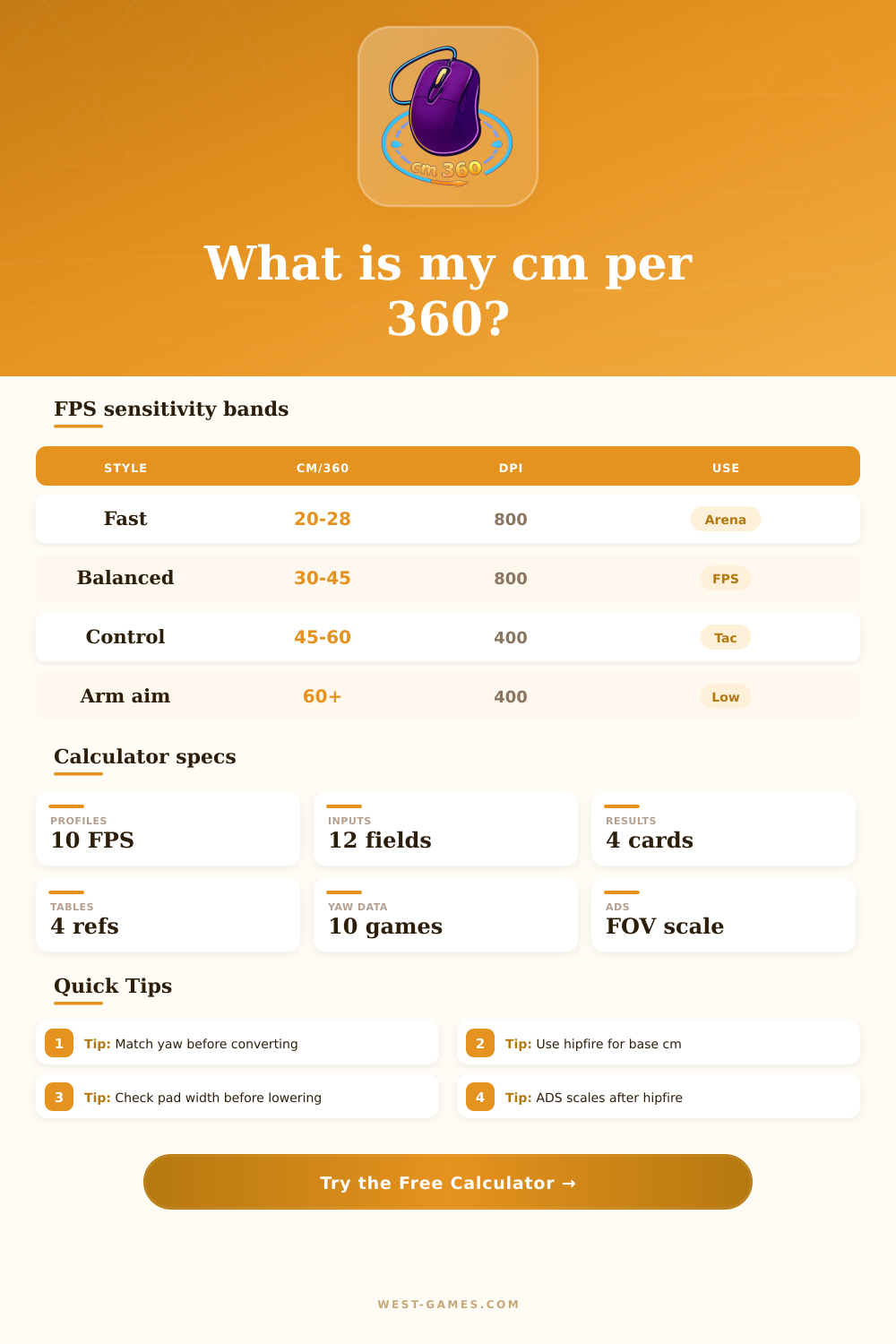
| 15-25 cm | Very fast | Arena shooters, close tracking, small desks | Easy turns, harder micro correction |
| 25-35 cm | Fast balanced | Battle royale, movement-heavy FPS | One 360 fits most medium pads |
| 35-50 cm | Control balanced | Valorant, CS2, Apex, Overwatch hitscan | Needs a wider pad for full resets |
| 50-70 cm | Low control | Tactical rifling, sniper-heavy roles | Large arm swipes required |
| 70+ cm | Very low | Specialized tac aim or raw aim training | Desk-sized pad recommended |
Ranges are practical aiming bands, not skill tiers. Comfort, desk space, and game pace matter as much as the number.
| Game profile | Yaw used | Input style | Conversion note |
|---|---|---|---|
| Counter-Strike 2 | 0.0220 | Decimal sensitivity | Classic Source-style m_yaw baseline |
| Valorant | 0.0700 | Decimal sensitivity | Lower menu numbers than Source games |
| Apex Legends | 0.0220 | Decimal sensitivity | Very close to Source conversion math |
| Overwatch 2 | 0.0066 | Menu number | Higher menu number for the same turn distance |
| Rainbow Six Siege | 0.0200 | Menu number | Advanced ADS sliders can change scoped feel |
| Fortnite | 0.005715 | Percent menu number | Enter 7.0 for seven percent style input |
Yaw values are practical conversion coefficients for this calculator. Always check unusual config files or custom sensitivity multipliers.
| Preset | DPI | Sensitivity | Approx role |
|---|---|---|---|
| CS2 Rifler | 400 | 2.00 | Tactical rifling around 41 cm/360 |
| Valorant Duelist | 800 | 0.35 | Control-heavy entry aim around 47 cm/360 |
| Apex Tracking | 800 | 1.20 | Tracking and armor-swap movement around 43 cm/360 |
| Overwatch Hitscan | 800 | 4.00 | Hitscan tracking around 43 cm/360 |
| Call of Duty Ranked | 800 | 5.50 | Faster centering around 31 cm/360 |
| PUBG Arm Aim | 400 | 40.00 | Percent-style scoped shooter baseline |
The presets are editable examples. Use them to load sane starting values, then replace them with your exact config.
| Metric | Formula | Main inputs | Why it matters |
|---|---|---|---|
| Hipfire cm/360 | 360 / (DPI x sens x yaw) x 2.54 | DPI, sensitivity, yaw | Base physical turn distance |
| eDPI | DPI x sensitivity | DPI, sensitivity | Good inside one game, weak across yaw changes |
| Target sensitivity | 360 x 2.54 / (DPI x target cm x yaw) | DPI, target cm, yaw | Solves the setting needed for a target |
| Game conversion | source sens x source yaw / target yaw | Two yaw values | Keeps the same cm/360 across games |
| ADS cm/360 | hip cm / ADS effective multiplier | ADS, FOV scale | Shows scoped turn distance after multipliers |
FOV scaling here uses a tangent-ratio model so the ADS multiplier can be blended between raw and FOV-matched behavior.
| Source | Example setting | Same cm in Valorant | Same cm in CS2 / Apex | Same cm in Overwatch |
|---|---|---|---|---|
| CS2 / Apex | 1.00 at yaw 0.022 | 0.314 | 1.000 | 3.333 |
| Valorant | 0.35 at yaw 0.070 | 0.350 | 1.114 | 3.712 |
| Overwatch | 4.00 at yaw 0.0066 | 0.377 | 1.200 | 4.000 |
| Rainbow Six | 8.00 at yaw 0.020 | 2.286 | 7.273 | 24.242 |
| Fortnite | 7.00 at yaw 0.005715 | 0.572 | 1.819 | 6.061 |
This grid demonstrates yaw-ratio conversion only. Games with special ADS systems, acceleration, scoped multipliers, or non-linear sliders may require extra in-game matching.
Ever played a fast paced arena game after spending time playing a tactical shooter? Your aim seem out of sync for a while. You land headshots one minute and wild swings the next.
Your mechanics probably aren’t at fault. Chances are it’s the math beneath your mouse movement. Players spends a lot of time tweaking their raw sensitivity numbers (DPI), not knowing that they’re meaningless by themselves. Two point zero feels fast in one engine and sluggish in another. You must know what you’re measuring.
Why Sensitivity Calculators Help Your Aim
With that input, the calculator does the work. No more guesswork about whether you’ll be twitchy or too slow if you convert. It’s all about centimeters per three hundred sixty degrees. That removes the need to figure out the different sensitivity multipliers used by each game. It takes you back to thinking about actual physical movement instead of some abstract value from a menu.
Because it lets you think about how far you have to move your mouse to complete a 360 degree rotation, you have something consistent with which to train your muscle memory. Now, it’s not a question of memorizing a number. It’s a question of remembering distance.
What is the secret ingredient that tricks everyone trying to translate settings from one game to another? Yaw coefficients. One degree in sensitivity doesn’t mean the same thing everywhere underneath the hood. Copying your Valorant sensitivity straight over to Counter-Strike won’t make it feel like the same thing at all; instead, your aim will be way off. It’s because the underlying math will scale input different than before.
But the tool automatically adjusts for those yaw differences across games. A turn will feel the exact same when processed by any game engine. And that is where people goes wrong. They think sensitivity is the same thing everywhere. It isn’t.
In this equation, however, physical limits matter just as much as digital ones, with mousepad space being a key constraint. Say you want 45 centimeters for turn distance but all your pad has is thirty. You’re at war with dead desk space and friction each time you have to reposition your aim mid-fight.
This is where the calculator comes into play: it displays how many complete turns will fit onto your usable pad width. Perhaps your dream sensitivity doesn’t even let you make those emergency flicks because you’ve run out of surface area before you can finish turning. Digital limitations aren’t the only thing that matters; physical limitations does too.
On top of all that, there is Aim Down Sights scaling. A lot of people think of hipfire sensitivity and scoped sensitivity as two distinct things, but they’re directly tied together via their relative fields of view. If the game matches your FOVs when you scope in, then your actual effective sensitivity will shift with you as well.
This is what causes that jarring feeling: you set your base sensitivity to “feel good”, yet when you look down the sight the aim seems like it’s heavy. With this you can model out these multipliers and literally see how far off your turn distance gets when looking down sights compared to hipfire. Small thing, but it makes a difference if you want to be precise.
When it comes to sensitivity, pros tend to settle on specific sensitivity bands because they are the best compromise between speed & control. High sensitivity give you the fastest reaction time at the cost of making any micro corrections difficult to make. Low sensitivity will let you be super precise with shots, but requires you to move your whole arm which can strain your shoulders after prolonged gaming.
Your sweet spot isn’t necessarily one exact value, but rather finding the best compromise between how you like to play and the pace of the game. If you’re in a slow paced tactical shooter where each shot matters, you may want lower than normal sensitivity. In faster games though, where you have to track people and adjust direction quickly, a little higher sensitivity tends to help more.
In addition to that, it comes with presets from actual competitors so you have a place to start based off of how they set up their rig. And again, they aren’t rules, but reference points. Load one of those up, adjust some of the variables and experience what little tweaks do to your total turn distance.
Tinker with those inputs and learn why some games seem light, while others seem heavy. This isn’t about reinventing how you aim every time something gets updated. It’s about creating a sensitivity profile that you bring with you from game to game to give you consistent muscle memory instead of chaos. Remove the doubt out of your reaction, that’s what getting your sensitivity “just right” means.
Your physical actions need to match up with the math. At some point, it’s no longer something you think about, it’s something you feel. It goes from a hindrance on the screen to an extension of your intent. It becomes not about the number, it becomes about how you react to the enemy. The calculator lays down the base; the rest is all you. Discover that magic distance where your eye and hand become one, then the rest follows.