🖱 Mouse DPI to CPI Calculator
Convert sensor CPI, driver DPI, Windows pointer speed, in-game sensitivity, cm/360, counts per inch, counts per cm, effective DPI, hardware steps, and rounding error.
| Term | Meaning | Calculator use | Watch out |
|---|---|---|---|
| CPI | Counts per inch | Sensor resolution | Correct technical term |
| DPI | Dots per inch | Driver label | Usually same number |
| eDPI | DPI times sens | Game comparison | Only within one game scale |
| cm/360 | Pad travel | Cross-game feel | Needs correct yaw |
| Counts/cm | CPI divided by 2.54 | Metric density | Before sensitivity |
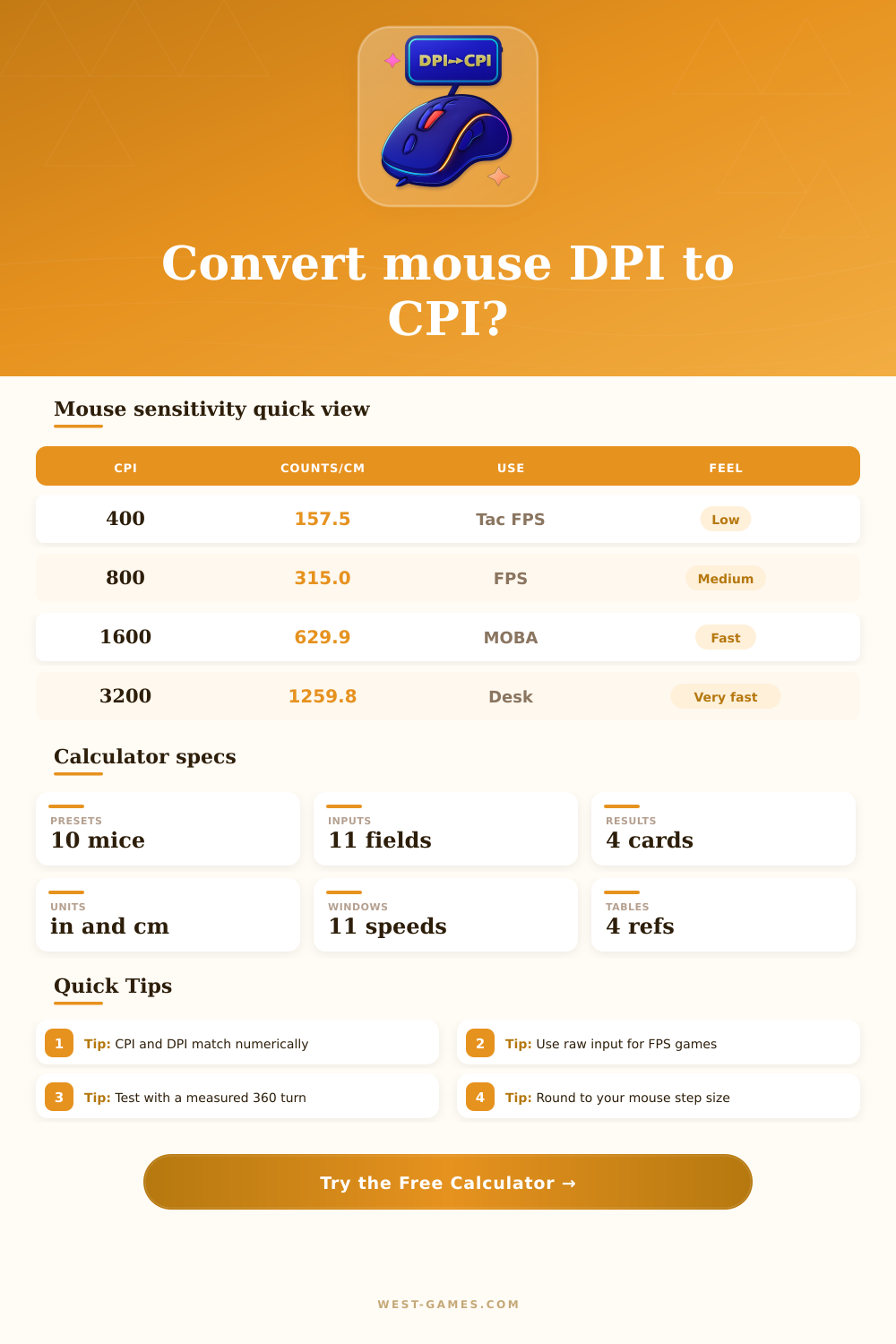
For mouse sensors, 800 CPI and 800 DPI are normally the same count density; the calculator keeps both labels visible because software uses both words.
| Notch | Multiplier | Cursor effect | Gaming note |
|---|---|---|---|
| 1 | 0.03125x | Very slow | Avoid for games |
| 3 | 0.25x | Slow | Desktop only |
| 5 | 0.75x | Slightly slow | Can distort feel |
| 6 | 1.00x | Native | Common baseline |
| 8 | 2.00x | Fast | Raw input ignores it |
| 11 | 3.50x | Very fast | Not ideal for aim |
The classic 6/11 setting is a 1.00x pointer multiplier. Enhanced pointer precision adds velocity-based acceleration, so it cannot be one fixed number.
| Reference | Yaw | Best use | Formula role |
|---|---|---|---|
| Source, CS2, Apex | 0.022 | Common FPS | deg/count at 1.0 |
| Quake style | 0.022 | Arena FPS | deg/count at 1.0 |
| VALORANT style | 0.07 | Tactical FPS | different scale |
| Overwatch style | 0.0066 | Hero FPS | smaller yaw scale |
| Fortnite estimate | 0.005555 | Build/shooter | percent-like input |
Yaw values are reference scalars. If your game exposes a different m_yaw, sensitivity scale, or scoped multiplier, enter the exact custom value.
| Conversion | Formula | Example | Use |
|---|---|---|---|
| Counts/cm | CPI / 2.54 | 800 = 315 | Metric pad data |
| Counts/in | CPI | 800 = 800 | Sensor density |
| cm/360 | 360 / deg/cm | depends | Aim feel |
| in/360 | cm/360 / 2.54 | 34.6 = 13.6 | Imperial pads |
| eDPI | DPI x sens | 800 x 1.5 | Same-game compare |
Use cm/360 for cross-game feel, and use eDPI only when comparing players inside the same game and the same yaw scale.
| Preset | Sensor family | Published max | Step model |
|---|---|---|---|
| Logitech G Pro X Superlight 2 | HERO 2 | 44000 DPI | 50 CPI step |
| Razer DeathAdder V3 Pro | Focus Pro 30K | 30000 DPI | 50 CPI step |
| Razer Viper V2 Pro | Focus Pro 30K | 30000 DPI | 50 CPI step |
| ZOWIE EC2-CW | PixArt 3370 class | 3200 DPI presets | fixed stages |
| SteelSeries Prime | TrueMove Pro | 18000 CPI | 100 CPI step |
| Glorious Model O 2 | BAMF 2.0 | 26000 DPI | 50 CPI step |
| Pulsar X2V2 | PAW3395 | 26000 DPI | 50 CPI step |
| Finalmouse Starlight-12 | Finalsensor | 20000 DPI | 400/800/1600/3200 stages |
| Logitech G305 | HERO 12K | 12000 DPI | 50 CPI step |
| VAXEE XE Wireless | PAW3395 class | 26000 DPI class | fixed stages |
Preset limits are for calculator planning. Firmware, driver versions, and fixed onboard stages can change the exact selectable values on a specific mouse.
Open your driver software and you’ll see DPI number on your screen. Other people will tell you that DPI is technicaly incorrect; the only thing that matter is CPI. They will then explain that CPI mean counts per inch. This measure how many times the sensor samples your position as you move the mouse an inch. In comparison, DPI stand for dots per inch. It’s a term borrowed from screens and printers.
In practice, gaming mice treats these two terms as interchangeable. Whether you refer to it as DPI or CPI doesn’t matter; the number that appear in your driver is exactly the same. Once you enter your prefered setting, the calculator do all the math for you. You do not have to chase ghosts in the terminology war anymore.
How Mouse Sensitivity Really Works
Once you get into the game engine or operating system, things start getting fricative. The operating system also has pointer speed option that will either divide or multiply your raw input. If most gamers does anything with their mice it’s turn off acceleration because it lets them develop muscle memory. But even without acceleration, unless you’re using the default sixth notch on an 11-notch Windows pointer multiplier, the OS will warp your sensitivity.
And that notch, where one inch of mouse movement equals one inch of screen motion, becomes your benchmark for how much sense your in-game sensitivity make compared to the raw number. If you go faster than that then you’re running raw input which is why that only applies to desktop navigation. Before you trust any number you see, you have to know what kind of mode your target application run in.
The point of all this is that gaming sensitivity isn’t simply a matter of DPI alone. There’s also a multiplier called a yaw coefficient that indicates how many degrees your view will rotate per sensor reading when your sensitivity are set to ‘one.’ Each franchise have its own scale. Another title use a 0.07 yaw value to make its sensitivity slider feel more granular.
That means an apparent DPI of 1200 in one title may feel wildly different than 1200 in another due to that scale difference. The page’s reference table explain it well, showing exactly what those internal scalars do to your actual rotation per millimeter of hand motion. If you’re trying to compare players from different titles without factoring in yaw, it’d be like comparing car speeds in kilometers per hour with miles per hour and not converting.
On the other hand, pure math fail to account for hardware limitations. Your mouse sensor doesn’t accept arbitrary numbers. You can only get whole number from it, and those numbers may increment in multiples of 50 or 100 (depending on the family of sensors). If your mouse has steps of 50 and you asked for 830 CPI, then your actual CPI is going to be 850. That doesn’t sound like much of a problem, except when you’re trying to precisely emulate the settings of a pro player.
The tool takes this rounding into consideration. It tells you how far off you were from what you thought you were getting and what you did get. When you update the firmware on your mouse or switch mice, this becomes significant. There’s no magic number that’s right for everyone, but instead of a one-size-fits-all setting it’s all about adjusting to what feels comfortabley for you.
One way people go about it is measuring the distance their mouse travels when spinning 360 degrees. If they like low sensitivity settings, that could be thirty-five centimeters or greater. For high sensitivity players, that can be as little as ten centimeters in a single flick. You plug in a desired cm/360 value into the calculator. It then calculates the multiplier needed to adjust for your current DPI, connecting abstract sensor counts to real world desk space.
In the end, it’s about consistency. It doesn’t matter whether you’re using desktop scaling or raw input; whatever relationship you create between what your hands do and how the screen rotates will become muscle memory. Tinkering with those settings should of broke that muscle memory after you’ve locked it in. When you dial in a setting, that establishes your baseline based off the pad size and how far away you hold your arms. Fight the temptation to tweak again when you miss a shot.
The numbers serves as a starting point. What matters is where you point.