🖥 LFC Multiplier Calculator
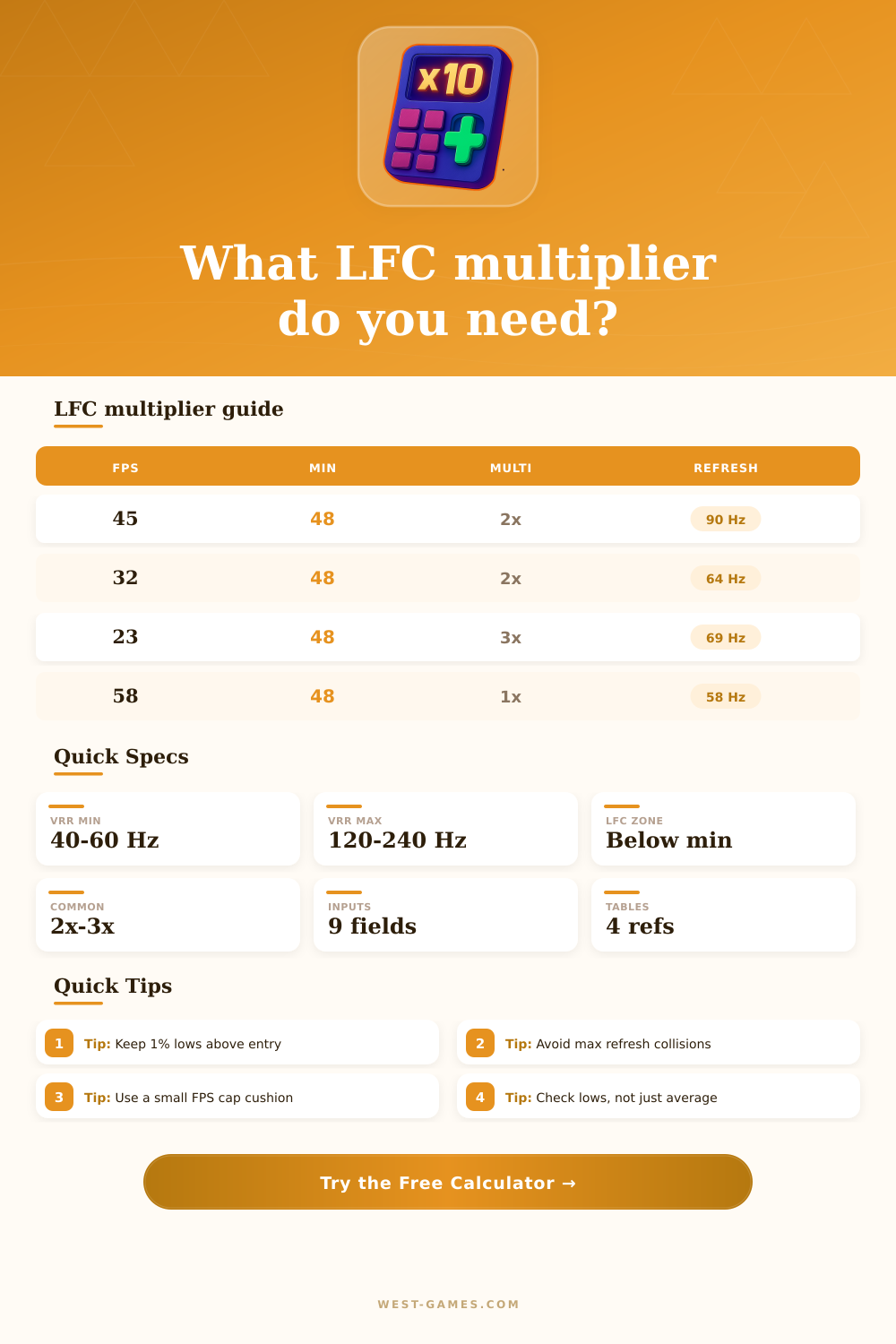
Model Low Framerate Compensation for a VRR display: min/max refresh, current FPS, needed multiplier, duplicate frames, effective refresh, thresholds, and stutter risk.
Below VRR minimum, so LFC is expected.
Low frames may need a stronger multiplier.
Estimated LFC entry and exit points.
Distance from effective refresh to max VRR.
| Preset | Typical VRR range | Refresh mode | Practical LFC note |
|---|---|---|---|
| Dell S2721DGF | 48-165 Hz | QHD 165 | Strong room for 2x and 3x LFC states. |
| LG 27GP850-B | 48-165 Hz | QHD 165 | Common FreeSync Premium style range. |
| Samsung Odyssey G7 | 60-240 Hz | QHD 240 | High ceiling makes duplicated low FPS easier to fit. |
| Alienware AW3423DWF | 48-165 Hz | Ultrawide OLED 165 | OLED response makes pacing changes easy to notice. |
| Gigabyte M27Q X | 48-240 Hz | QHD 240 | Wide range gives plenty of multiplier headroom. |
| ViewSonic XG2431 | 48-240 Hz | FHD 240 | Esports FPS dips can still stay inside VRR after LFC. |
| ASUS TUF VG27AQ | 48-165 Hz | QHD 165 | Typical 48 Hz floor with useful 165 Hz ceiling. |
| AOC 24G2 | 48-144 Hz | FHD 144 | 3x states can approach the top of the range. |
| LG C2 OLED | 40-120 Hz | 4K 120 TV | Console-style 40-60 FPS modes sit near the LFC edge. |
| MSI MAG274QRF-QD | 48-165 Hz | QHD 165 | Good example of a broad PC gaming VRR window. |
| VRR min | Game FPS | Needed multiplier | Effective refresh |
|---|---|---|---|
| 48 Hz | 47 FPS | 2x | 94 Hz |
| 48 Hz | 32 FPS | 2x | 64 Hz |
| 48 Hz | 23 FPS | 3x | 69 Hz |
| 60 Hz | 55 FPS | 2x | 110 Hz |
| 40 Hz | 39 FPS | 2x | 78 Hz |
| VRR floor | Hysteresis | Entry estimate | Exit estimate |
|---|---|---|---|
| 40 Hz | 4% | 38.4 FPS | 41.6 FPS |
| 48 Hz | 4% | 46.1 FPS | 49.9 FPS |
| 60 Hz | 4% | 57.6 FPS | 62.4 FPS |
| 48 Hz | 8% | 44.2 FPS | 51.8 FPS |
| 55 Hz | 5% | 52.3 FPS | 57.8 FPS |
| Mode | Typical floor | Risk pattern | Calculator use |
|---|---|---|---|
| FreeSync | 40-60 Hz | Floor crossing | Use monitor min and max from driver. |
| FreeSync Premium | Varies | Better LFC support | Expect more reliable duplication. |
| G-SYNC Compatible | Often 48 Hz | Range validation | Use the active compatible range. |
| HDMI VRR | Often 40 Hz | Console boundary | Check 40, 60, and 120 FPS modes. |
| Native G-SYNC | Very broad | Less classic LFC | Use this tool as an equivalent refresh model. |
| Signal | Low risk | Medium risk | High risk |
|---|---|---|---|
| 1% low FPS | Above exit | Near entry | Far below floor |
| Effective Hz | Middle range | Near ceiling | Outside max |
| Variance | 0-8% | 8-18% | 18%+ |
| Multiplier | 1x-2x | 3x | 4x+ |
| Cap cushion | 3 Hz+ | 1-3 Hz | 0-1 Hz |
A high-refresh-rate monitor? That’s for smooth game play. You tweaked your graphics settings for hours trying to eke out every additional frame. Load up an open-world game and wander into a crowded section of the city. Your frame rate plummets beneath adaptive sync floor. The screen stutters, immersion is broken.
Low Framerate Compensation enters the picture. Depending on your knowledge of the underlying math, it’s going to be either your new nemesis or your salvation. Essentially, Low Framerate Compensation are a form of frame duplication. Since your monitor can only draws at certain refresh rates, if your GPU isn’t providing enough frames, it draw those same frames again. That way, your monitor stays in its sweet spot (within range). And it won’t drop down to classic V-Sync tearing; nor totally disable variable refresh.
How Low Framerate Compensation Works
Now, how do you use this knowledge? How does it help you dial in your rig? For starters, you should of be able to identify what multiplier your driver is using. Then, take the result and see if it’s still smooth. To figure out the math, we have a calculator for that.
“Typically, most moddern monitors are somewhere in that forty to sixty hertz range for their floor. And if you’re running a game with thirty frames per second on a floor of forty eight, there’s no way that it can just run at thirty hertz. Because it’s out of range. What probably happens is, because it needs something that’s well within its standard operating window, the driver kicks into a two-times multiplier.” Your thirty frames gets duplicated. Every single rendered image gets duplicated, becoming sixty effective refreshes. It is a solid sixty hertz which is well within the standard operating window. The screen is still responsive.
The trick is mostly knowing what you’re measuring when you do that. But that’s where it starts to get tricky: Frame pacing variance. Video games don’t render at exactly consistent rates. Background processes, a spike on the CPU here or there, it all mean some frames will take slightly longer to render than others.
And what if your game is currently performing poorly in the twenties while running a three-times multiplier? Any variance on those underlying frames will be multiplied three times over. You start noticing that tiny bit of lag between a couple frame as stutter. To account for that, the calculator allows you to plug in both your low frame rate (one percent) and a variance estimate (as a percentage). It won’t give you an ideal, but a realistic risk score.
The average frame rate is what most people key in on for their settings. That’s not ideal. What you want to know is your one percent low. That will be the lowest multiplier your system go into. If it drops way down from that number (below the VRR min), then that could trigger the driver into going all the way up to a five- or four-times multiplier. Those high multipliers can lead to noticeable latency issues as well as visual jankiness, even though things appear smooth during that time.
That chart on the page explain it nicely. It depicts the impact of changing the entry threshold with varying levels of lag. That’s where the “buffer” (or hysteresis), comes in, because if your framerate flirts with that lower bound, it prevents the driver from toggling LFC on and off rapidly. Without a buffer, your framerate will hover near that lower bound. When you briefly dip into it, you’d get a lot of flickering between duplicated frames and normal VRR. That buffer gives you a little wiggle room so it only commits when your performance obviousy crosses over the exit limit.
If you’re constantly getting caught in high-multiplier hell, just lower your resolution scale. You could also reduce any heavy post-processing effects or maybe cap your frame rate just under a clean multiplier threshold to help stabilize things. Letting the frame rate bounce between 45 and 50 might cause the driver to duplicate frames unnecessarily, but sticking with forty-seven will prevent this. It’s all about finding that sweet spot of high visual smoothness with minimal input lag.
Low Framerate Compensation is a compromise intended to make the experience usable during performance dips. And there is a reason for it. For a smooth feeling, you’re making a tradeoff against perfect unique frames. With an idea of your game’s likely performance profile and your monitor’s known VRR range, you can expect when that compensation will kick-in. Then you can monitor stutter risk and effective refresh rate indicators. You can then decide if you want to accept the duplication as part of the experience or tweak settings until the next dip. It’s not about getting maximum numbers at all times but rather maintaining fluidity throughout.