🖥 DisplayPort Bandwidth Calculator
Check whether a DisplayPort link has enough usable bandwidth for your resolution, refresh rate, bits per color, chroma format, DSC compression, blanking overhead, and lane count.
-
-
-
-
| Link mode | Raw per lane | 4-lane usable | Transport coding |
|---|---|---|---|
| RBR | 1.62 Gbps | 5.18 Gbps | 8b/10b, DP 1.0 baseline. |
| HBR | 2.70 Gbps | 8.64 Gbps | 8b/10b, early high-bit-rate mode. |
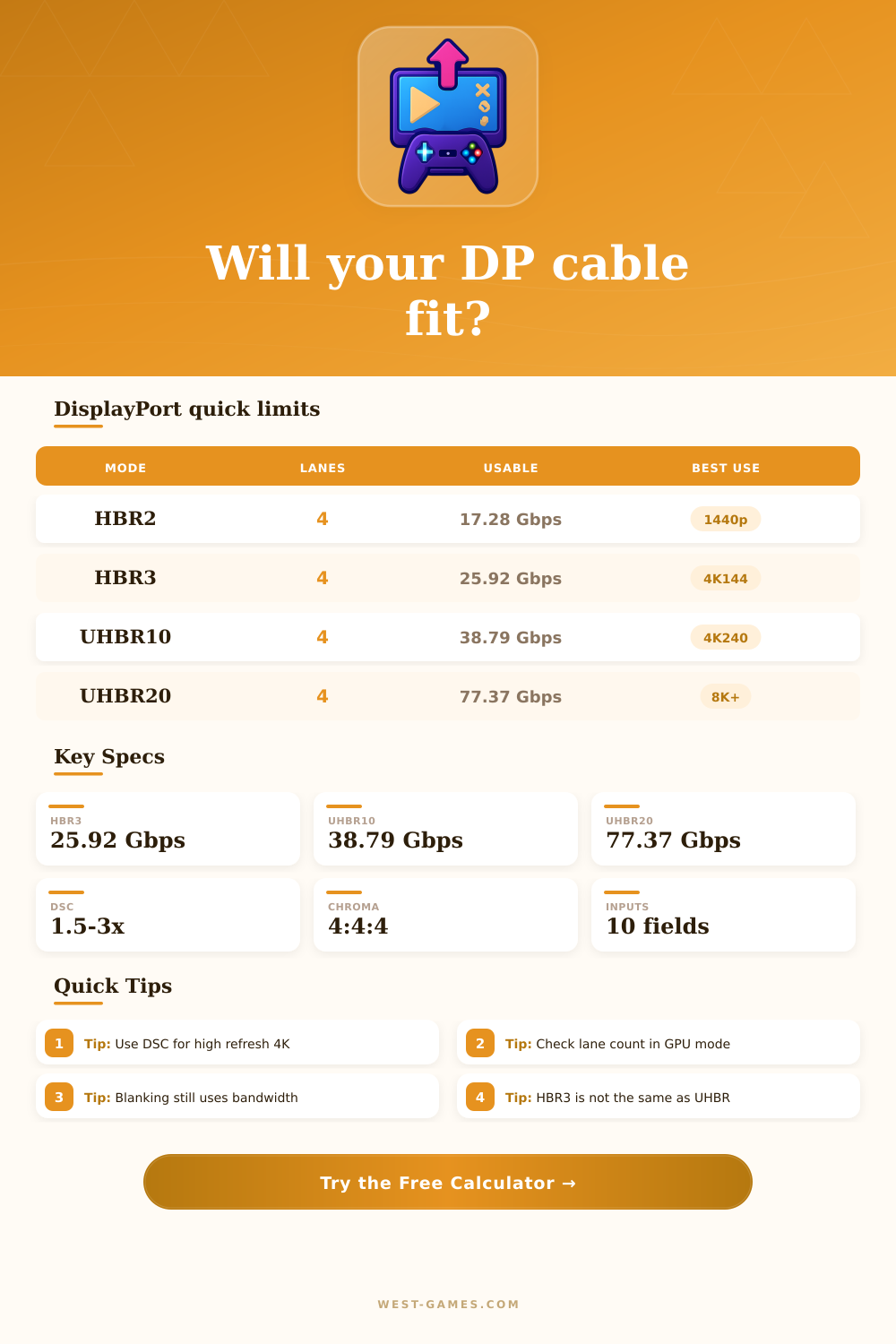
| HBR2 | 5.40 Gbps | 17.28 Gbps | 8b/10b, common DP 1.2 gaming link. |
| HBR3 | 8.10 Gbps | 25.92 Gbps | 8b/10b, common DP 1.4 high-refresh link. |
| UHBR10 | 10.00 Gbps | 38.79 Gbps | 128b/132b, DP 2.x link mode. |
| UHBR13.5 | 13.50 Gbps | 52.22 Gbps | 128b/132b, higher DP 2.x mode. |
| UHBR20 | 20.00 Gbps | 77.37 Gbps | 128b/132b, top DP 2.x mode. |
| Mode | Color | Approx raw | Typical fit |
|---|---|---|---|
| 1080p 240 Hz | 8 bpc 4:4:4 | 12.4 Gbps | HBR2 4-lane with reduced blanking. |
| 1440p 240 Hz | 8 bpc 4:4:4 | 22.1 Gbps | HBR3 4-lane without DSC. |
| 1440p 360 Hz | 10 bpc 4:4:4 | 41.4 Gbps | HBR3 with DSC or UHBR10. |
| 4K 144 Hz | 10 bpc 4:4:4 | 37.3 Gbps | HBR3 needs DSC; UHBR10 can fit. |
| 4K 240 Hz | 10 bpc 4:4:4 | 62.1 Gbps | Usually HBR3 with DSC 3:1. |
| 8K 60 Hz | 10 bpc 4:4:4 | 62.1 Gbps | UHBR20 or DSC on lower links. |
| Setting | Bits model | Bandwidth effect | Practical note |
|---|---|---|---|
| RGB / 4:4:4 | 3 samples per pixel | Full payload | Best for desktop text and PC gaming. |
| YCbCr 4:2:2 | 2 samples per pixel | About 67% of 4:4:4 | Can soften colored text edges. |
| YCbCr 4:2:0 | 1.5 samples per pixel | About 50% of 4:4:4 | Mostly for video or fallback modes. |
| DSC 1.5:1 | Payload / 1.5 | Moderate compression | Useful when only slightly over limit. |
| DSC 2:1 | Payload / 2 | High compression | Common for high-resolution productivity modes. |
| DSC 3:1 | Payload / 3 | Very high compression | Common for 4K 240 and dual-UHD gaming. |
| Timing type | Overhead | Use case | Calculator effect |
|---|---|---|---|
| CVT-RB2 | 2% | Modern reduced blanking. | Lowest practical overhead preset. |
| CVT-RB | 4% | Common PC monitor estimate. | Good default for gaming monitors. |
| CTA / TV timing | 8% | TV-style or HDMI-like modes. | Creates a more conservative payload. |
| Legacy timing | 15% | Older timings or conservative testing. | Can flip close links from pass to fail. |
| Custom | 0-30% | Known timing from CRU or EDID. | Use when you know exact porch/blanking data. |
| Preset | Resolution | Refresh | Link choice | Why it is useful |
|---|---|---|---|---|
| ZOWIE 1080p 240 | 1920 × 1080 | 240 Hz | HBR2, 4 lanes | Classic competitive setup that fits without DSC. |
| ROG 1440p 240 | 2560 × 1440 | 240 Hz | HBR3, 4 lanes | Shows the edge of uncompressed 1440p high refresh. |
| Alienware 1440p 360 | 2560 × 1440 | 360 Hz | HBR3, DSC | Needs compression for 10 bpc high refresh. |
| LG 4K 144 | 3840 × 2160 | 144 Hz | HBR3, DSC | Common 4K HDR gaming monitor behavior. |
| Odyssey Neo G8 | 3840 × 2160 | 240 Hz | HBR3, DSC | Uses DSC to make 4K 240 practical on DP 1.4. |
| AW3423 Ultrawide | 3440 × 1440 | 165 Hz | HBR3, 4 lanes | Fits near the HBR3 limit with reduced blanking. |
| OLED G9 | 5120 × 1440 | 240 Hz | HBR3, DSC | Wide gaming mode that depends on DSC. |
| Dell 5K2K 120 | 5120 × 2160 | 120 Hz | UHBR10, DSC | Productivity ultrawide with high color depth. |
| Neo G9 57 | 7680 × 2160 | 240 Hz | UHBR13.5, DSC | Dual-UHD mode with heavy payload pressure. |
| 8K 60 Reference | 7680 × 4320 | 60 Hz | UHBR20 or DSC | Good stress test for UHBR and compression math. |
You purchase a new monitor claiming to deliver smooth motion at high resolutions. But when you plug it in all you see is black. You try to use every available input source without success. And then it dawns on you: You’re using a DP 1.4 cable rather than a DP 2.1. Or you’ve plugged into a laptop port which only carries two lanes, whereas your GPU expects four.
Rarely is the issue with hardware. It’s almost always a matter of math. It is specifically bandwidth math, the kind required to get those pixels onto the screen. So here is how the math works and why it matters.
Understanding DisplayPort Bandwidth Math
And that’s where link rate comes into play. Because DisplayPort doesn’t operate at just one speed; instead, it leaps in step increments based off its version number. Eight-to-ten encoding was an older standard that wastes some 20-percent of the signal on overhead ensuring data gets there intact. Ultra-high-bitrate modes are newer. They ditch all that unnecesary coding for a leaner 12b/13b arrangement that frees up plenty of capacity while keeping actual clock speed the same.
The math factors all this in for you automatically, but do bear in mind that you’ll first have to be aware of what version your device runs prior to thinking about bumping things up. The other physical limitation is lane count. Four lanes of data pass through a full-size DisplayPort connector, while USB-C adapters commonly shares bandwidth for power delivery and data transfer, which makes it difficult to sustain all four.
When your laptop falls back on just two lanes, the total throughput is cut in half immediately; there’s no “just enough” here, the signal goes in whole or nothing at all. Many gamers think they’re running at full speed, but a lot of them is being throttled by an intermediary dock that quietly degrades connection without letting you know.
Where the hardware doesn’t do enough, there are also software workarounds like depth and chroma subsampling. For example, if you have ten bits of color per channel (rather than just eight), then you can get really nice gradients for all those HDR images. But now that’s a 25% larger data payload.
The answer: move from ten-bit color down to four-to-two-to-two or even to four-to-two-zero chroma formats, which throws out some of that color data that we humans aren’t as picky about seeing, anyway. Less information makes things look a bit softer on your computer screen, but it does save bandwidth, a good trade for movies, maybe not for spreadsheets.
Enter Display Stream Compression, which helps you optimize your bandwidth usage. By compressing the video stream on-the-fly without sacrificing any visual quality, DSC lets you fit more information over the same link. With the right setup, it can stuff forty-kilopixel ultrawide gaming modes onto older DP 1.4 links that simply wouldn’t work. What is the cost? Latency.
But the good news is that moddern implementations keep the latency negligible. If you’re getting an error when you don’t have DSC turned on, but not when you do, turn it on: It doesn’t work for nothin’.
We all ignore the blanking overhead, that invisible tax on your bandwidth. Sure, only active pixels is being displayed on your monitor, but it’s still spending time waiting for signals to synchronize and then another few milliseconds before the next frame arrives. It may be less than five percent of your available bandwidth with modern reduced blanking standards, but in legacy timings we’re talking upwards of fifteen percent or more.
And when you’re pushing a connection to its very last breath, every millisecond of invisible data counts for a lot. That is the difference between a perfectly stable picture and a handshake failure so bad your picture begins to flicker.
This saves you from costly errors by letting you check a few variables against what you actualy have. There’s no need to memorize the rate tables of each link; all you need to know is that there are only a limited number of bits of bandwidth available, which get consumed by resolution, refresh, color depth, and timing overhead. Increasing any one of these factors mean reducing something else or breaking the link.
So the calculator does this arithmetic for you, it takes complicated engineering restrictions and translates them into a simple yes/no verdict: Is this dream set-up physically possible given my existing ports and cables? This isn’t about pursuing the biggest number on paper; it’s about aligning what you see with what’s really in your rig.
That can sometimes mean tolerating some chroma subsampling… and other times it will mean getting one cable upgraded so you can get all the performance out of that expensive GPU. It just feels right when you check those limits first and then purchase the gear. You should of checked those earlier.