🖥 Chroma Subsampling Bandwidth Calculator
Estimate RGB, 4:4:4, 4:2:2, and 4:2:0 bandwidth from resolution, refresh rate, bit depth, HDR, blanking, compression savings, and HDMI or DisplayPort link limits.
Current chroma choice after blanking and compression.
Full color detail for desktop text, UI edges, and creator review.
Common compromise for HDR video over limited HDMI bandwidth.
Efficient for video streams, but risky for small colored desktop text.
| Format | Samples per pixel | 10-bit bpp | Best use |
|---|---|---|---|
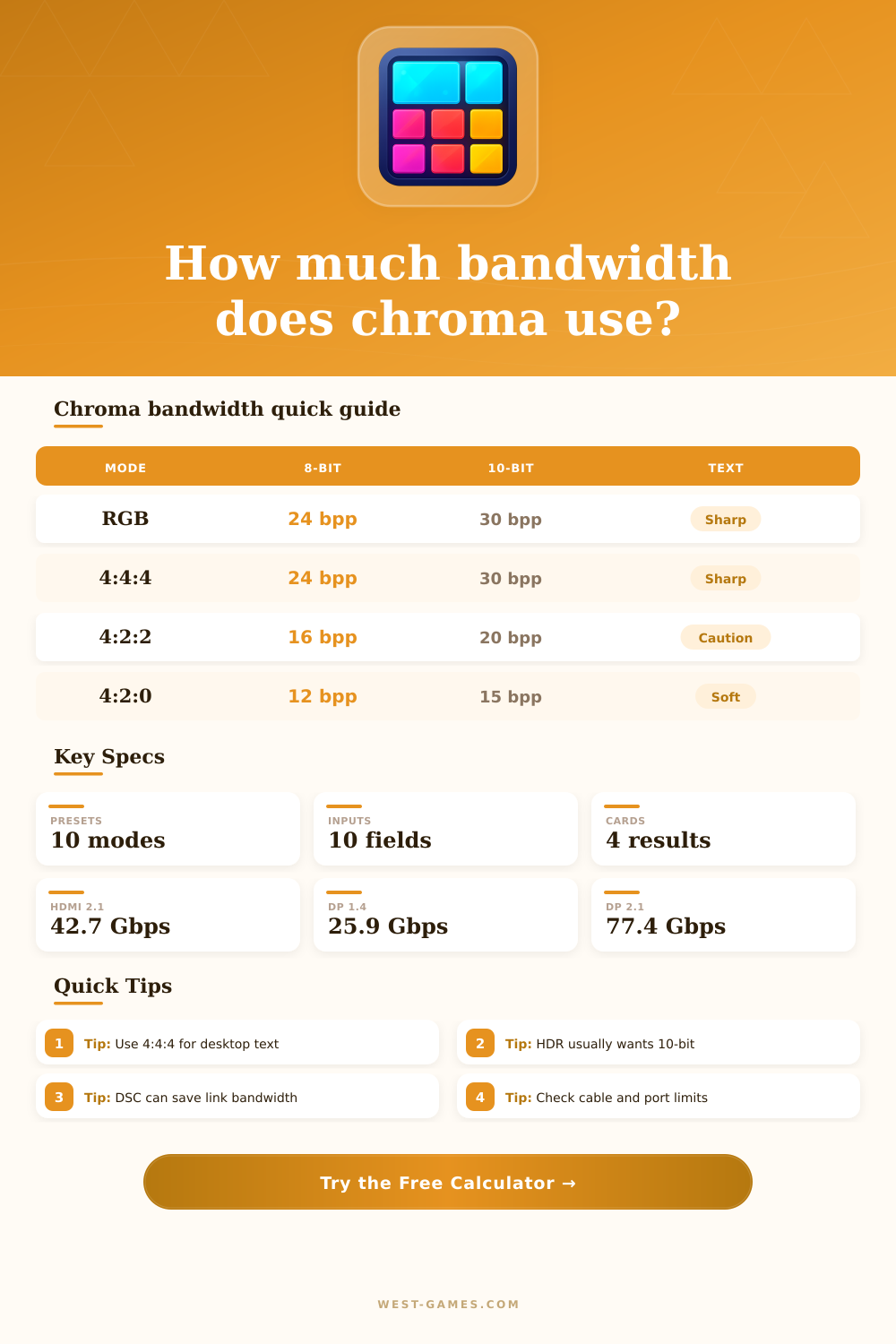
| RGB full range | 3.00 | 30 bpp | PC desktop, UI, creator review |
| YCbCr 4:4:4 | 3.00 | 30 bpp | Full chroma with video color encoding |
| YCbCr 4:2:2 | 2.00 | 20 bpp | HDR video when link bandwidth is tight |
| YCbCr 4:2:0 | 1.50 | 15 bpp | Movies, streaming, 8K transport fallback |
| Link | Raw label | Usable payload | Typical fit note |
|---|---|---|---|
| HDMI 1.4 | 10.2 Gbps | 8.16 Gbps | 1080p high refresh or 4K30 class |
| HDMI 2.0 | 18 Gbps | 14.40 Gbps | 4K60 often needs 8-bit 4:4:4 or 10-bit 4:2:2 |
| HDMI 2.1 FRL 48 | 48 Gbps | 42.67 Gbps | 4K120 HDR 4:4:4 class when ports support full rate |
| DP 1.4 HBR3 | 32.4 Gbps | 25.92 Gbps | Strong 1440p and 4K; DSC helps at high refresh |
| DP 2.1 UHBR10 | 40 Gbps | 38.69 Gbps | Large step above DP 1.4 without DSC |
| DP 2.1 UHBR20 | 80 Gbps | 77.37 Gbps | High-end 4K/8K and ultrawide modes |
| Scenario | Format | Bit depth | Reason |
|---|---|---|---|
| PC desktop monitor | RGB or 4:4:4 | 8-bit or 10-bit | Preserves colored text and UI edges |
| Console HDR on HDMI 2.0 | 4:2:2 | 10-bit | Fits HDR when full 4:4:4 is too heavy |
| Streaming video | 4:2:0 | 8-bit or 10-bit | Most video codecs store reduced chroma |
| Creator color check | RGB or 4:4:4 | 10-bit or 12-bit | Avoids chroma blur in review output |
| 8K transport fallback | 4:2:0 or DSC | 10-bit | Controls link load at huge pixel counts |
| Profile | Common depth | Bandwidth effect | Calculator note |
|---|---|---|---|
| SDR desktop | 8-bit | Baseline | Still use 4:4:4 for readable text |
| HDR10 gaming | 10-bit | 25% above 8-bit | Check whether the link still fits |
| HLG broadcast | 10-bit | 25% above 8-bit | Often paired with 4:2:0 or 4:2:2 video |
| Dolby Vision path | 10-bit or 12-bit | 25% to 50% above 8-bit | Device format may be tunneled or converted |
| Mastering output | 12-bit | 50% above 8-bit | Prefer full chroma unless link forces DSC |
| Preset | Resolution | Refresh | Chroma | Link target |
|---|---|---|---|---|
| 1080p 240 RGB | 1920 x 1080 | 240 Hz | RGB 8-bit | DP 1.4 or HDMI 2.0 class |
| 1440p 165 4:4:4 | 2560 x 1440 | 165 Hz | 4:4:4 10-bit | DP 1.4 HBR3 |
| 4K60 HDR 4:2:2 | 3840 x 2160 | 60 Hz | 4:2:2 10-bit | HDMI 2.0 |
| 4K120 Console HDR | 3840 x 2160 | 120 Hz | 4:2:0 10-bit | HDMI 2.1 FRL 40 |
| 4K144 PC DSC | 3840 x 2160 | 144 Hz | 4:4:4 10-bit | DP 1.4 with DSC |
| 8K60 HDR 4:2:0 | 7680 x 4320 | 60 Hz | 4:2:0 10-bit | HDMI 2.1 48 or DP 2.1 with DSC |
Interface support also depends on the GPU, console, cable, adapter, monitor firmware, and selected color range.
Now you buy a new 4K monitor. You see movies is sharp, but your desktop icons aren’t. Why? Chroma subsampling creates a tradeoff between display port and your graphics card. No, it’s not because you have bad eyes. No, it’s not because you used a bad cable. It’s because there is a limit to how much data a wire can carry.
As we move beyond resolutions with bandwidth limits, most people assume more pixels mean better image quality. However, higher refresh rates changes that calculation. As soon as you input your framerate and your resolution, the calculator do the math for you. You don’t need to multiply bits per pixel by pixels on screen yourself.
Why Your 4K Screen Looks Fuzzy
At high resolutions (1440p and beyond) there’s a big difference in bandwidth between 4:2:2 and 4:4:4. With 4:4:4, aka RGB, we’re carrying all the color samples of every single pixel on the screen. That’s important for desktop usage where sharp edges of text matter more then gradual changes in colors in the background like a gradient in the sky.
When you go down to 4:2:2, we lose half the color detail horizontally. If you then go down to 4:2:0, we lose color detail both vertically and horizontally. So that means blue of a browser tab or the red of a window border can be soft. But this also saves you some bandwidth.
This one gets confused by people who look at a TV and see 4:2:2 and assume that’s a lesser option for HDR. In fact, it’s a choice made to pack high dynamic range data into a constrained HDMI link. If you look at the table of reference then you’ll see the bit-per-pixel scaling of each format. More bits (a 10-bit signal) means more data than fewer bits (an 8-bit signal). That translates to smoother gradients and no more banding in dark shadows. But it also increases the payload by two times over regular dynamic range unless care is taken in managing your subsampling settings.
Then there’s HDR. Because of its increased bit depth, HDR makes things more complicated. You’ll want HDR10 or Dolby Vision for deeper colors. That means going up to 10- or 12-bit color. And that, in turn, ups the raw amount of data before it get compressed.
Enter Display Stream Compression. By doing so visually, it squeezes that data and effectively doubles the bandwidth available from an older interface such as DisplayPort 1.4. In other words, you can maintain full 4:4:4 color while also maintaining high refresh rates… No need to change out your actual ports in the near term.
The primary restriction is link limitations. The payload ceiling for HDMI 2.0 can’t hold 4K60 HDR at full 4:4:4 10-bit. You’re limited to dropping one of two things; you either reduce chroma resolution or bit depth. Pick your poison.
For gamers, it’s usually framerate over color fidelity. To get higher refresh rates, gamers will choose lower subsampling. Content creators that grade their footage want every pixel of color accuracy. So they use DisplayPort 2.1 UHBR for more headroom, or use DSC. It comes down to how you use the screen.
Do you spend eight hours a day reading and coding text? Keep it 4:4:4 or RBG. Maybe drop the refresh rate a bit. Even with less chroma, video can look great. But text will quickly become blurry. You may not notice the use of 4:2:2 or 4:2:0 for console gaming or movies, but we often don’t see it. They’re just necessary for the format to work.
That’s why this is more than just a tech solution; it shows you the visual and technical tradeoffs so you get something that works both ways. The thing with bandwidth planning is that it’s all about your eyes. It is all about what you want your visuals to look like. How fast do they need to update? How many colors do you need? How much detail do you need? You can’t have everything all at once, that would require next-gen ports and a very expensive cable. So the question is what variable can we bend?
As soon as you accept that the wire has limitations, the mystery of the fuzzy text unravels. There was no blur in the pixels. They simply ran out of room on the highway for the data.