🎯 Valorant FPS Benchmark Calculator
Estimate your expected FPS in Valorant based on your GPU, CPU, resolution, and in-game settings
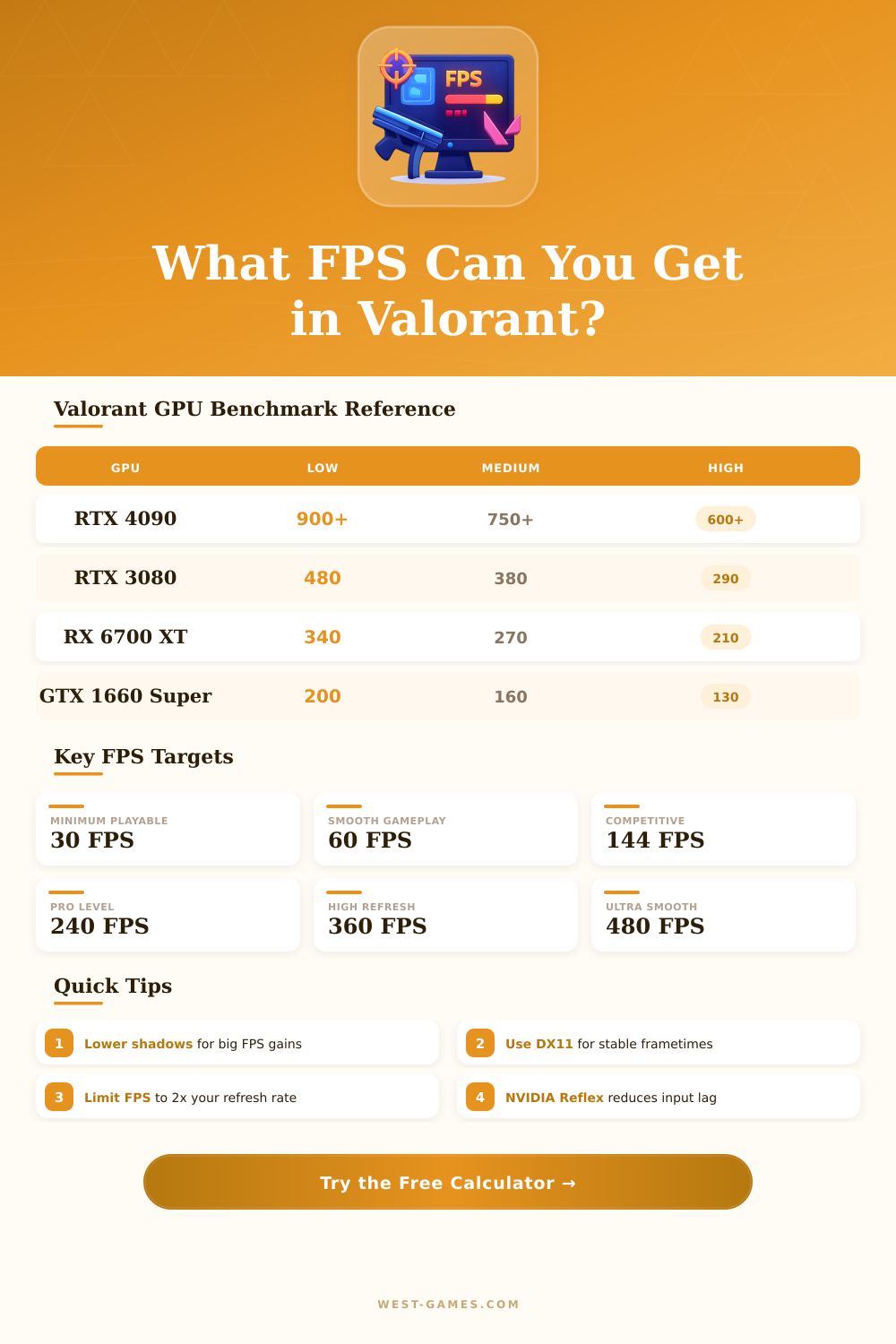
| GPU | Avg FPS (Low) | Avg FPS (Medium) | Avg FPS (High) | Tier |
|---|---|---|---|---|
| RTX 4090 | 900+ | 750+ | 600+ | Ultra |
| RTX 4080 | 700+ | 580+ | 480+ | Ultra |
| RTX 4070 Ti | 580 | 480 | 390 | Ultra |
| RTX 4070 | 490 | 400 | 320 | Pro |
| RTX 4060 Ti | 410 | 330 | 270 | Pro |
| RTX 4060 | 360 | 290 | 230 | Pro |
| RTX 3090 | 620 | 510 | 420 | Ultra |
| RTX 3080 | 480 | 380 | 290 | Pro |
| RTX 3070 | 390 | 310 | 240 | Pro |
| RTX 3060 Ti | 330 | 270 | 210 | Good |
| RTX 3060 | 280 | 230 | 180 | Good |
| GTX 1080 Ti | 300 | 240 | 190 | Good |
| GTX 1660 Super | 200 | 165 | 130 | Good |
| GTX 1060 6GB | 140 | 115 | 90 | Medium |
| GTX 1050 Ti | 95 | 78 | 62 | Low |
| RX 7900 XTX | 650 | 520 | 420 | Ultra |
| RX 6800 XT | 450 | 360 | 285 | Pro |
| RX 6700 XT | 340 | 275 | 215 | Good |
| RX 6600 XT | 290 | 235 | 185 | Good |
| RX 580 8GB | 130 | 105 | 82 | Medium |
| Intel Iris Xe | 55 | 40 | 28 | Low |
| AMD Vega 8 | 38 | 28 | 18 | Low |
| Component | 30 FPS (Min) | 60 FPS (Recommended) | High Performance (144+ FPS) |
|---|---|---|---|
| CPU | Intel Core 2 Duo E8400 | Intel i3-4150 / Ryzen 3 1200 | Intel i5-9600K / Ryzen 5 2600X |
| GPU | Intel HD 4000 / Radeon R5 200 | GeForce GT 730 / Radeon R7 240 | GeForce GTX 1050 Ti / Radeon R9 380 |
| RAM | 4 GB | 4 GB | 8 GB |
| VRAM | 1 GB | 1 GB | 4 GB |
| Storage | 10 GB HDD | 10 GB SSD | 10 GB SSD |
| DirectX | DirectX 11 | DirectX 11 | DirectX 11 |
| OS | Windows 7/8/10 64-bit | Windows 10 64-bit | Windows 10 64-bit |
| Resolution | FPS (Low) | FPS (Medium) | FPS (High) | FPS Drop vs 1080p |
|---|---|---|---|---|
| 1280x960 Stretched | 480+ | 390+ | 310+ | +23% vs 1080p |
| 1920x1080 (1080p) | 390 | 310 | 240 | Baseline |
| 2560x1440 (1440p) | 260 | 210 | 165 | –33% |
| 3840x2160 (4K) | 140 | 115 | 90 | –64% |
| Setting | Option | FPS Impact | Recommendation |
|---|---|---|---|
| Shadows | Off vs High | +15–25% | Turn Off for max FPS |
| Anti-Aliasing | None vs MSAA 4x | +10–18% | None for competitive |
| Anisotropic Filter | 2x vs 16x | +3–8% | 2x or 4x |
| Texture Quality | Low vs High | +5–12% | Medium for balance |
| Detail Quality | Low vs High | +4–10% | Low for max FPS |
| Material Quality | Low vs High | +3–7% | Low for max FPS |
| VSync | On vs Off | –50%+ | Always Off competitive |
| Max FPS Limit | Capped vs Unlimited | Varies | Cap at 2x refresh rate |
Valorant is a free tactical hero shooter, created by Riot Games and released in 2020. It takes ideas from the Counter-Strike series copying elements like the buy menu, map plans and less accuracy during run. In this game, teams of 5 against 5 must defend or plant the Spike in a format where every round has only one life, until 13 won rounds.
Riot Games also created League of Legends, and Valorant marked their first step in the world of FPS.
How to get more FPS in Valorant
In Valorant, the frames each second matter a lot. If you play with only 50 frames each second, you are at a clear disadvantage. Even passing the frames past the refresh rate of the monitor helps.
For instance, 100 frames each second on 60 Hz still give visible gains compared with simply 60 frames. Even so, drops in frames are common in this game. Porblems with frames came after some early update, especially during shooting or usage of skills.
Valorant strongly depends on the central processor. In lower visual settings, the graphics card works less, so the central processor must work harder. Cards of middle level, like GTX 1050, can reach maximum frames on low settings.
When frames do not change even when you lower the settings, probably the central processor is the limit. Switching too a 14th generation Intel i7 or AMD Ryzen with 3D cache is one of the most helpful ways to improve frames in Valorant, because those processors run well in this game.
Cooling matters more than many believe. Simply improving the cooling of the computer can raise frames from around 150-200 to even 400-600. During long play sessions, thermal throttling happens, which lowers the output over time if the cooling system is not good enough.
Closing background programs like Chrome, Discord or Skype also helps a lot before starting Valorant. A clean install of Windows with removal of unnecessary files and settings can free up more frames. Playing in lower resolution helps the central processor, because there are fewer pixels to process.
There is also a trick with the config file, in GameUserSettings.ini, lowering the value of resolution quality below 100 makes the image a bit blurry, but boosts frames quite a lot.
On Steam Deck with Windows, the default settings give around 60 to 70 frames each second. The minimum specs for 30 frames include Intel i3-370M and Intel HD 3000 graphics card. For 60 frames, they suggest 4 GB RAM and a 64-bit Windows system.
To check frames in the game, open Settings, go to Video, then to Stats and turn on the display of client frames. The sound of the mouse polling can also affect the output. Higher polls are tied to low frames during movement of the mouse.
Usage of a G-Sync monitor or controlling theselected elements helps for smooth play.