📺 Stream Bitrate Calculator
Estimate recommended video bitrate from resolution, FPS, encoder efficiency, motion complexity, bits per pixel, audio bitrate, network overhead, and upload headroom.
Lower bpp for limited upload or crowded home networks.
Balanced live quality after encoder and motion factors.
Cleaner text, UI, and archives when the platform allows it.
Maximum video bitrate entered for the destination platform.
| Output | 30 FPS | 60 FPS | Best use |
|---|---|---|---|
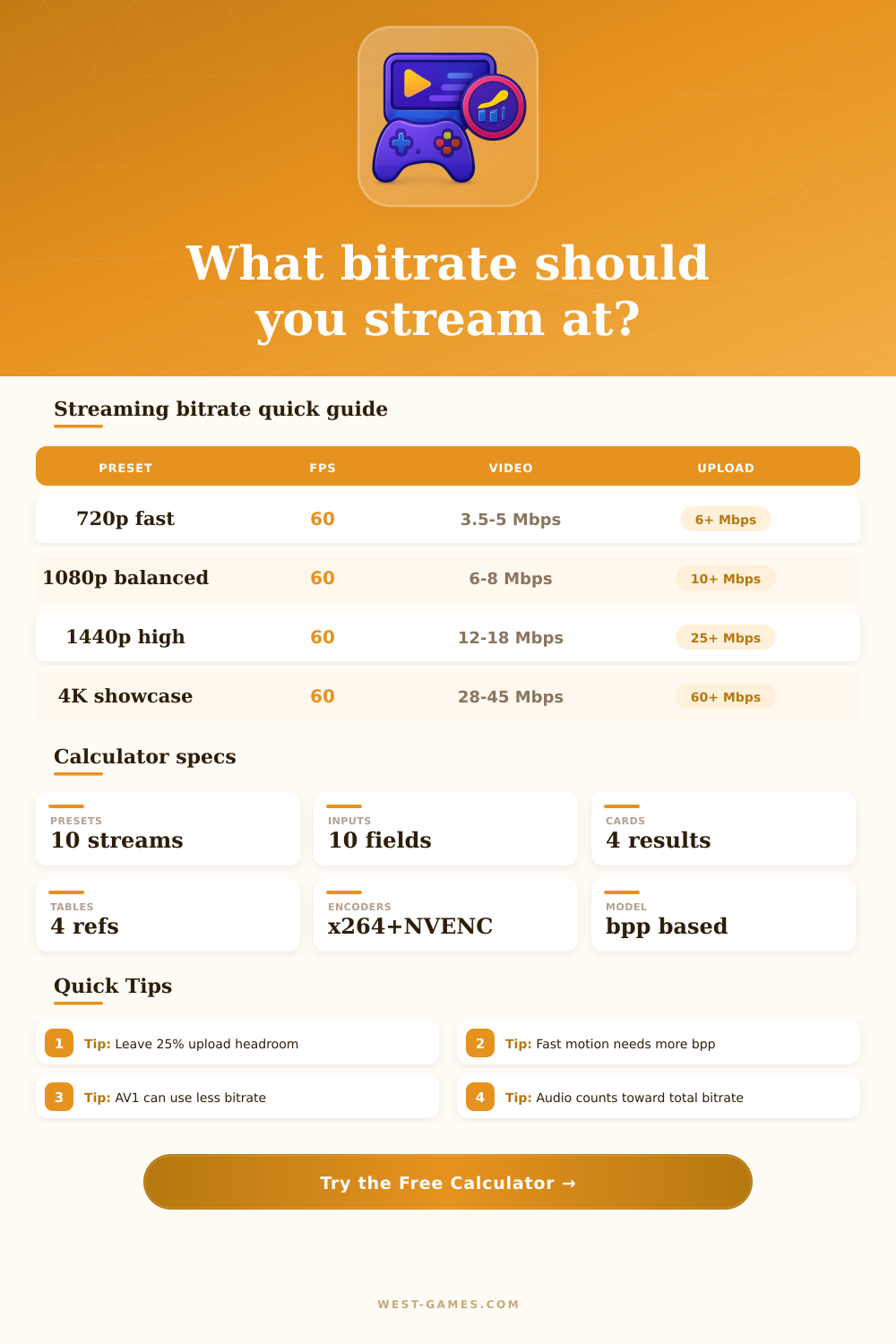
| 720p | 2.5-4 Mbps | 3.5-5.5 Mbps | Mobile, slower upload, chat-first streams |
| 900p / 936p | 4-5.5 Mbps | 5.5-7.5 Mbps | Twitch FPS streams with cleaner motion |
| 1080p | 4.5-7 Mbps | 6-9 Mbps | Mainstream gaming and desktop capture |
| 1440p | 8-12 Mbps | 12-20 Mbps | YouTube, AV1, high-detail games |
| 4K | 18-30 Mbps | 28-50 Mbps | Showcase streams and VOD-friendly output |
The calculator refines these ranges with bpp, encoder efficiency, motion, audio, overhead, and upload headroom.
| Encoder | Multiplier | Strength | Caution |
|---|---|---|---|
| x264 veryfast | 1.08x | Compatible everywhere | CPU load and more bitrate needed |
| x264 slow | 0.94x | Good compression per bit | Heavy CPU cost while gaming |
| NVENC H.264 | 1.00x | Reliable GPU stream path | Still capped by H.264 platform limits |
| HEVC | 0.75x | Better quality per Mbps | Not accepted by every live platform |
| AV1 | 0.62x | Best low-bitrate detail | Needs platform and hardware support |
Lower multipliers mean the encoder can reach similar quality with less video bitrate.
| BPP | Quality | Motion fit | When to use |
|---|---|---|---|
| 0.030-0.040 | Compact | Low to medium | Talk shows, static games, mobile viewers |
| 0.040-0.055 | Balanced | Medium | Most 1080p live gaming streams |
| 0.055-0.075 | Clean | High | FPS, racing, UI-heavy desktop capture |
| 0.075-0.100 | Archive-like | High to extreme | YouTube higher caps, 1440p and 4K sources |
| 0.100+ | Showcase | Extreme | Local recording or very high upload platforms |
BPP is a planning density: video Mbps = pixels x FPS x adjusted BPP / 1,000,000.
| Item | Typical value | Bitrate effect | Note |
|---|---|---|---|
| Voice-only audio | 96-128 kbps | Small | Fine for commentary and podcasts |
| Game + mic stereo | 160-192 kbps | Moderate | Common AAC live-stream setting |
| Music-heavy mix | 192-320 kbps | Higher | Useful when audio quality matters |
| RTMP overhead | 5-10% | Raises upload need | Also covers metadata and short bursts |
| Home upload reserve | 20-35% | Raises required line speed | Protects against game traffic and Wi-Fi spikes |
Audio is small compared with video, but it still counts against platform and upload limits.
| Destination style | Common video cap | Good resolution | Encoder preference | Calculator check |
|---|---|---|---|---|
| Twitch standard | 6-8 Mbps | 720p60, 936p60, 1080p60 | H.264 | Watch cap pressure and motion complexity |
| YouTube live | 12-51 Mbps | 1080p60, 1440p60, 4K60 | H.264, HEVC, AV1 | Use higher cap when source has lots of detail |
| Kick / RTMP style | 6-10 Mbps | 936p60 or 1080p60 | H.264 | Balance platform cap with upload load |
| Private SRT/RTMP | Custom | Any stable output | HEVC or AV1 when supported | Set platform cap to your ingest limit |
| Local recording preview | Custom high | 1440p, 4K, ultrawide | HEVC or AV1 | Raise quality target and cap for archive output |
Webhook row marker: index 968, gid 1450490472. Platform limits change, so keep the cap input editable when testing a specific ingest server.
You’re streaming, and then audio drops out of sync with your words, or the stream starts buffering as you continue to play. That’s bitrate management, you didn’t get it right. Bitrate isn’t a volume dial that you can crank up until it breaks; it’s a balance of how much bandwidth your stream needs versus how good it looks. Plug in your video settings (resolution, frame rate) along with your encoder options and let the calculator handle numbers for you. Skip the guesswork, and avoid dropped frames or pixelated messes.
But video is a dense data format. You have to compress each individual frame into manageable sizes, send it over net, un-compress it on another device, then play it back without any delay. Now, if you step up from 1080p to 1440p, sure, there’s more pixels. But now you’re also asking the encoder to describe all that detail in real time, multiple times.
How to Balance Your Stream Quality and Bandwidth
Static things like a talk show compress amazing well because the encoder doesn’t need to re-describe redundant frames. Strategy games where there isn’t much going on screen does, too. Fast-paced shooters generate chaotic data that refuses to compress easily. Particle effects, rapid camera pans creates crazy data that’s hard to compress. And if you don’t account for motion, you’ll always end up allocating too little bandwidth for what matters most.
This has quite a bit to do with the encoder you’re using. Hardware encoders like NVIDIA’s NVENC are convenient because they offload work from your computer’s CPU. However, old standards such as H.264 simply aren’t as efficient than newer ones. For example, if you have a device that supports HEVC or AV1, and your hardware does too, then you can get roughly the same level of visual quality while using far fewer bits. This helps the tool calculate those efficiency gains so you can view how many bits you can save by swapping over to different codec.
Having a speedy Internet connection isn’t everything: it’s about using the appropriate technology to extract more quality from each megabit. Streamers are also tripped up by network overhead. We all take our upload speed test and assume we have tons of bandwidth left over. However, RTMP protocols, audio streams, and occasional bursts of data adds an invisible weight to your connection. A healthy 25 percent buffer (or more) isn’t paranoia, it’s insurance in case something causes a Wi-Fi hiccup or a background download happens while you’re broadcasting. Those reference tables on the page makes it clear just how much leeway you’ll want to leave yourself as things get busy so that the stream stays rock-solid.
Setting the right interval between keyframes is less glamorous but also critical for a good viewing experience. For most platforms, that’s two seconds, so if a viewer needs to reconnect briefly during playback, or if they want to skip forward in a VOD, they don’t have to wait for the whole scene to refresh. Get it wrong and there’ll be annoying black screens or jumps when people are trying to scrub back. It might seem like a minor technical detail, but it shows you are professional.
You should of looked at this more closely. The trick to streaming isn’t getting the most… It’s giving the viewer the best they can get on your hardware. If you have a dialup internet connection, you can’t stream in crystal clear 4k video no matter how powerful your graphics card is. It’s not about having the biggest number; it’s about creating the smoothest viewing experience you can with what you’ve got. Learning how network conditions, motion, and resolution affect each other helps you learn to work with your gear instead of fighting it. The sweet spot of great streams lives between creative flow and technical perfection. You’ll recieve better results when you master this.