🎮 Emulator Speed Percentage Calculator
Measure emulator speed from target FPS, actual FPS, frame skip, audio sync drift, CPU and GPU load, fast-forward or slowdown mode, and session time.
Target for standard gameplay timing, consistent audio, and predictable input feel.
Useful for grinding or load screens when the emulator can render extra frames.
Slow-motion target for practice, capture, and precision timing tests.
Uses CPU load, GPU load, speed deficit, skip rate, and accuracy pressure.
| System | NTSC target | PAL target | Timing note |
|---|---|---|---|
| NES / Famicom | 60.10 FPS | 50.01 FPS | NTSC is slightly over 60. |
| SNES | 60.10 FPS | 50.00 FPS | Region choice changes speed. |
| Genesis / Mega Drive | 59.92 FPS | 49.70 FPS | Small timing differences matter. |
| Game Boy Advance | 59.73 FPS | 59.73 FPS | Handheld timing is fixed. |
| PlayStation / PS2 | 59.94 FPS | 50.00 FPS | Many games vary by mode. |
Use the game's native timing when a title intentionally runs at 30 FPS inside a 60 Hz video mode.
| Speed result | Gameplay feel | Audio risk | Useful action |
|---|---|---|---|
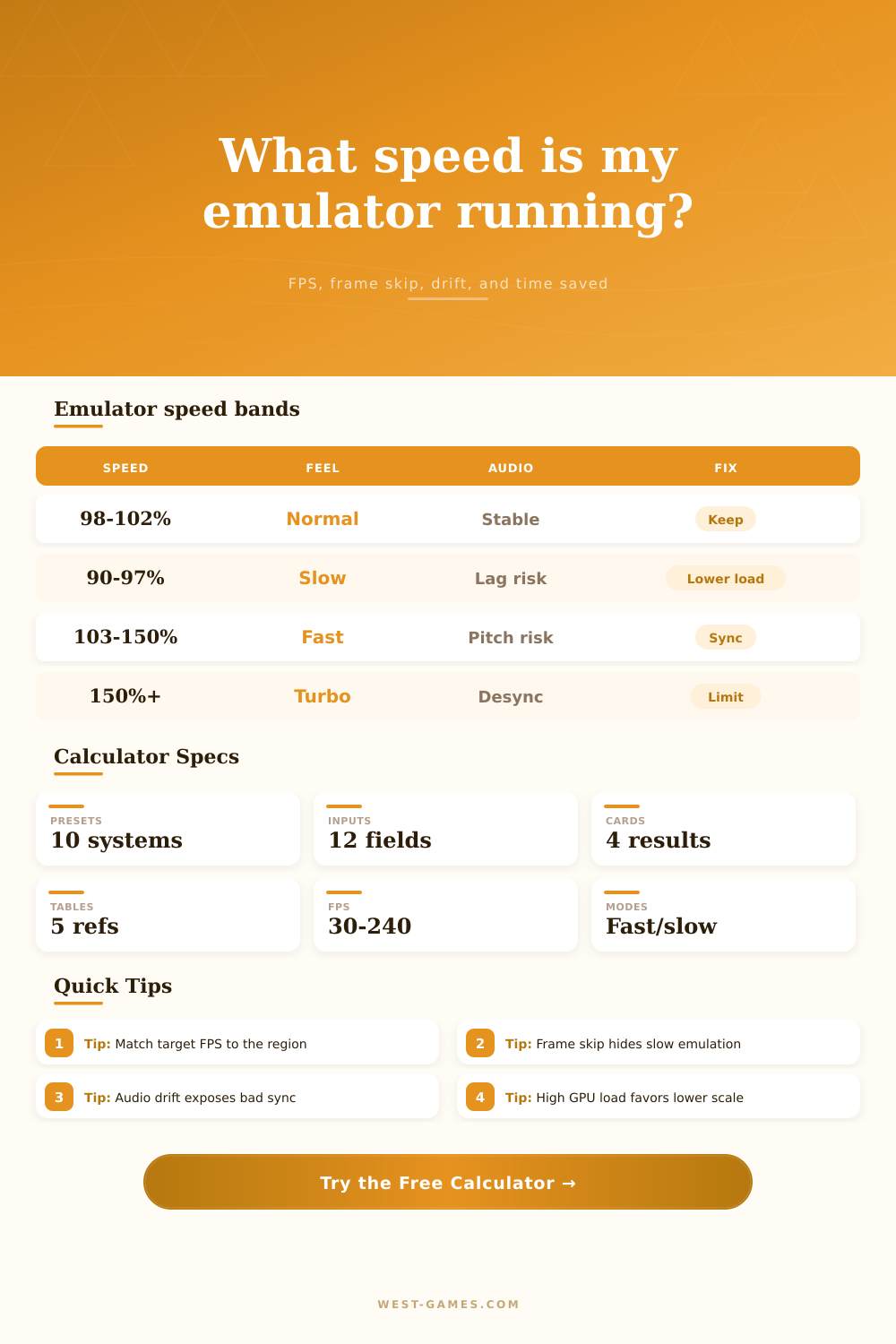
| 99 to 101% | Native timing | Low | Keep settings. |
| 95 to 98% | Slight slowdown | Medium | Watch hard scenes. |
| 85 to 94% | Visible slowdown | High | Lower accuracy or scale. |
| 101 to 150% | Fast play | Medium | Use limiter if unintended. |
| 150% plus | Turbo mode | High | Check save and sync stability. |
Speed percentage compares actual emulator timing with native target timing, independent of monitor refresh.
| Skip rate | Motion | Speed masking | Best use |
|---|---|---|---|
| 0% | Smoothest | None | Accurate play. |
| 1 to 5% | Small judder | Low | Light CPU spikes. |
| 6 to 15% | Noticeable judder | Medium | Handheld fast-forward. |
| 16 to 30% | Choppy | High | Temporary weak hardware. |
| 30% plus | Very rough | Very high | Diagnostic only. |
Displayed FPS falls as frame skip rises, even when game logic speed stays close to target.
| Drift rate | Likely symptom | Buffer clue | Correction path |
|---|---|---|---|
| 0 to 10 ms/min | Stable audio | Any normal buffer | No change needed. |
| 10 to 40 ms/min | Rare crackle | Small buffers expose it | Raise buffer or sync. |
| 40 to 120 ms/min | Stretch or pops | Buffer drains slowly | Reduce load or resample. |
| 120 ms/min plus | Desync risk | Buffer cannot hide it | Fix speed first. |
| Async audio | Delayed mismatch | May sound smooth briefly | Compare after 5 minutes. |
Drift estimates are planning values. Some cores resample audio to hide tiny speed errors.
| Preset | Target FPS | Typical load | Mode | Main timing lesson |
|---|---|---|---|---|
| NES NTSC 60 FPS | 60.10 | Low CPU, low GPU | Normal | Small FPS errors are easy to spot in audio pitch. |
| SNES PAL 50 FPS | 50.00 | Moderate CPU | Normal | Wrong region can look like constant speed error. |
| N64 HLE Plugin | 60.00 | Mixed CPU and GPU | Normal | Plugin choice can change load more than resolution. |
| GBA Fast-Forward | 59.73 | Low CPU | 2x fast | Good fast-forward needs twice the normal FPS budget. |
| PS2 3x Upscale | 59.94 | High GPU | Normal | Upscaling can make GPU load the limiter. |
| Switch Heavy Scene | 30.00 | Very high CPU | Normal | CPU pressure often appears as audio stutter first. |
These rows are reference profiles for measurement planning, not emulator compatibility claims.
A speed counter will show up somewhere on the screen for most emulators. It tells you if you are hitting sixty frames per second or drifting down into the fifties. If it falls to the fifties, thing could get bad. It’s helpful, sure, but doesn’t paint the complete picture.
What matters more is that the game logic is being processed exactly as fast as the developer intended back three decades ago. Even if the emulator is running perfectly at a snappy sixty frames per second, it can still produce sluggish feeling input and chipmunky sounding audio from a CPU core running just a little to slowly. It’s this difference between a smooth looking game and its internally timed behavior that trips up most emulators and goes unnoticed until it’s far too late.
Why Game Timing Is More Important Than Speed
After entering your measured actual FPS, target FPS, and some metrics for hardware load, the calculator does the math for you (above). No more guesswork as to how many seconds you’re losing every hour or how much audio drift accumulates during a marathon playthrough. There’s no need to be an engineer to grasp why it matters: Retro systems run off fixed timing cycles when you emulate them.
This isn’t something they guessed about; they didn’t run themselves at 59.94 frames per second on an NTSC PlayStation. Or fifty on a pal snes. If you deviate, even slightly, the visuals and sound don’t stay in sync. That slight deviation compounds over time (over ninety minutes of game time), and translates to minutes of elongated audio buffers or lost time.
When someone’s emulator slows down, the most popular band-aid they put on it is frame skipping, which drops visual frames while letting the game logic continue running as normal. Because dropped frames affect the feel of the game without affecting its speed, the tool accounts for them. Twenty percent frame skip may let you keep running at full speed but then motion gets choppy and jarring. It is a trade-off between smoothness and stability.
On the page are laid-out reference tables describing these bands clearly, marking point where minor slowdowns turn into noticeable glitches. This helps you understand the difference so you can choose between accepting some judder or lowering your resolution. Surprisingly, how much hardware load you have makes a big difference in timing accuracy as well. Even when you’re averaging 60 frames per second, high load on a single piece of hardware can cause erratic frame pacing, resulting in desynced audio.
Enter your graphics card and CPU loads into the calculator, and it tells you what’s causing the bottleneck. Is your GPU pegged at ninety percent while your CPU sits idle? Your GPU has zero load? Don’t bother optimizing cores, dude. That’ll do jack shit. Lowering your rendering quality will be necessary. It is a small detail but it makes a world of difference when keeping things timed correctly.
Emulation isn’t all about raw power. It’s about providing that power in a steady, predictable manner. Speed issues are exposed by audio drift The canary in the coal mine for speed issues is audio drift. Your game might sound fine but look like it’s running a little slow. Check your audio buffer settings. Stuttering and crackling expose small audio buffers to timing problems right away. Bigger buffers mask those timing problems for a while and give false sense of stability.
Knowing your speed percentage and sync mode lets the calculator estimate how much drift you will have accumulated during your session. It also gives you time to plan ahead. Even a couple percent less than full speed can throw off your muscle memory when trying to beat a game which relies on precise timing inputs. The target shifts dramatically with fast- and slow-modes. Twice as much processing power is needed to hit the same accuracy target when running at twice the normal speed.
A lot of emulators fails in this area because they think “fast-forward” equals frame-skip. This tool measures how close you are to reaching different mode targets, such as comparing real acceleration against jumpy acceleration. It’s a diagnostic check that spares you from frustrating grind sessions where it feels like you’re going slower then the game itself.
In the end it’s all about being consistent. The game should feel like it does on the real hardware, whether it is a quick reflex platformer or a slow paced strategy title. It should feel like it has the same timing as the real thing. Use the inputs to decide where on that scale of performance and visuals you are most comfortablely.
If you tweak things (i.e. Audio buffer size or other accuracy settings), pay attention to what they do and adjust from there. Sometimes a single setting change can have a night-and-day effect on the feel of the game. Ideally the game should just melt away, so all you see is the game itself, when that timing clicks. That’s why taking time to get it measured and tuned right is worth it. You should of checked your settings earlier.