🖥 Aspect Ratio Stretch Calculator
Compare source resolution, target display shape, stretch percentage, pixel scaling, black bars, crop loss, FOV distortion, and game capture output in one display-safe calculator.
on 1920x1080 display
Fills the whole display by scaling X and Y independently.
Preserves the source aspect ratio and centers the image.
Preserves aspect ratio, fills the target, and trims overflow.
Uses whole-number pixel scaling for sharp low-res sources.
| Aspect | Ratio | Example resolution | Typical use |
|---|---|---|---|
| 4:3 | 1.333 | 1280x960, 1440x1080 | Classic stretched FPS and retro capture |
| 5:4 | 1.250 | 1280x1024 | Older LCD panels and extreme stretch tests |
| 16:10 | 1.600 | 1728x1080, 1920x1200 | Slightly taller desktop and handheld displays |
| 16:9 | 1.778 | 1920x1080, 2560x1440 | Standard monitors, consoles, and video |
| 21:9 | 2.389 | 3440x1440 | Ultrawide play, editing, and cinematic capture |
Aspect ratio equals width divided by height. Reduced labels such as 16:9 are approximate names for common panel shapes.
| Source to display | Horizontal change | Vertical change | Visual effect |
|---|---|---|---|
| 4:3 to 16:9 | +33.3% wider | 0% if height matched | Models and HUD look wider |
| 5:4 to 16:9 | +42.2% wider | 0% if height matched | Very strong horizontal stretch |
| 16:10 to 16:9 | +11.1% wider | 0% if height matched | Mild competitive stretch |
| 16:9 to 21:9 | +34.4% wider | 0% if height matched | Ultrawide stretch if not fitted |
| 16:9 to 9:16 | -68.4% width fit | Large vertical bars | Better handled by crop or layout scene |
The most visible distortion comes from the relative difference between horizontal and vertical scaling, not just the final resolution.
| Mode | Aspect kept | Fills target | Best for |
|---|---|---|---|
| Fullscreen stretch | No | Yes | Competitive stretched display testing |
| Fit inside target | Yes | No, bars appear | Clean capture and no distortion |
| Fill crop | Yes | Yes, trims edges | Vertical clips or fixed canvas scenes |
| Integer scale | Yes | Sometimes | Retro, pixel art, and sharp captures |
| Manual X/Y | Depends | Depends | Testing GPU scaler or OBS transforms |
OBS, GPU control panels, and monitor scalers may name these modes differently, but the math is the same.
| Source | Target | Fit scale | Integer scale |
|---|---|---|---|
| 1280x960 | 1920x1080 | 1.125x | 1x with bars |
| 1440x1080 | 1920x1080 | 1.000x | 1x with side bars |
| 1728x1080 | 1920x1080 | 1.000x | 1x with side bars |
| 1920x1080 | 2560x1440 | 1.333x | 1x unless integer-only |
| 1280x720 | 3840x2160 | 3.000x | 3x perfect scale |
Non-integer scaling can still look excellent with modern filtering, but integer scale is useful when pixel boundaries must remain crisp.
| Scenario | Fit result | Bars | Crop result | Crop loss |
|---|---|---|---|---|
| 4:3 source on 16:9 | 1440x1080 image | 240 px each side | 1920x1440 scaled | 180 px top/bottom each |
| 16:10 source on 16:9 | 1728x1080 image | 96 px each side | 1920x1200 scaled | 60 px top/bottom each |
| 16:9 source on 21:9 | 2560x1440 image | 440 px each side | 3440x1935 scaled | 248 px top/bottom each |
| 16:9 source on 9:16 | 1080x607 image | 656 px top/bottom each | 3413x1920 scaled | 1167 px each side |
| 720p source on 4K | 3840x2160 image | None | 3840x2160 image | None |
Bar and crop numbers are rounded to whole pixels. Actual scaler output can shift by one pixel when odd dimensions are centered.
If you play a competitive shooter at an old school resolution on moddern monitor, it’s possible you’ll see character models stretched out across display. That’s no bug, in fact, it shows a compromise between visual comfort and horizontal field of view. When you put a square image into rectangle, you’re inevitably battling geometry, which means do you add black bars and crop off part of the image? Or distort pixels to stretch them out to fill available area?
Typically, when most people stretch an image, they expect it’s simply becoming larger, but there’s a subtler truth at play. Your brain treats act of horizontally expanding an image as altering its perspective instead of merely changing pixel. If you’re using 4:3 game on a 16:9 display without keeping aspect ratio, this results in a much higher scale factor for the width while holding height constant. This makes it feel like you’re able to see more to the side. This is useful in fast reaction games where peripheral awareness are more important than looks. To take the guesswork out of determining whether a 33 percent stretch is just right or perhaps too far for your system, plug your particular target display dimensions and source resolution into the calculator above and let it do the math for you.
Choosing the Right Display Setting for Games
Ultimately it comes down to preference. Black bars at the top/bottom of the frame are safe because they don’t change the way game looks (aside from cropping out things like HUD elements) and allow you to see whatever the artist originally create. If you’re streaming or otherwise showing off your gameplay, this is the default, you want to look as good as possible for whoever’s watching, after all. The trade-off here is that it eats up your precious space. This forces the action to move further away from your face and makes things in front of you more difficult to track.
Alternatively, you could crop the video down to fit screen, eliminating all of the wasted space at top and bottom while retaining the same width. You’ll lose some vertical sight, so you can no longer peek over people heads. This isn’t ideal if there are things above or below you in the game world that you need to see. So knowing exactly how many pixels you’re losing is worth the effort before you commit.
Pixel integrity, meanwhile, can be really important with certain pixel-art games, or any retro title where exact pixel placement might be significant. When you stretch integer numbers to non-integer ones, standard scaling algorithms will start to blur things by filling in color gradients between each set of pixels. This makes edges mushy and blurry. With integer scaling, it simply repeats whole pixels without trying to interpolate between them, so the image stay sharp and keeps the underlying resolution structure. It typically has to does this with some sort of black bars (or “letterboxing“) around it, unless the math divides up nicely, but for purists who care more about clarity than immersion, that’s always the better option.
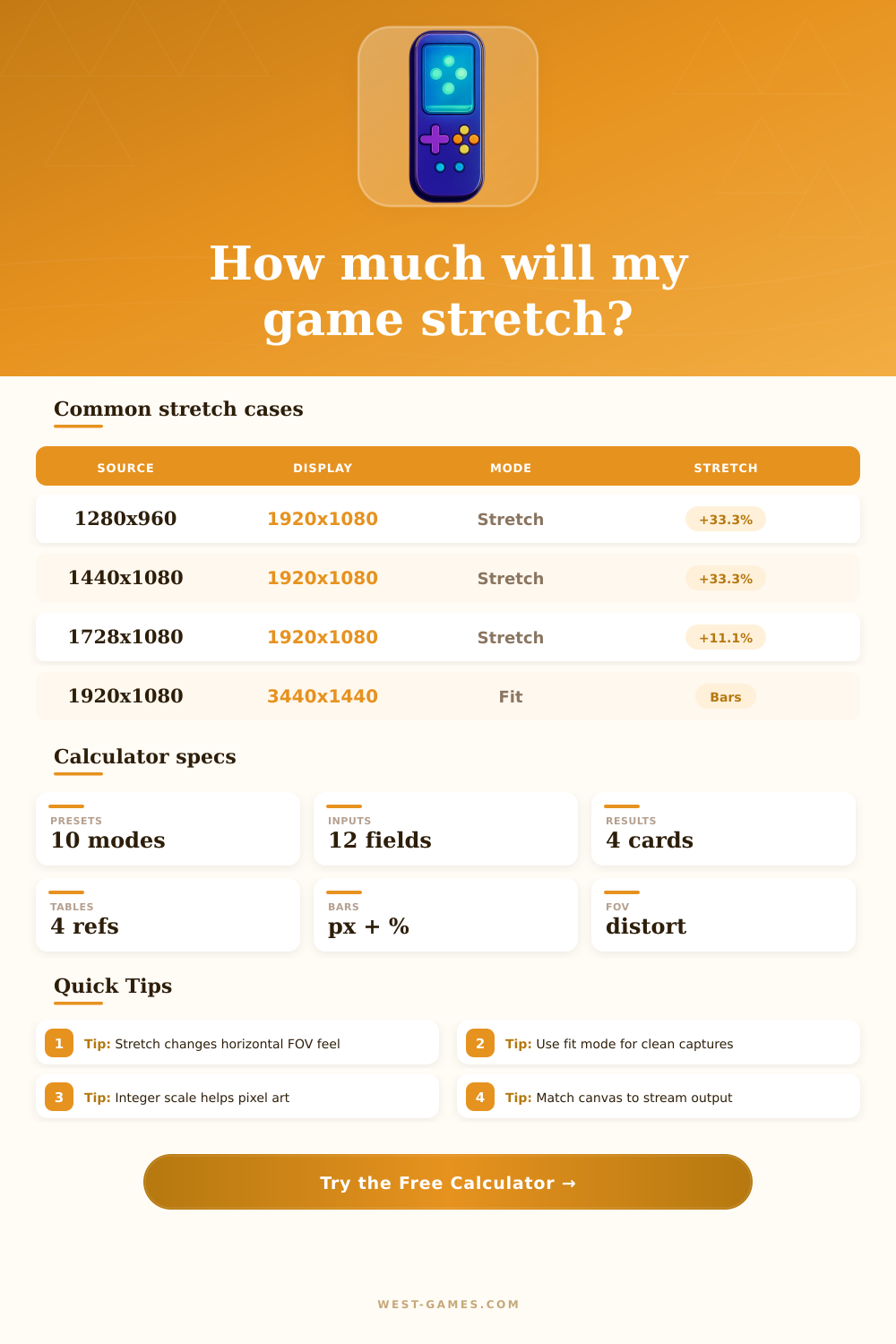
The chart on page explains it well. It shows what happens with various combinations of source-to-display. You can see how they line up cleanly versus how they has to use fractional changes that degrade your image quality. When you understand those mechanisms, though, your relationship with display options change. They become less about blind guesswork and more about decision making.
Instead of seeing black bars as wasted space, you see them as preserved quality. Instead of seeing stretching as a glitch, it becomes an intentional way to change the field of view. And rather than messing up something by switching settings halfway through a partially rendered game, or having to undo permanent configuration changes after testing something out… well, now we have tools that let us do all that without any hassle at all.
Try running a 1728×1080 resolution on a regular HD monitor. See what it looks like. Commit to it when it’s time for a ranked series. The best setting is the one that’s most comfortabley for your eyes and fits the needs of whatever game you’re playing. Comfort is personal and winning is situational; there isn’t a single correct answer. One guy may be rocking his stretched out display for that wider field of view. Another might need those dark borders on both sides just to get the crispest, pure picture in their fitted frame.
You should of know what each one costs you so that you can make an informed decision instead of blindly settling into a setup that ticks off your viewers or wrecks your own performance. You’ll know when something doesn’t look quite right to your eyes. Knowing why it looks that way gets you back on track sooner. You might choose to live with a little border bar action or go full-on stretch mode for more visibility around the corners. Either way, we’re all looking for that crystal clear shot without the eye strain.