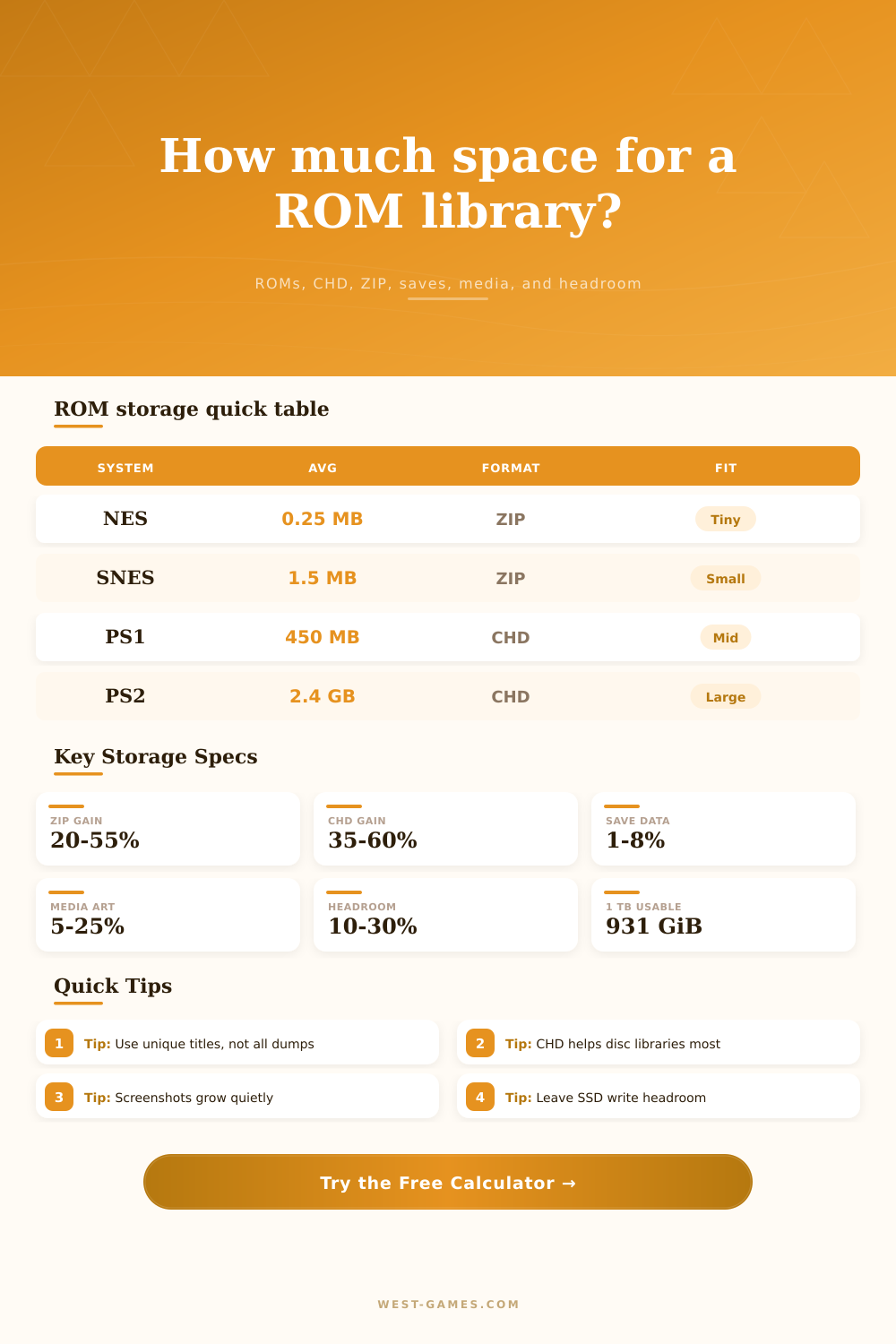
💾 ROM Library Storage Calculator
Estimate unique ROM library size from system counts, average file sizes, compression ratio, CHD or ZIP format choices, save states, screenshots, metadata media, drive capacity, and free-space headroom.
| Label Capacity | Typical OS Display | With 20% Headroom | Best Library Fit | Planning Note |
|---|---|---|---|---|
| 128 GB | 119 GiB | 95 GiB | Cartridge, arcade subsets | Works best without video snaps or large disc systems. |
| 256 GB | 238 GiB | 191 GiB | Cartridge plus PS1 picks | Enough for curated CD libraries in CHD format. |
| 512 GB | 477 GiB | 381 GiB | Mixed retro frontend | Comfortable for many 8-bit, 16-bit, arcade, and PS1 sets. |
| 1 TB | 931 GiB | 745 GiB | Disc-heavy library | Good target for PS1, Dreamcast, GameCube, and curated PS2. |
| 2 TB | 1.82 TiB | 1.46 TiB | Large multi-system set | Leaves room for media, save states, and future system additions. |
| 4 TB | 3.64 TiB | 2.91 TiB | Archive library | Useful when keeping multiple disc generations and video media. |
| Storage Type | Typical Read | Large Copy | Random Access | ROM Library Use |
|---|---|---|---|---|
| microSD UHS-I | 80 to 160 MB/s | 40 to 90 MB/s | Low to medium | Good for cartridges, handhelds, and compact frontends. |
| USB 3 flash | 120 to 400 MB/s | 50 to 180 MB/s | Varies widely | Fine for portable sets if sustained write speed is stable. |
| 2.5 inch SATA SSD | 450 to 560 MB/s | 350 to 520 MB/s | Strong | Excellent for large CHD libraries and scraper media. |
| NVMe SSD | 1500 MB/s+ | 900 MB/s+ | Very strong | Fast imports, scanning, hashing, and large frontend databases. |
| Gigabit NAS | 90 to 115 MB/s | 70 to 110 MB/s | Network bound | Works for archives; latency can affect disc-image loading. |
| Wi-Fi share | 20 to 90 MB/s | 10 to 60 MB/s | Variable | Better for syncing than direct play of large disc images. |
| System Type | Average Uncompressed Size | Common Format | Typical Reduction | Storage Note |
|---|---|---|---|---|
| 8-bit cartridges | 0.1 to 0.5 MB | ZIP or loose | 20% to 45% | Metadata and screenshots can outweigh the ROMs themselves. |
| 16-bit cartridges | 0.5 to 4 MB | ZIP or loose | 20% to 45% | Large libraries still fit easily on small drives. |
| Arcade sets | 5 to 100 MB | ZIP | 25% to 60% | Merged, split, and non-merged sets change the count and size. |
| CD systems | 350 to 750 MB | CHD | 35% to 60% | CHD usually gives the biggest space saving for cue/bin images. |
| DVD systems | 1.4 to 4.7 GB | CHD or RVZ | 30% to 60% | Per-game averages matter more than total game count. |
| Modern dumps | 4 GB+ | Archive format | 0% to 45% | Plan with separate rows and conservative headroom. |
Maybe you’ve packed a USB stick full of old-school games. You probably began with some modest 8-bit ones and felt virtuous. Next came bigger GameCube or PS1 ones. By the time you got into the 16-bit stuff, the drive was stuffed to the gills.
It’s because cartridge images is basically text files. Disc images are big binary files containing code, audio and video all in one package. Knowing this can help you map out a collection to suit your storage capacity. After defining your collection, the calculator does all of the math.
How to Plan Your Retro Game Storage
First you enter the number of unique games. I say “unique” here because this is where many folks screw up. They think that if they have a copy from beta and another copy from Europe it’s two files. Nope, wrong, nope. If you’re going to play the game then you only really need one good copy per title. Unless you like having multiple copies of the same thing just so you can see what’s different. If you do, then go ahead but that’ll get you way more space used right off the bat.
The tool makes the assumption that you’re curating a playable archive. A library you plan on playing, not storing as a database full of errors. So again it says unique titles only. Changing your way of thinking will shrink how much storage you need considerabley.
Disc-based systems are heavily impacted by compression. Games on the Dreamcast or PlayStation comes in raw ISO format. Each game is anywhere from a half-gigabyte to several gigs. These can be compressed into Disc Image formats (CHDs). These cut out all of that redundant data, this shrinks their size quite a bit.
Use this calculator to plug in those size-reduction percentages per system. You might leave your NES files as loose archives because they are already tiny. But slam that sucker with compression on your PS2 collection. Those savings add up. Big time. It could make the difference between using a two terabyte array or a 512 gigabyte drive.
The other thing: media takes up more space than you expect. Sure, just grab the game files. But then you use a frontend like EmulationStation or RetroArch. Those tools download metadata. They grab video previews, screenshots, and box art for each game. Twenty gigs of images is nothing when it’s a library of five hundred titles. Add in video snippets and it increases the cost even more.
The tool adds hidden layers to ensure you’re accounting for things that make your library look nice. These include things like interface assets. If you don’t consider those files, you’ll run out of room eventually.
You may have noticed that drive size claims differ. An operating system might say x terabyte but the drive’s maker says x terabyte. How do you know what really comes with it? About a seven percent difference which does add up. If you purchase a one-terabyte hard drive, you’ll find around nine hundred thirty-one gigabytes in your computer. The calculator does this for you. You will have no more surprises with drive capacity.
Also make sure there is some free space on your drive. Solid state drives don’t like being filled to the max. Twenty percent free will help keep the drive running faster while making it last longer.
How fast can you copy? This matters more then you would think. Copying 10,000 little ROM files will take a while. It is not because there is that much data. This is because you’re writing out thousands of separate files. Some USB sticks are great for copying large disc images. Others suck at copying directories with fifty thousand zip files. Depending on your connection speed, the tool gives an estimate as to when it’ll finish copying. This allows you to determine whether or not it’s worth leaving your PC running overnight.
A little knowledge goes a long way. It’s not just about tech, it’s about discipline. What games do you really play? How much space should you give to each game? Most collections follow the 80/20 rule. Eighty percent of the time, you play twenty percent of the library. Everything else gets neglected. A good collection is as much about efficiency as it is accessibility. Compress your library efficientally and leave room to grow. Leave room to grow.
But how do you know what works? That’s where the calculator comes in. It converts abstract numbers into real world options. Hardware decisions becomes real. You end up with a drive that fits your life, with enough room to grow.