📹 Recording File Size Calculator
Estimate storage needed from resolution, FPS, codec, bitrate mode, audio, duration, chroma, bit depth, and container overhead.
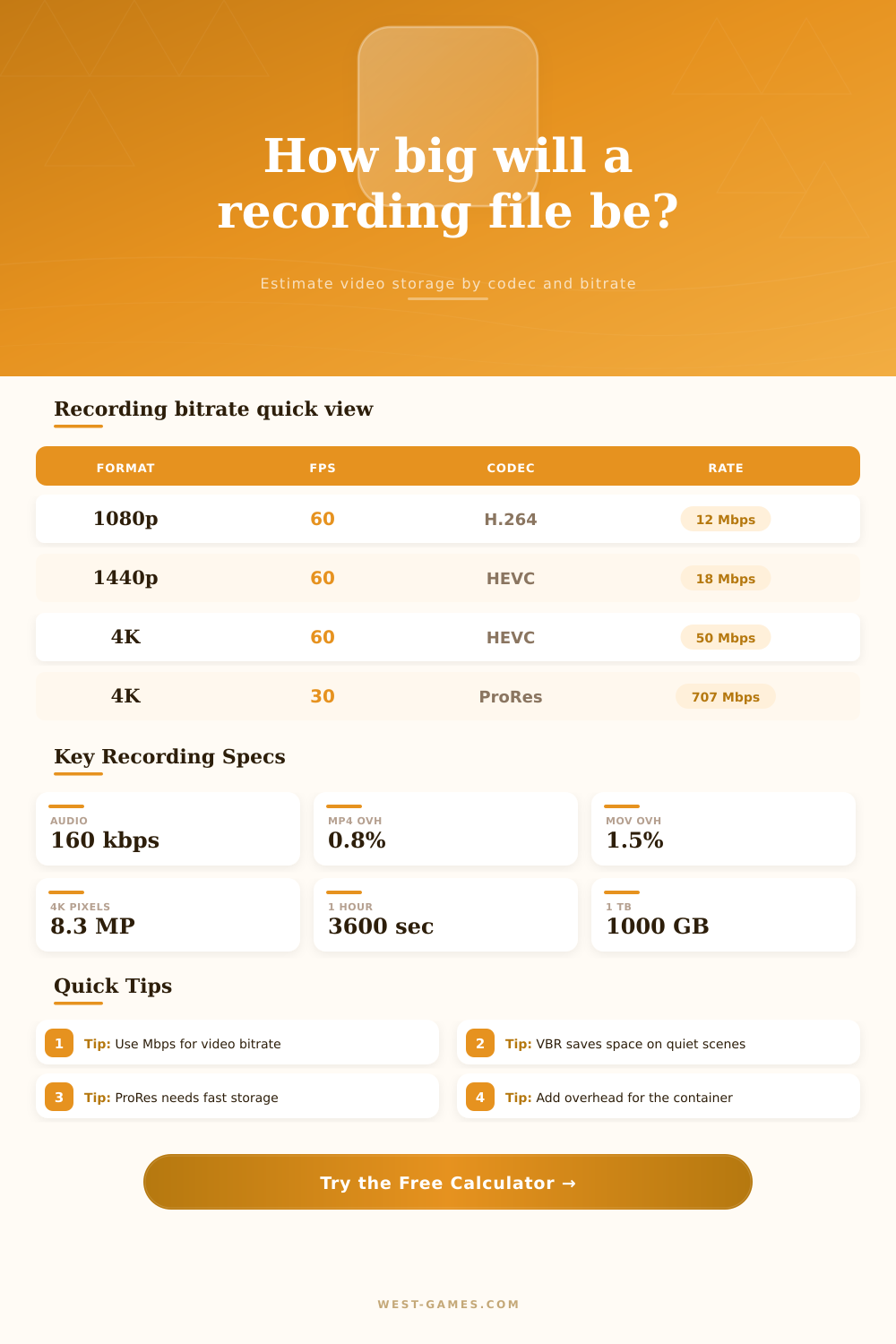
| Scenario | Codec | FPS | Video Bitrate |
|---|---|---|---|
| 720p screen clip | H.264 | 30 | 4 to 8 Mbps |
| 1080p gameplay | H.264 | 60 | 12 to 20 Mbps |
| 1440p upload master | HEVC / AV1 | 60 | 18 to 35 Mbps |
| 4K console capture | HEVC | 60 | 45 to 70 Mbps |
| 4K edit master | ProRes 422 HQ | 30 | 650 to 760 Mbps |
| Codec | Best Use | Efficiency | Edit Feel |
|---|---|---|---|
| H.264 | Universal playback | Baseline | Good |
| HEVC | 4K HDR capture | About 35% smaller | Medium |
| AV1 | High compression | About 45% smaller | Medium |
| ProRes | Editing masters | Much larger | Excellent |
| FFV1 | Lossless archive | Scene dependent | Heavy |
| Sampling | Depth | Multiplier | Typical Use |
|---|---|---|---|
| 4:2:0 | 8-bit | 1.00x | Gameplay and web video |
| 4:2:0 | 10-bit | 1.18x | HDR uploads |
| 4:2:2 | 10-bit | 1.42x | Capture cards and edit sources |
| 4:4:4 | 10-bit | 1.88x | UI and color-critical work |
| RGB / RGBA | 8 to 12-bit | 2.30x+ | Lossless and alpha workflows |
| Container | Overhead | Strength | Watch For |
|---|---|---|---|
| MP4 / M4V | 0.5 to 1.0% | Compatibility | Finalization step |
| MKV | 0.8 to 1.5% | Recovery friendly | App support |
| MOV | 1.0 to 2.0% | Pro workflows | Larger metadata |
| MXF | 1.5 to 3.0% | Broadcast capture | Heavy indexing |
| TS | 0.2 to 0.8% | Live segments | Less metadata |
| Total Bitrate | 10 Minutes | 1 Hour | 4 Hours | Best Fit |
|---|---|---|---|---|
| 8 Mbps | 0.60 GB | 3.60 GB | 14.4 GB | 720p clips |
| 16 Mbps | 1.20 GB | 7.20 GB | 28.8 GB | 1080p60 |
| 35 Mbps | 2.63 GB | 15.75 GB | 63.0 GB | 1440p60 |
| 60 Mbps | 4.50 GB | 27.00 GB | 108 GB | 4K60 capture |
| 700 Mbps | 52.5 GB | 315 GB | 1260 GB | ProRes 4K |
But it’s possible to accidently create a huge data burden on your hard drive when you start recording something thinking it’ll be a small file, only to find out later it’s a big one. Why? This happened because you captured video at a high frame rate and didn’t understand how that would work mathematicaly.
Usually, three variables makes the difference between a storage nightmare and a manageable archive: length, codec efficiency, and resolution. Resolution gets attention, because who doesn’t like saying “Hey look I shot in 4K”. However, if the bitrate remain constant, then doubling the pixels require four times more space. And that’s where many users get tripped up.
How to Stop Your Hard Drive from Filling Up
The tool above let you see that relationship ahead of time so you can have a concrete plan for storage instead of guessing. The actual tradeoff lies in codec choice. Just about everything plays back 264 no problem, so it’s everywhere. It gets the job done; but at the expense of efficiency.
Newer codecs like HEVC and AV1 can cuts file sizes by thirty to forty percent, preserving equivalent image quality, while 264 will leave you with bloated files. The catch is that devices needs horsepower to handle decoding new codecs in realtime. On older equipment, your computer or capture card may fall behind and drop frames when things get gnarly.
So do you want smaller files? Or do you want to make sure no single frame is lost (even if it glitches)? Video editors will use something like ProRes, an intraframe codec, even though they’re huge because they scrub smoothly across the timeline. It’s a performance tax you pay, one that pros are willing to endure.
The second part is how it divides up that information into your video, which is called the bitrate mode. Constant bitrate will maintains the same rate at all times, locking down the amount of data going through. This means you can easily predict the final file size.
Variable bitrate change based off the complexity of each scene. It dumps more when things are crazy and less when characters just stand there and talk. Overall this means it take up less space, but it also becomes harder to plan ahead since you won’t know exactly how much space something will take up until after it’s recorded. To account for this, the calculator adds a safety margin to its predictions so you don’t run out of space while recording.
There’s one other thing we often overlook when doing these kinds of calculations: audio. One stereo channel may not sound like a lot, but when you tack on mic input, chat, and game audio, those kilobits begins to add up very fast over an extended period.
Overhead is an invisible tax on all files. A clean, cross-platform format such as MP4 will incur less than a percent overhead. A broadcast format such as MXF has a lot of metadata to ensure its edit interoperability. That increases the file’s size by two percent or more. Sounds like nothing but multiply it by hundreds of hours of footage and that single percent become several gigabytes of wasted space.
Use this calculator’s reference tables to examine those multipliers and see exactly where your data’s going. The final factor that turns this file from something you can manage into a storage disaster is duration. Recording an hour of 1080p60 gameplay should of not been too bad. But eight hours of 4K60 HDR recording? That’ll fill up your drive pretty quick.
Always see what size your available storage is and how many hours of footage that will accommodate. Give yourself some room for your OS and other temp files. If your drive runs full the writing process stutters, which causes corrupted video clips that won’t save regardless of your quality setting.
Never run out of space again. Know how much you can store beforehand, so when it comes time to delete a photo or two to free up storage for video, you don’t freak out.
The calculator does all the complicated math about container metadata, chroma subsampling, and bit depth. So you can spend your time recording content. You’ll know what you’re getting into when you hit record. You won’t have to ask “why’s my drive full?” ever again.