🎮 Integer Scaling Calculator
Find the largest whole-number scale for retro games, pixel art, handheld captures, emulators, FPGA consoles, and crisp nearest-neighbor output on modern displays.
Crisp pixels with black borders when the screen is larger than the scaled image.
Preserves aspect ratio but uses fractional scaling, so pixel edges can shimmer or blur.
Uses the whole panel but changes the source aspect ratio when X and Y differ.
Checks whether your chosen whole-number scale fits the selected display.
| System | Source | Scale | Active |
|---|---|---|---|
| NES / SNES common | 256x224 | 4x | 1024x896 |
| Genesis common | 320x224 | 4x | 1280x896 |
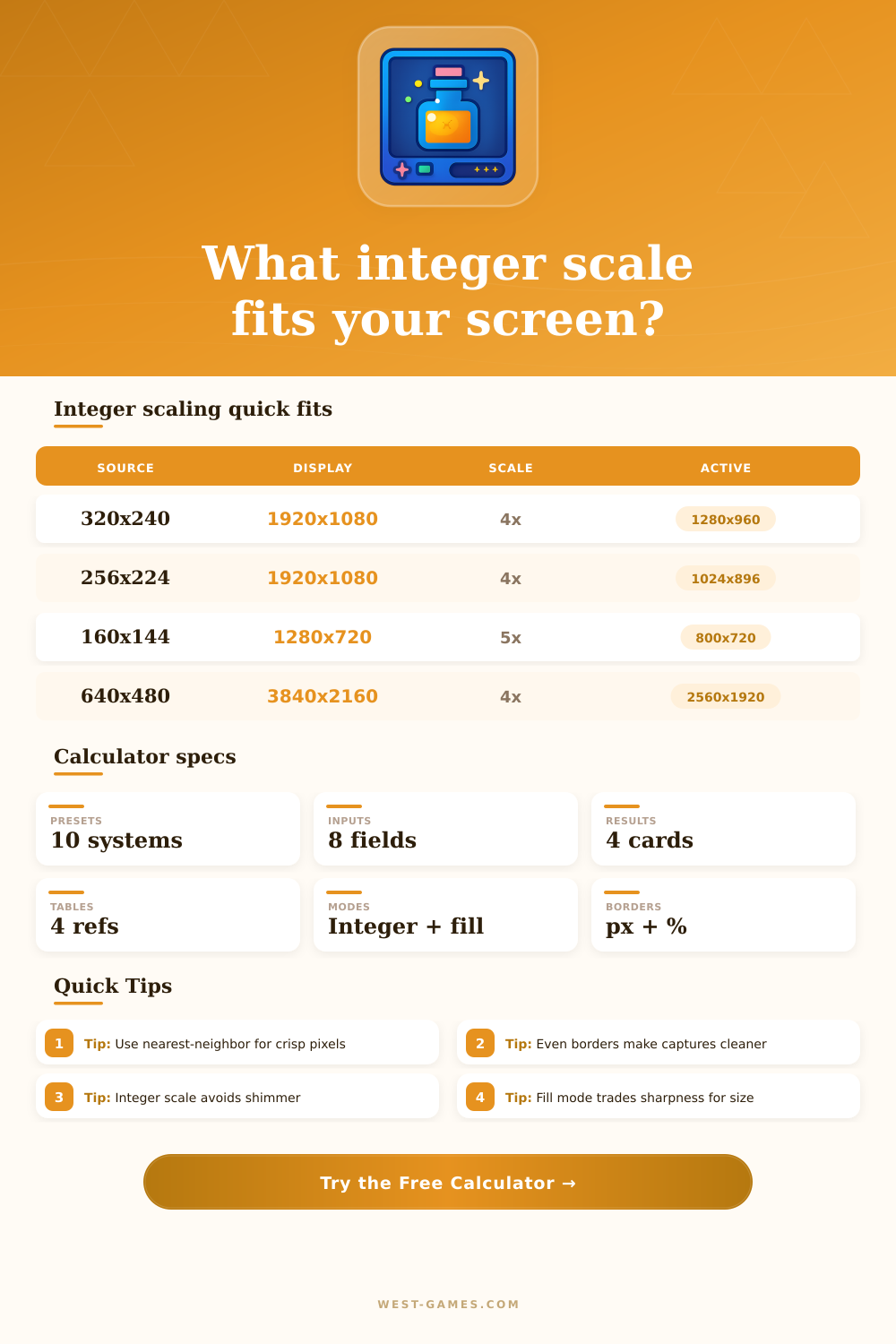
| Arcade / DOS VGA | 320x240 | 4x | 1280x960 |
| PlayStation low-res | 320x240 | 4x | 1280x960 |
| Game Boy Advance | 240x160 | 6x | 1440x960 |
| Device | Display | Good source | Fit |
|---|---|---|---|
| Game Boy style 720p | 1280x720 | 160x144 | 5x, 800x720 |
| Miyoo Mini Plus | 640x480 | 160x144 | 3x, 480x432 |
| Analogue Pocket | 1600x1440 | 160x144 | 10x, 1600x1440 |
| Steam Deck | 1280x800 | 320x240 | 3x, 960x720 |
| Switch handheld | 1280x720 | 256x224 | 3x, 768x672 |
| Source | Max scale | Active size | Borders each side |
|---|---|---|---|
| 256x224 | 9x | 2304x2016 | 768 px / 72 px |
| 320x240 | 9x | 2880x2160 | 480 px / 0 px |
| 640x480 | 4x | 2560x1920 | 640 px / 120 px |
| 854x480 | 4x | 3416x1920 | 212 px / 120 px |
| 1280x720 | 3x | 3840x2160 | 0 px / 0 px |
| Mode | Pixel clarity | Screen use | Best for |
|---|---|---|---|
| Integer + nearest | Excellent | May have borders | Pixel art, emulation, FPGA |
| Integer + shader | Excellent base | May have borders | CRT masks, LCD grids |
| Fill preserve aspect | Mixed | Large image | Casual play on TVs |
| Full stretch | Mixed | Full display | When aspect distortion is acceptable |
| Manual integer | Excellent if it fits | User chosen | OBS scenes and overlays |
| Use case | Source | Canvas | Integer plan | Why it works |
|---|---|---|---|---|
| 1080p retro stream | 320x240 | 1920x1080 | 4x centered | Leaves room for overlays without fractional blur. |
| GBA capture | 240x160 | 1920x1080 | 6x centered | Large sharp image with 240 px side borders. |
| Game Boy showcase | 160x144 | 1280x720 | 5x exact height | Uses full vertical panel with clean side borders. |
| 4K arcade cabinet | 320x240 | 3840x2160 | 9x exact height | Huge integer image with no top or bottom border. |
Connecting FPGA consoles to moddern TVs is a particular kind of frustrating. Classic arcade cabinets is supposed to present you with sharp images. Instead, what appears onscreen are a vibrating blur of shimmering edges that can’t be certain which way they want to go. Why? Because the TV simply doesn’t know how to split up its screen into even rows and columns for pixel from four decades ago. There’s no software glitch. No hardware problem. It’s a math issue, and the answer has to be a whole number.
And here’s why: Integer scaling multiplies the source resolution by integers alone. That guarantee that each game pixel will match exactly to some block of physical screen pixels without any blurring or interpolation. That’s where this page comes in. Plug in your monitor size and your game’s resolution into it, and it will do all the math for you. The result is the largest number you can multiply your resolution by to fit it on your monitor while keeping its aspect ratio.
What is Integer Scaling?
Why does that matter? Because any fraction scale will cause color bleeding as well as jagged artifacts like this. Those imperfection ruin the point of pixel art design. The calculator can determines possible scale factors, such as four times or six times. That’s what the calculator will tell you. It’ll also display the amount of blank space (black bars) that will appear at the top or side of your screen. You might not be used to those borders. But once you know why they’re there, you’re more likely to embrace them.
Square aspect ratios was popular in the eight and sixteen bit days, but modern displays is far more likely to be much taller and wider. Take something that’s two hundred fifty-six by two hundred twenty-four pixels (many Super Nintendo games), then scale up four times to match its horizontal width on a one thousand nine hundred twenty pixel wide display. You’ll find plenty of extra room verticaly. That’s where the calculator shines. It shows you just how much room there is.
It also lets you try other modes side-by-side to see what would of happen if you stretched it to the edges, or chose a non-whole number ratio to use more screen space at the cost of losing image quality. Without an integer scale first, the default nearest-neighbor filtering is what most people end up using, though many aren’t even aware of it. If you use bilinear smoothing on an odd-sized upscale, the blur look muddy. But if you do something as simple as multiplying by a clean integer and then running some sort of scanline overlay or CRT shader on top of that sharp base, it will mimic authentic hardware behavior surprisingly accurately.
Included with the reference tables is common system layouts such as the original PlayStation or Game Boy Advance. When you’re setting up an emulator profile on the fly, these can give you a quick answer. But there are limitations on handheld emulation too. The displays tend to have an oddball aspect ratio, at least relative to contemporary desktop monitors and many classic games. When running low-res content on them, a display with a 1280×720 resolution doesn’t behave identically than a regular 16:9 TV. To handle that variety, the calculator allows you to specify whatever screen dimensions you prefer. For instance, if you’re streaming via capture software in which the canvas isn’t necessarily the same as your physical monitor’s resolution, this will come in handy.
In the end the choice to go with integer scaling is one between full coverage and clarity. Every single background tile and character sprite remain crisply defined but at the cost of some of the periphery of the screen. And while not a huge tradeoff, it does pay off in terms of visual integrity; particularly if your goal is to replicate precisely what it would have looked like to play on original hardware decades ago. After seeing how cleanly a four-times scaled image fits inside its boundaries, the desire to stretch it to fill those extra pixels go away pretty fast. The sharpness wins out every time.