HDMI Bandwidth Calculator
Check whether a TV, monitor, console, GPU, cable, and HDMI mode can carry your resolution, refresh rate, bit depth, chroma, HDR, DSC, blanking, and safety margin.
10-bit RGB, HDMI FRL target.
Best for 4K60 RGB 8-bit or 4K60 HDR with chroma reduction.
Used by most 4K120 TVs and high-refresh HDMI gaming monitors.
Compression is not applied to this calculation.
| Mode | Raw link | Encoding | Approx video payload |
|---|---|---|---|
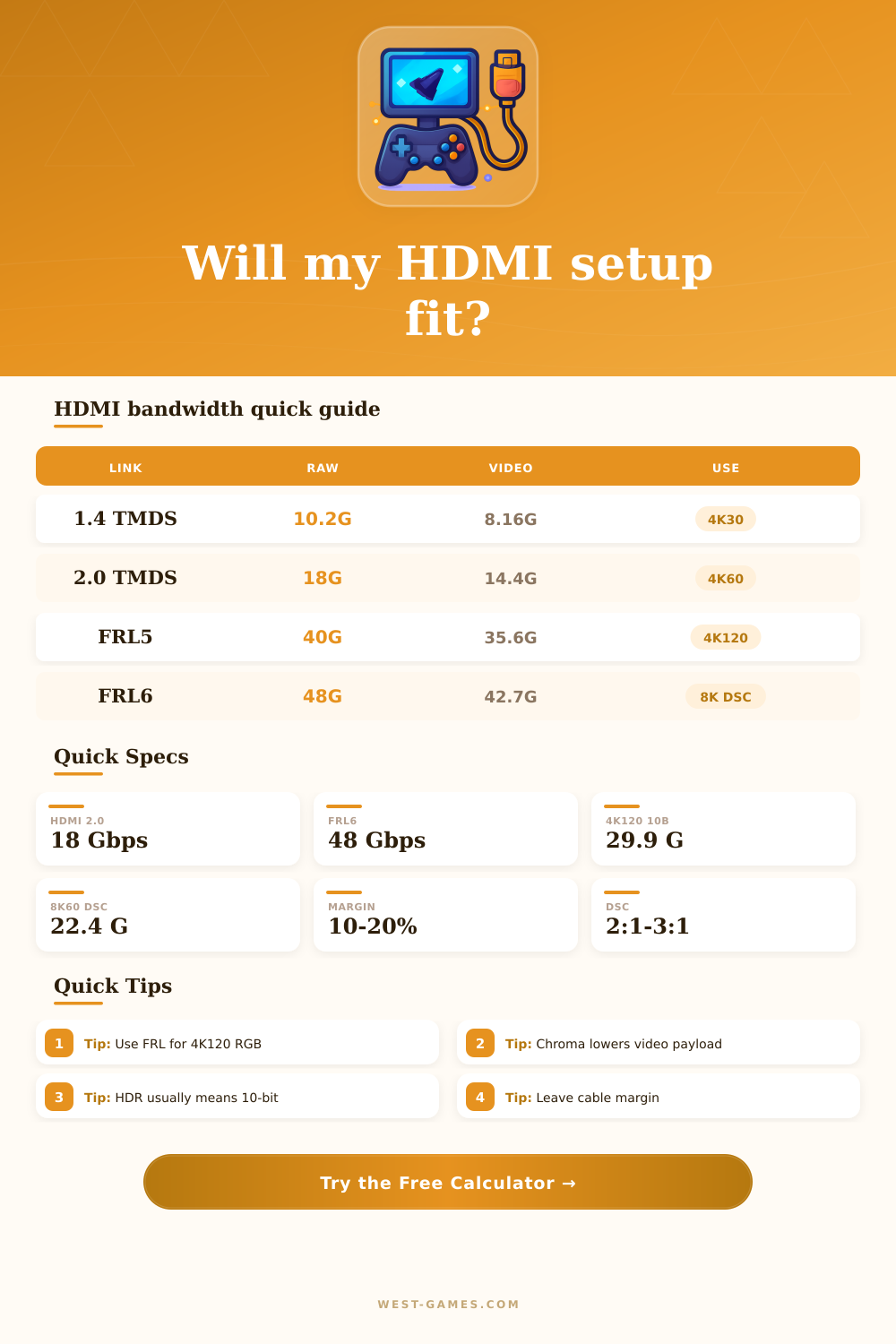
| HDMI 1.4 TMDS | 10.2 Gbps | 8b/10b | 8.16 Gbps |
| HDMI 2.0 TMDS | 18.0 Gbps | 8b/10b | 14.4 Gbps |
| FRL 3 lanes x 6G | 18.0 Gbps | 16b/18b | 16.0 Gbps |
| FRL 4 lanes x 6G | 24.0 Gbps | 16b/18b | 21.33 Gbps |
| FRL 4 lanes x 8G | 32.0 Gbps | 16b/18b | 28.44 Gbps |
| FRL 4 lanes x 10G | 40.0 Gbps | 16b/18b | 35.56 Gbps |
| FRL 4 lanes x 12G | 48.0 Gbps | 16b/18b | 42.67 Gbps |
The calculator compares encoded demand to raw link capacity, then also reports effective payload capacity for context.
| Format | Samples per pixel | 8-bit bpp | 10-bit bpp |
|---|---|---|---|
| RGB / 4:4:4 | 3.0 | 24 bpp | 30 bpp |
| YCbCr 4:2:2 | 2.0 | 16 bpp | 20 bpp |
| YCbCr 4:2:0 | 1.5 | 12 bpp | 15 bpp |
| DSC 2:1 | after color | halves payload | halves payload |
| DSC 3:1 | after color | one third | one third |
RGB and 4:4:4 are best for desktop text. 4:2:2 and 4:2:0 are common TV compatibility fallbacks.
| Signal | Typical transport | Payload before encoding | Likely HDMI |
|---|---|---|---|
| 1080p 240 8-bit RGB | No DSC | 12.9 Gbps | HDMI 2.0 |
| 1440p 144 8-bit RGB | No DSC | 13.4 Gbps | HDMI 2.0 tight |
| 4K60 10-bit 4:2:2 | HDR console mode | 10.5 Gbps | HDMI 2.0 |
| 4K120 10-bit RGB | No DSC | 29.9 Gbps | FRL5 40G |
| 4K144 10-bit RGB | No DSC | 35.9 Gbps | FRL6 48G |
| 4K240 10-bit RGB | DSC 3:1 | 20.0 Gbps | FRL4 24G |
Values use a 5% HDMI timing allowance. Actual EDID timings can vary by TV, monitor, and GPU driver.
| Setup | Suggested margin | Why it matters | Practical action |
|---|---|---|---|
| Short certified cable | 10% | Stable direct run | Use certified label |
| Long cable run | 15-20% | Signal loss increases | Test full refresh |
| AV receiver path | 15% | Each device must pass mode | Check enhanced input |
| Adapter or capture card | 20-25% | Extra negotiation risk | Lower chroma if needed |
| Near 48G limit | 20%+ | Less error room | Try DSC or 4:2:2 |
Margin is not part of the video standard. It is a planning cushion for real cable behavior and device negotiation.
| Preset | Resolution | Refresh | Signal | Expected link |
|---|---|---|---|---|
| PS5 4K60 HDR TV | 3840 x 2160 | 60 Hz | 10-bit 4:2:2 | HDMI 2.0 |
| LG C3 4K120 OLED | 3840 x 2160 | 120 Hz | 10-bit RGB | FRL 40G |
| Sony A95L 4K120 | 3840 x 2160 | 120 Hz | 10-bit 4:2:2 | FRL 32G |
| Samsung S95C 4K144 | 3840 x 2160 | 144 Hz | 10-bit RGB | FRL 48G |
| ASUS 4K240 DSC | 3840 x 2160 | 240 Hz | 10-bit RGB DSC | FRL 24G+ |
| Samsung 8K60 TV DSC | 7680 x 4320 | 60 Hz | 10-bit 4:2:0 DSC | FRL 24G+ |
You start up your console, hit “Play,” and all you see is a black screen. The sound plays, but there’s no picture. You power it down and back up again; you recheck your connections… Still nothing. Why? Because HDMI isn’t just a data pipe. It needs to negotiate encoding standards, timing, and bandwidth that vary depending on the resolution you’re using. And if they doesn’t agree, it doesn’t work.
To get a better idea what’s happening behind the scenes, take a look at how much your system tries to put through the line. This calculator will translate your configuration into a pass/fail verdict, preventing hours of trial-and-error.
How HDMI Works and Why It Fails
Data scales up exponentially as resolution increases. The amount of pixels quadruples from 1080p to 4K. Then you adds millions of pixels-per-second on high refresh rate displays for gaming. And each pixel can holds color information represented in bits-per-channel. Most standard dynamic range is eight bits. It is enough to handle most content. High dynamic range typically needs ten and even twelve bits to handle the subtle changes. That extra depth come with added weight to each frame. The sheer volume of data would of not fit through a HDMI 1 cable.
You don’t see it, but encoding consumes bandwidth. The older HDMI schemes waste about one-fifth of their bandwidth with overhead. More moddern HDMI 2.1 links are more efficient, using a sixteen-to-eighteen bit scheme instead of an eight-to-ten bit scheme. That’s about fifteen percent more usable space, for the same raw speed. When you’re trying to jam 4K at 120Hz down the link, that make a difference.
Look at page’s reference table; it shows how much video data will fit in every tier of connection speed. When space becomes limited, there’s a trick that manufacturers have for cramming signal back in. One of these tricks is chroma subsampling. Because our eyes aren’t as sensitive to the fine detail in blue and red, the system can transmits less information from those channels. That dramatically reduces the amount of bandwidth required. In fast-moving games, you probably won’t even notice, though you’ll probably perceive softer text on your desktop.
The other trick is called Dynamic Signal Compression. Visually, it compress the video stream losslessly. That means it halves, or thirds, the data load while still sending an un-degraded image. They’re escape hatches, and understanding where they come into play will save you some frustration.
The variables of cable length and quality goes beyond what a spreadsheet can predict. A UHS (Ultra High Speed) certified cable is rated for 48 gigabits per second. However, as it gets longer, the signal begin to degrade. To account for this degradation, you add some sort of margin to your math. Generally speaking, ten percent headroom is sufficient with a short straight run connecting console to your TV. On the other hand, if you’re using a long cable or running through an AV receiver, you’ll want more of a buffer. You can increase the safety zone in the calculator to determine whether your system will handle stress.
Don’t run after specs just because they’re big numbers. Sounds cool: 4K at 240Hz. Yeah, that’s going to need some serious bandwidth (or seriously compressed). Get smooth motion, get good frame rates instead of just big numbers that don’t translate. Going down a step from full color RGB to YCbCr sometimes help stability more than full RGB for gaming. First test with a conservative margin and then test your own chain. Then adjust accordingly with confidence once you know what you’ve got. It ain’t about maxing out numbers. It’s about keeping a picture on the screen where it counts.