🎬 Letterbox Bar Size Calculator
Calculate letterbox or pillarbox bar pixels, active image size, crop fill loss, safe-area bounds, and fit-vs-crop behavior for cinema, streaming, monitor, and game capture formats.
Live geometry check
Uses bars and preserves the whole image.
Fills the screen and crops side pixels.
Fills the canvas by changing image shape.
Keeps text and UI inside the selected active area.
| Format | Aspect | Example canvas | Typical bar on 16:9 |
|---|---|---|---|
| DCI Scope | 2.39:1 | 4096x1716 | Letterbox top and bottom |
| Classic Scope | 2.35:1 | 1920x817 | Letterbox top and bottom |
| Streaming 2.00 | 2.00:1 | 3840x1920 | Small letterbox bars |
| Theatrical Flat | 1.85:1 | 3996x2160 | Very small bars on 16:9 |
| HDTV / Game | 1.78:1 | 1920x1080 | No bars on 16:9 |
| Classic TV | 1.33:1 | 1440x1080 | Pillarbox side bars |
| Screen | Pixels | Aspect | Best check |
|---|---|---|---|
| Full HD TV | 1920x1080 | 16:9 | Streaming, games, broadcast |
| UHD TV | 3840x2160 | 16:9 | 4K home viewing |
| DCI 4K | 4096x2160 | 256:135 | Cinema flat and scope mastering |
| UWQHD | 3440x1440 | 43:18 | Ultrawide monitor playback |
| Super ultrawide | 5120x1440 | 32:9 | Racing, sim, wide captures |
| Vertical display | 1080x1920 | 9:16 | Shorts and portrait signage |
| Comparison | Fit result | Bar formula | Crop result |
|---|---|---|---|
| Content wider than screen | Letterbox | (screen H - active H) / 2 | Left and right image cropped |
| Content narrower than screen | Pillarbox | (screen W - active W) / 2 | Top and bottom image cropped |
| Aspects match | No bars | 0 px | No crop needed |
| Rounded to even pixels | Cleaner splits | round(each bar / 2) x 2 | May shift active size by 1-2 px |
| Safe setting | Meaning | Use case | Inset per side |
|---|---|---|---|
| 100% | Full active image | Pixel-perfect monitor review | 0% |
| 95% | Light action safe | Modern TV and game UI | 2.5% |
| 90% | Title safe style | Captions, HUD, lower thirds | 5% |
| 80% | Very conservative | Older displays and projection | 10% |
| Content into screen | Fit active image | Bars | Crop fill note | Safe-area cue |
|---|---|---|---|---|
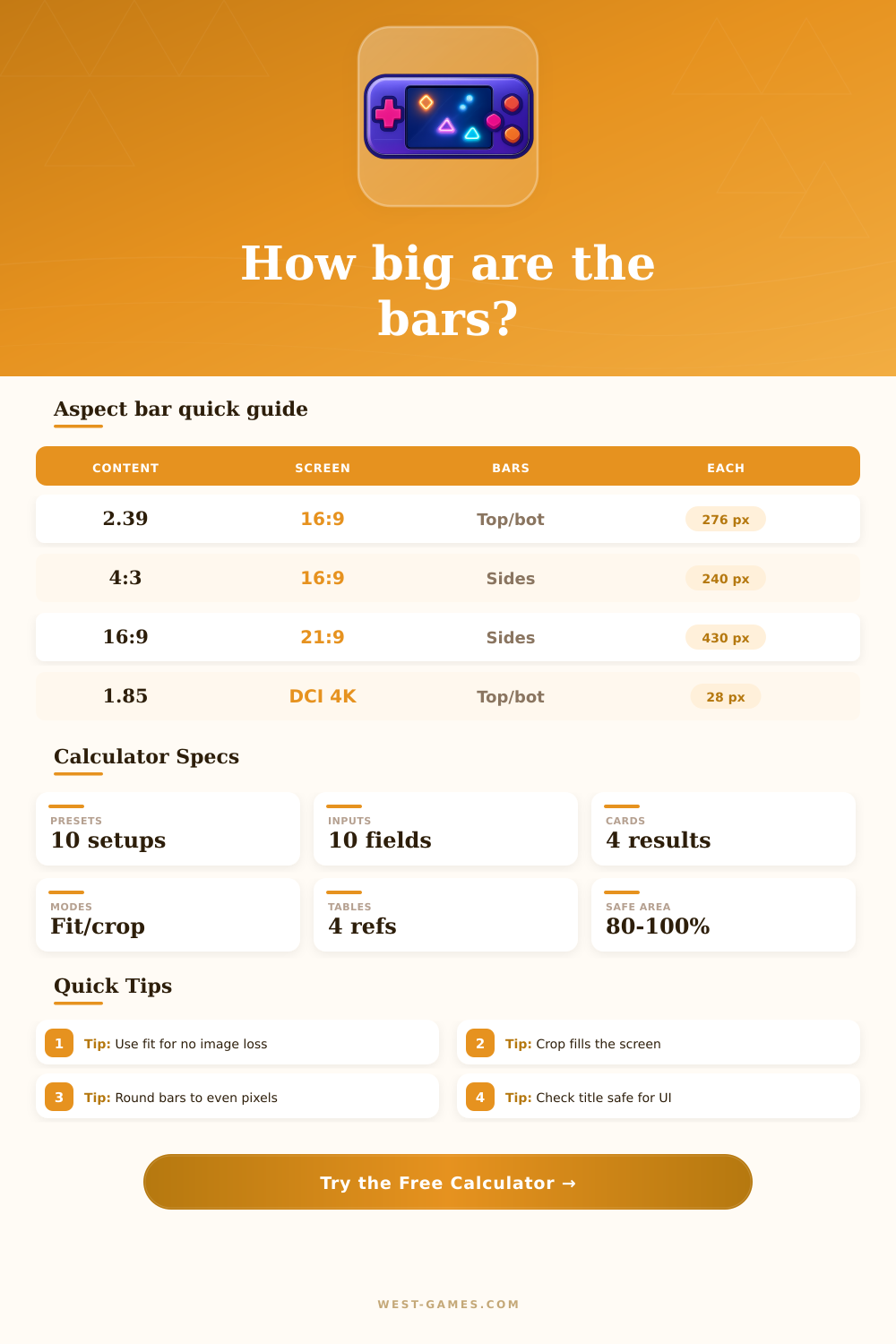
| 2.39:1 into 3840x2160 | 3840x1607 | About 276 px top and bottom | Crop sides to fill height | 90% title safe is 3456x1446 |
| 4:3 into 1920x1080 | 1440x1080 | 240 px left and right | Crop top and bottom to fill width | Keep UI inside 1296x972 |
| 16:9 into 3440x1440 | 2560x1440 | 440 px left and right | Crop vertical pixels if filled | Safe width starts after side bars |
| 1.85:1 into DCI 4K | 3996x2160 | 50 px left and right | Very light horizontal crop | Good for flat DCP checks |
| 9:16 into 3840x2160 | 1215x2160 | 1312 px left and right | Massive top and bottom crop | Use safe area for captions |
Before you know it, there’s that black bar. It bleeds past edge of your TV screen when title sequence starts during a movie. You set up a game capture, now there is these odd voids on each side, making the vertical video look like something went wrong. Moddern viewing is a geometry issue; and not usually one about resolution. It’s an aspect-ratio issue.
Above is a tool that can help solve that. You can plug in what you’re trying to watch and where you want to watch it. This way, when you crop or fit it, you’ll have precise pixel counts for those bars ahead of time.
How to Fix Black Bars on Your Video
Letterboxing (that blank space around most people’s movies) isn’t actualy nothing; it’s negotiating between two rectangle. On one side is the filmmaker’s rectangle, sometimes wide, as in epic cinema at 2.39:1, sometimes narrow, as with classic television at 4:3; and on the other is yours: Your hardware, which might be the old familiar 16:9 living room TV, or maybe it’s some ultrawide thing designed for productivity. Unless those two rectangles matches up, somebody has to give (and if you make the image expand to fit), your faces end up fat and your horizons goes all wonky. Nobody likes that, so we add bars. The calculator tell us how thick those bars should of be. This keeps your composition true to its original shape, so you don’t have to guess if the final render will look right.
That brings us to the actual trick: should I crop or fit? Fitting will maintain all of the original pixels from your source material, including those black bars (the price paid for accuracy). It’s typically best when the content has critical edges, such as credits rolling along the top/bottom of a video, game HUD elements or subtitle text.
Cropping, meanwhile, slices away the left/right sides of the image, filling out the screen instead. On the plus side, this can result in more engaging experience with no black space around. On the downside, you may be cutting off important context, or even lopping off half of someone’s head! To help see just what gets lost where, the tool provide a side-by-side comparison between cropping and fitting.
Practical concerns like safe areas is another thing many content creators ignore. Your image might look great within current frame, but it may not look good on an old TV or certain projectors. These devices uses “overscan,” which cuts off the edges of an image. This means important text at the edge of your video could be completely invisible on some screens. Adding a safe area margin (typically about 90 percent of the active image) keeps titles and logos visible, no matter how odd the viewer’s display might be. A little bit of padding goes a long way, and it saves you from the embarrassment of chopped-up dialogue.
Why should this be important? If you’re going through the trouble of exporting a video to use somewhere, you probably don’t want to have to re-export and lose quality. Even more simply, it’s good to know how big something is before you start working so there aren’t any unpleasant surprises when you hit play. Whether you’re creating YouTube Shorts that look nice on a desktop monitor or mastering a movie for digital cinema packages, you need to know exactly how high those bars are in pixels. This allows you to cleanly combine everything together and get the UI exactly where you want it.
The black bars are like the borders around a painting, a protective frame that tells us something about the image itself. In this case, they help decide how you see the image; whether it feels like an intimate theater experience or something big and wide. By plugging in your dimensions into the calculator above, the math is done for you, so there’s no guessing at conversions and coefficients. Get plain numbers on what thickness the bars will be and your active image size, so you can make a clear decision different than crop vs fit.
It comes down to honoring the composition. If we are talking about letter boxing a film on a regular monitor or pillar boxing one on an ultrawide monitor, it’s all the same idea. Preserve the intention of the filmmaker, and let people see what the filmmaker intended them to see. Measure twice, render once. Use this tool to ensure your renders look exactly how you want them, without unexpected distortion or clipping. The bars exist for a reason, and now you know how big they are so you can have some say in the final appearance.