🎮 VSync Latency Calculator
Estimate input-to-photon delay from refresh rate, FPS cap, render time, frame queue, VSync mode, triple buffering, VRR range, scanout, and display response.
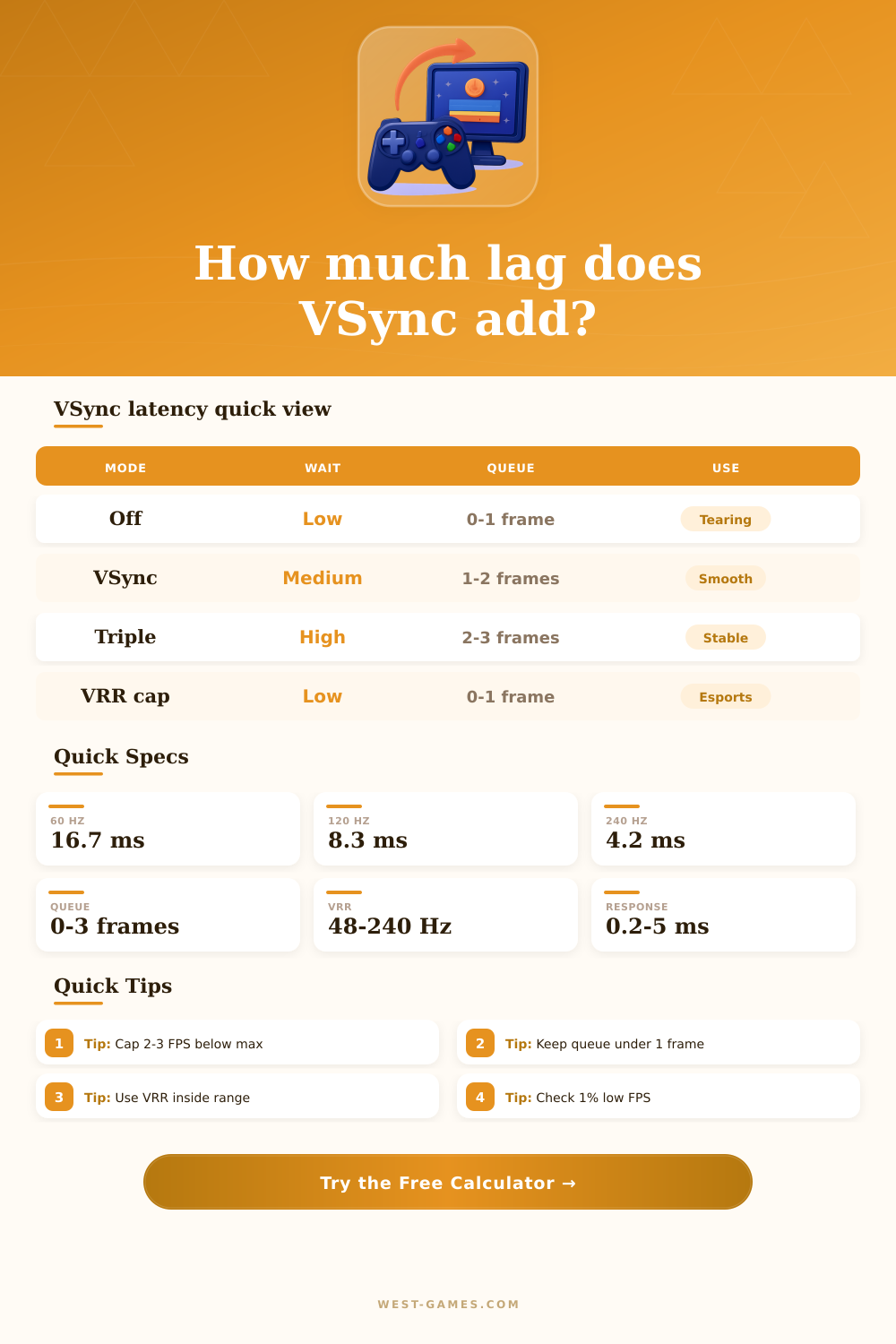
Lowest sync wait, but tearing can appear.
Smooth cadence with extra waiting.
More stability, often more queue.
Usually best mix when cap stays inside range.
| Refresh | Interval | Near-cap FPS | Latency note |
|---|---|---|---|
| 60 Hz | 16.67 ms | 58-60 FPS | One queued frame is a large delay. |
| 120 Hz | 8.33 ms | 117 FPS | Good console and TV performance-mode target. |
| 144 Hz | 6.94 ms | 141 FPS | Common PC VRR cap with comfortable headroom. |
| 165 Hz | 6.06 ms | 162 FPS | Small but visible improvement over 144 Hz. |
| 240 Hz | 4.17 ms | 237 FPS | Strong esports target if render time is stable. |
| 360 Hz | 2.78 ms | 357 FPS | Frame queue matters more than panel response. |
| 540 Hz | 1.85 ms | 537 FPS | Needs excellent 1% lows to pay off. |
| Mode | Typical wait | Queue risk | Best use |
|---|---|---|---|
| VSync off | Near zero sync wait | Low | Minimum latency where tearing is acceptable. |
| Traditional VSync | About half a refresh average | Medium | Clean image when input lag is less critical. |
| Triple buffer | Half refresh plus queue risk | High | Smoother output when FPS misses refresh often. |
| VRR capped | Very low inside range | Low | Best general setting for supported displays. |
| VRR at ceiling | Can behave like VSync | Medium | Works, but cap below max is usually cleaner. |
| Low latency limiter | Smallest queue | Low | Competitive games with stable GPU load. |
| Preset | Refresh | Sync model | Main latency driver |
|---|---|---|---|
| Console 60 VSync | 60 Hz | VSync on | Long refresh interval and queued frames. |
| Console 120 VRR | 120 Hz | VRR cap | TV response and HDMI VRR floor. |
| 144 Hz VRR Cap | 144 Hz | VRR cap | Cap cushion and stable 1% lows. |
| 165 Hz Triple Buffer | 165 Hz | Triple buffer | Extra queue when GPU gets ahead. |
| 240 Hz Esports | 240 Hz | Low latency | CPU time and render queue control. |
| OLED 240 VRR | 240 Hz | VRR cap | Low response, cap stability matters. |
| 360 Hz Low Latency | 360 Hz | Low latency | Very small frame budget margin. |
| 4K 144 GPU Bound | 144 Hz | VRR cap | Render time dominates the estimate. |
| Display | Common VRR range | Cap idea | Why it matters |
|---|---|---|---|
| 60 Hz TV | 48-60 Hz | 58 FPS | Small range, lows leave VRR quickly. |
| 120 Hz TV | 48-120 Hz | 117 FPS | Avoids bouncing into the ceiling. |
| 144 Hz monitor | 48-144 Hz | 141 FPS | Popular G-SYNC Compatible style cap. |
| 165 Hz monitor | 48-165 Hz | 162 FPS | Keeps the limiter below max refresh. |
| 240 Hz monitor | 48-240 Hz | 237 FPS | Low latency if 1% lows stay high. |
| 360 Hz monitor | 60-360 Hz | 357 FPS | CPU spikes become very visible. |
| Component | Typical range | Latency effect | Calculator field |
|---|---|---|---|
| Mouse or wired controller | 0.5-3 ms | Before the game samples input | Device and OS input delay |
| Bluetooth controller | 4-12 ms | Can dominate at high refresh | Device and OS input delay |
| Low latency render queue | 0-0.5 frames | Small added delay | Frame queue depth |
| Normal render queue | 0.5-1 frame | Moderate added delay | Frame queue depth |
| Queued VSync path | 1-3 frames | Large input lag if GPU is ahead | Frame queue depth |
| Fast OLED response | 0.1-0.3 ms | Very small panel allowance | Panel response allowance |
| Fast LCD response | 0.8-3 ms | Can blur or trail moving edges | Panel response allowance |
| TV processing path | 5-20 ms | Use game mode where possible | Device or panel allowance |
The enemy pixel dissapears from the screen as you fire the shot. Your satisfaction at hitting an opponent who didn’t see you coming doesn’t matter to them, they’re still cheated. What’s happened here is input latency: this slight delay between making your mouse move and seeing it happen on screen. When it’s high, it feels like wading through mud; when its low, it feels like magic. Players will most commonly attribute it to either their internet connection or their GPU, but most of the time they’re wrong. More often then not, the issue is that the synchronization method are waiting for a refresh cycle that hasn’t happened yet.
So you can see what these numbers mean. The calculator above handle the difficult math for figuring out frame timing, queue depth, and display response. It lets you plug in some numbers to see how they might combine or stack up. So what does it mean? Well it’s taking every step of the process and breaking it down into input-to-photon delay. Latency isn’t one number but a combination of little delays that start with your mouse sensor and ends up on display panel via your CPU and GPU render queue. Each step has a few milliseconds, and those milliseconds pile up quickly if you’re attempting to respond at twenty-forty frames per second.
How to Fix Input Lag in Games
To combat this issue, traditional VSync will hold your frame until the next display period. In theory, this result in a seamless experience, but it can leave a substantial lag between frames. On an average 60 hertz monitor, that could mean that you’re waiting one full refresh (sixteen milliseconds). In fast-paced games, that lag feel clunky. Triple buffering exacerbates this problem: now you have even more frames queuing up. While triple buffering can prevent stutter if your GPU is falling behind the display rate, it also reduce your responsiveness, so instead of seeing what’s happening right now, you’re playing catch-up.
The arrival of Variable Refresh Rate technology (FreeSync, G-Sync) altered all that, allowing the monitor to adjust itself to whatever graphics card was feeding it. It eliminates the waiting period built into traditional VSync. Yet, unless you cap your frames properly, if you’re running more than the max refresh rate on your display, the system will revert to old-school VSync behavior, negating the point of variable refresh entirely. To get around this, you have to cap your FPS just under the refresh rate limit of your screen. Stay within the adaptive range to maintain a low-latency image while keeping frame rate smooth.
Using the reference tables, the calculator demonstrates how these different sync modes will perform in various scenarios. For example, we learn that turning off VSync results in the lowest latency but has a chance of causing visual tearing. VSync on is smoother but introduce some delay. Variable Refresh Rate capped is typically the sweet spot for most people because it maintains responsiveness while smoothing out input lag without having to queue up frames, which would cause too much penalty.
People also miss another element called frame queue depth. Moddern games will render out several frames into the future to keep the GPU fed. That’s great because it boosts average frames per second figures. However, it add input lag because you have to wait until previous frames are out of the pipeline before your next input can take effect. Games and drivers has low latency modes that try to empty that queue to at least zero or one frame. It’s a minor difference but hugely significant when it comes to competitive play.
There’s also an additional bit of lag introduced by your display panel itself. Some LCD panels can take a few milliseconds to change colors, while faster ones (like OLED panels); will respond almost instantly. It doesn’t really matter with slow games. However, it’ll be noticeable if you’re trying to track something that moves quickly. The tool allow you to change the response allowance depending on what kind of monitor you have.
In short, increasing your refresh rate matters as long as you have the right approach based off the software side of things. It’s all about reducing waiting time and managing the queue. Having a four hundred hertz display with triple buffering turned on is going to feel slower than having a one hundred twenty hertz screen without VSync or any properly capped variable refresh due to its ability to control the queue and eliminate useless wait times. The calculator allows you to visualize those trade-offs before purchasing new hardware. You’ll know exactly how much delay everything introduces and make an informed decision about whether that extra smoothness is something you’re willing to sacrifice.
Latency management isn’t just about buying faster gear; it’s also about understanding how your system talk to your display. When you know what happens from frame input to photon emission, you optimize instead of guess. Those hidden milliseconds in the render queue can make or break how your game feels sharp versus It feels slow. Sluggish. Keep ’em low and the game extends as much as your thought.