🎮 Fortnite FPS Calculator
Estimate your Fortnite frames per second by GPU, resolution & graphics preset
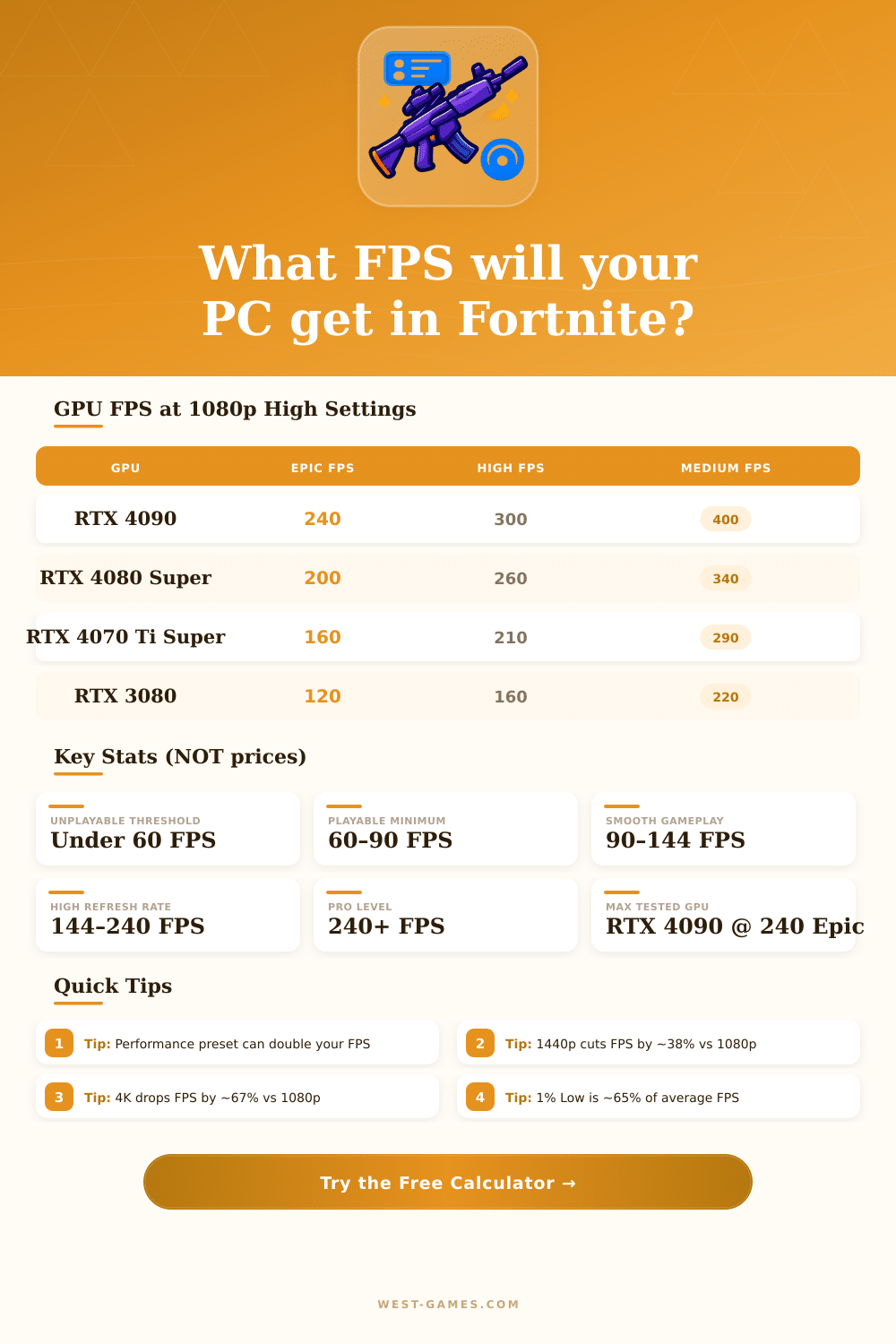
| GPU | Epic FPS | High FPS | Medium FPS |
|---|---|---|---|
| RTX 4090 | 240 | 300 | 400 |
| RTX 4080 Super | 200 | 260 | 340 |
| RTX 4070 Ti Super | 160 | 210 | 290 |
| RTX 4070 Super | 130 | 175 | 240 |
| RTX 4070 | 110 | 150 | 210 |
| RTX 3080 | 120 | 160 | 220 |
| RTX 3070 | 90 | 125 | 175 |
| RX 7900 XTX | 185 | 240 | 320 |
| RX 7800 XT | 110 | 145 | 200 |
| RX 6700 XT | 80 | 110 | 155 |
| GTX 1080 Ti | 70 | 95 | 135 |
| GTX 1660 Super | 50 | 70 | 100 |
| Resolution | Multiplier | FPS Impact |
|---|---|---|
| 1080p | 1.00x | Baseline |
| 1440p | 0.62x | -38% FPS |
| 4K | 0.33x | -67% FPS |
| Preset | Multiplier | vs High |
|---|---|---|
| Performance | 2.5x | +150% FPS |
| Low | 1.8x | +80% FPS |
| Medium | 1.3x | +30% FPS |
| High | 1.0x | Baseline |
| Epic | 0.7x | -30% FPS |
Note: This article is based on actual experience and technical info shared by the community of Fortnite.
Frames per second in FPS show the smoothness of the game. 60 FPS means that the screen shows 60 images each second, which gives the feeling of motion. High FPS reduces the delay between your action and its sight on the screen.
How to Improve FPS in Fortnite
That helps for better aiming, fast building and small movements. Smoother frame rate makes it easier to follow fast targets and shoot exactly, especially in close fights or action scenes. In Fortnite the fast building and editing requires visual feedback within half of seconds, so more frames truly are useful.
Most monitors run at 60 Hz, so above 60 FPS will not change the display, unless your screen has higher refresh rate. With a monitor of high refresh rate the moving players show more clearly and everything feels more alive.
An easy way to check FPS is to turn on the FPS display in the visual settings of Fortnite. For more exact measure, use programs of third party, that count average FPS and other performance data over time. The built-in FPS counter limits to 60 or 120, depending on the window rule, so testing of changes must happen in real games.
The Performance Mode aims to lower the visual effects too increase the frames. It works well for old computers. This mode allows to remove textures of high resolution, which saves more than 14 GB of space and reduces the whole install size to about 17 GB.
Even so, it can cause rough changes in FPS and the image suffers a lot.
Switch to DirectX 12 commonly improves the performance and stability, although some systems have problems with it and barely reach 80 stable FPS. Turning on Nvidia Reflex helps, unless the computer is fully limited by the GPU. Limiting FPS a bit under the average gives more steady performance.
Ideal range between frame rate and image quality is between 100 and 150 FPS, while you move through the map.
Falls in FPS are a common problem. Even strong hardware like RTX 3070 with Ryzen 7 can have bad drops and micro stutters. Old drivers of GPU commonly cause sudden drops of FPS.
Update them regularly by means of NVIDIA GeForce Experience or AMD Software is useful. After change of GPU, do clean install of drivers, because leftovers of old ones can cause problems.
Fortnite depends more on the CPU than on the GPU. If the heat of the processor rises too much, replacing the cooling can fix that. Render distance, if too high, causes sudden falls during big areas loading.
Lowering the graphic settings asmuch helps to keep FPS high and make the game more competitive. Checking the system requirements on the official page is the best first step for those that struggle with the frames.