Cloud Gaming Bandwidth Calculator
Estimate the real connection budget for game streaming with resolution, FPS, codec efficiency, audio, packet overhead, session length, latency buffer, and network headroom.
How to read it: the calculator starts with your chosen video bitrate, adds audio and packet overhead, then applies latency buffer and network headroom to estimate the recommended download capacity for smooth play.
Bandwidth Breakdown
Connection Fit
Balanced: this profile is comfortable for many home broadband plans when other traffic is light.
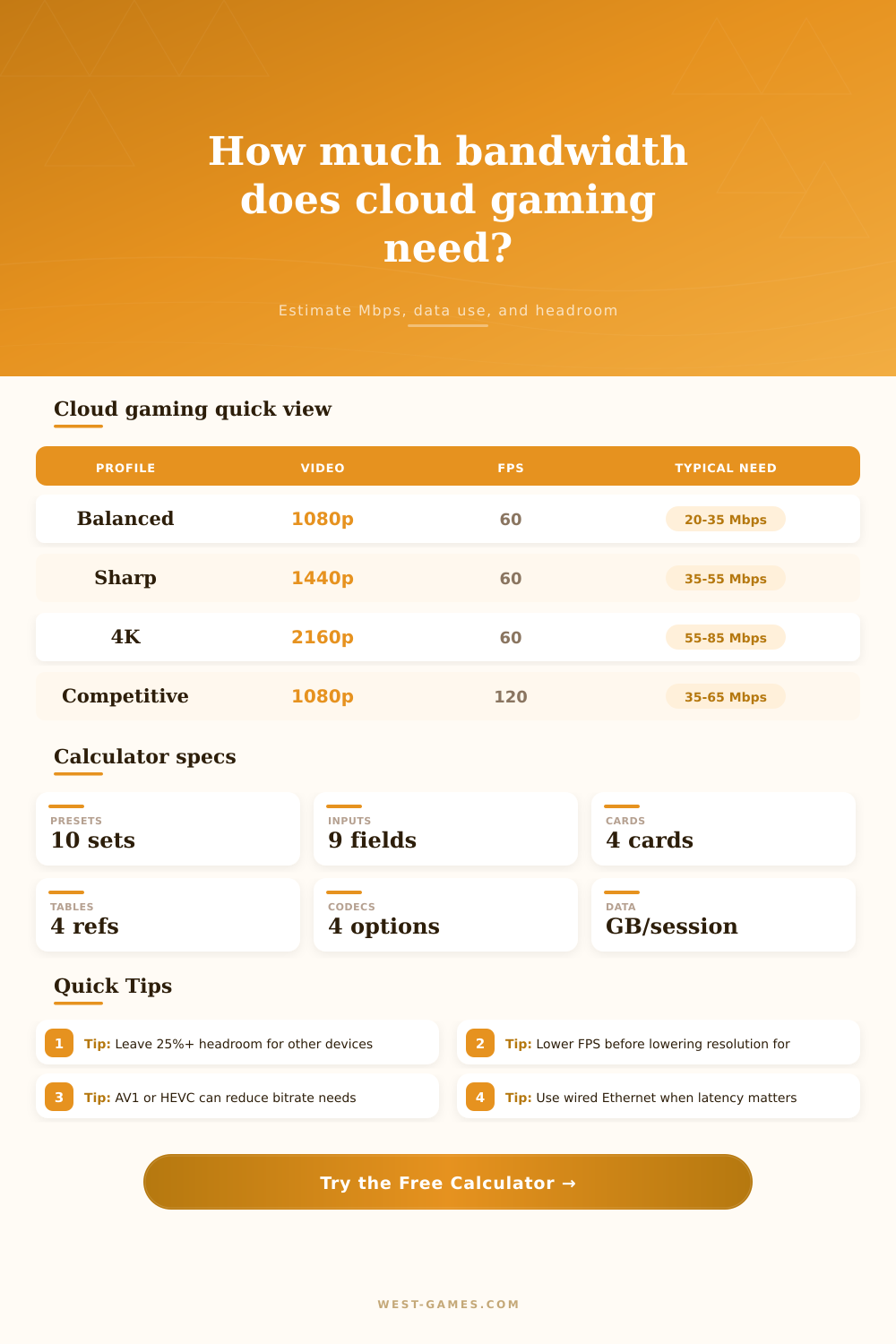
| Resolution and FPS | Typical video Mbps | Recommended connection | Best use |
|---|---|---|---|
| 720p 60 FPS | 8 to 16 Mbps | 15 to 25 Mbps | Travel, handhelds, tighter data caps |
| 1080p 60 FPS | 15 to 30 Mbps | 25 to 45 Mbps | Most living room and laptop play |
| 1080p 120 FPS | 30 to 50 Mbps | 45 to 70 Mbps | Competitive play with lower display latency |
| 1440p 60 FPS | 30 to 50 Mbps | 45 to 70 Mbps | Sharp PC monitor streaming |
| 4K 60 FPS | 50 to 85 Mbps | 75 to 120 Mbps | Premium TV play with high detail |
| Codec | Relative bandwidth | Strength | Watch for |
|---|---|---|---|
| H.264 AVC | Higher | Wide compatibility | Needs more Mbps for clean 4K |
| VP9 | Medium | Common browser support | Device decode quality varies |
| H.265 HEVC | Lower | Strong quality per Mbps | Support depends on device and service |
| AV1 | Lowest | Excellent compression for modern devices | Older clients may fall back to another codec |
| Cloud play style | Latency target | Headroom target | Practical note |
|---|---|---|---|
| Single-player RPG | Under 80 ms feels fine for many players | 20% to 25% | Favor higher resolution over very high FPS |
| Action adventure | Under 60 ms is a good goal | 25% to 30% | Keep WiFi signal strong or use Ethernet |
| Racing and fighting | Under 45 ms is preferred | 30% to 35% | Prioritize stable 60 or 120 FPS |
| Competitive shooter | Under 35 ms is ideal | 30% to 40% | Lower resolution before accepting jitter |
| Total stream Mbps | GB per hour | 3-hour session | 30 sessions |
|---|---|---|---|
| 15 Mbps | 6.8 GB | 20.3 GB | 202.5 GB |
| 25 Mbps | 11.3 GB | 33.8 GB | 337.5 GB |
| 40 Mbps | 18.0 GB | 54.0 GB | 540.0 GB |
| 65 Mbps | 29.3 GB | 87.8 GB | 877.5 GB |
| 95 Mbps | 42.8 GB | 128.3 GB | 1282.5 GB |
WiFi 5
Good for 720p and 1080p if signal is strong, but household congestion can create spikes. Keep the router close.
WiFi 6 or 6E
Better for 1440p, 4K, and 120 FPS because it handles crowded networks with less delay and cleaner scheduling.
Ethernet
The best option for latency-sensitive games. It reduces jitter, packet loss, and sudden bitrate drops.
5G Hotspot
Can work well for short sessions, but data caps and variable latency make 4K cloud gaming expensive fast.
Do you remember that feeling? You sit down to play, hit start, and there’s your hero standing in place as a buffering icon spins? Spoils the mood pretty fast. The promise of cloud gaming is that it can turn your phone or laptop into high-end console, with one catch: you need a solid data pipe. And when that wobbles, so does the magic.
This is where knowing how much bandwidth you actualy have is more important than what’s listed on your ISP bill. You can input the codecs you want to use as well as what resolution, and the tool will do the math for you (see above). No more wondering if that 100-megabit plan will support streaming Netflix while you’re gaming at 4K.
How to Fix Lag in Cloud Gaming
While raw speed matter, it’s also about how much bandwidth you have during periods of high stress. To get an accurate recommended internet speed, the calculator factor in things like packet overhead, audio streams, and latency-critical buffers. If you ignore those add-ons, then your video bit rate isn’t the only thing sucking up your bandwidth. There are all sorts of hidden data inside each packet… Encryption headers, jitter compensation, retransmission requests. Overlook them and you’ll see stuttering. Stuttering makes competitive shooters unbearable.
In practice, this means choosing the correct codec, and codecs is technical, yet very important. Older devices work with everything: budget smart TVs and ancient tablets will support good ol’ H.264. That said, they also needs a lot of bandwidth to retain quality. New stuff like HEVC and AV1 compresses so well that you can get crisper pictures while using less data. On the flip side, your device must be powerful enough to play back these compressed streams as they arrive in real time. Forcing a high-efficiency format could cause dropped frames on an older device. Your internet may be speedy but not your computer’s processor. It sounds like a tiny hardware detail, but it determine what software runs on your device.
The obvious tools include resolution and frame rate, but sometimes it gets tight and then what? When you drop from 4K to 1080p that will save a tremendous amount of data. If you can afford to drop from 120 FPS to 60 FPS that will often preserve the visual quality and still cut bandwidth requirements significantly. 60 frames per second is plenty smooth for most genres. Higher refresh rates is only really needed in fast-paced competitive titles where response time is everything.
The typical ranges break out in reference tables that come with the tool. These will show you how much data each profile will consume in an hour or a whole gaming session. And it’s worth noting that data caps are still a thing, knowing how much data you use matters just as much (if not more) than the speed you’re getting. A high-bitrate stream can burn through dozens of gigabytes in a matter of hours. And if you’re on a limited plan, those extended RPG session will add up in a hurry. For this reason, the calculator use your selected session length to estimate how much data it’ll consume. That way, you won’t bust your limit or get hit with any surprise bills.
It also takes into account your network headroom, i.e., the amount of buffer needed for other devices. After all, no one plays in a vacuum here: your phone may be downloading updates; someone else might be on a video call; and your smart home devices is constantly talking to the cloud. For one thing, a wired connection still rules because… well, it’s a wired connection. Sure, Wi-Fi can be handy… But it can also suffer interference from nearby networks, as well as microwave ovens and other devices in your home. Moddern routers are capable of using Wi-Fi 6, yet even they will fail to give as few packet losses and less latency different than a wired connection. Bottom line: If your router sits far away from your gaming machine, try moving it closer (and again, if Wi-Fi is unavoidable, avoid using the busy 2.4-gigahertz frequency).
Cloud gaming is not simply about downloading a file. Think of it more as watching a live video feed. Treat this service as such. It’s all about stability, not necessarily maximum speed. Once you know what your bandwidth is really up to, those buffering screens are a thing of the past. And you’re right back where you belong: playing the damn game.