📶 Upload Speed to Bitrate Calculator
Convert your real upload speed into a stable stream bitrate after safety margin, protocol overhead, audio bitrate, resolution, FPS, encoder efficiency, and platform cap.
Extra room for variable upload and chat or browser traffic.
Highest video bitrate that still honors your safety margin.
Approximate video bitrate wanted by the selected resolution, FPS, and encoder.
Upload used by audio and protocol overhead around the video stream.
| Measured upload | Reserve | Audio | Approx stable video |
|---|---|---|---|
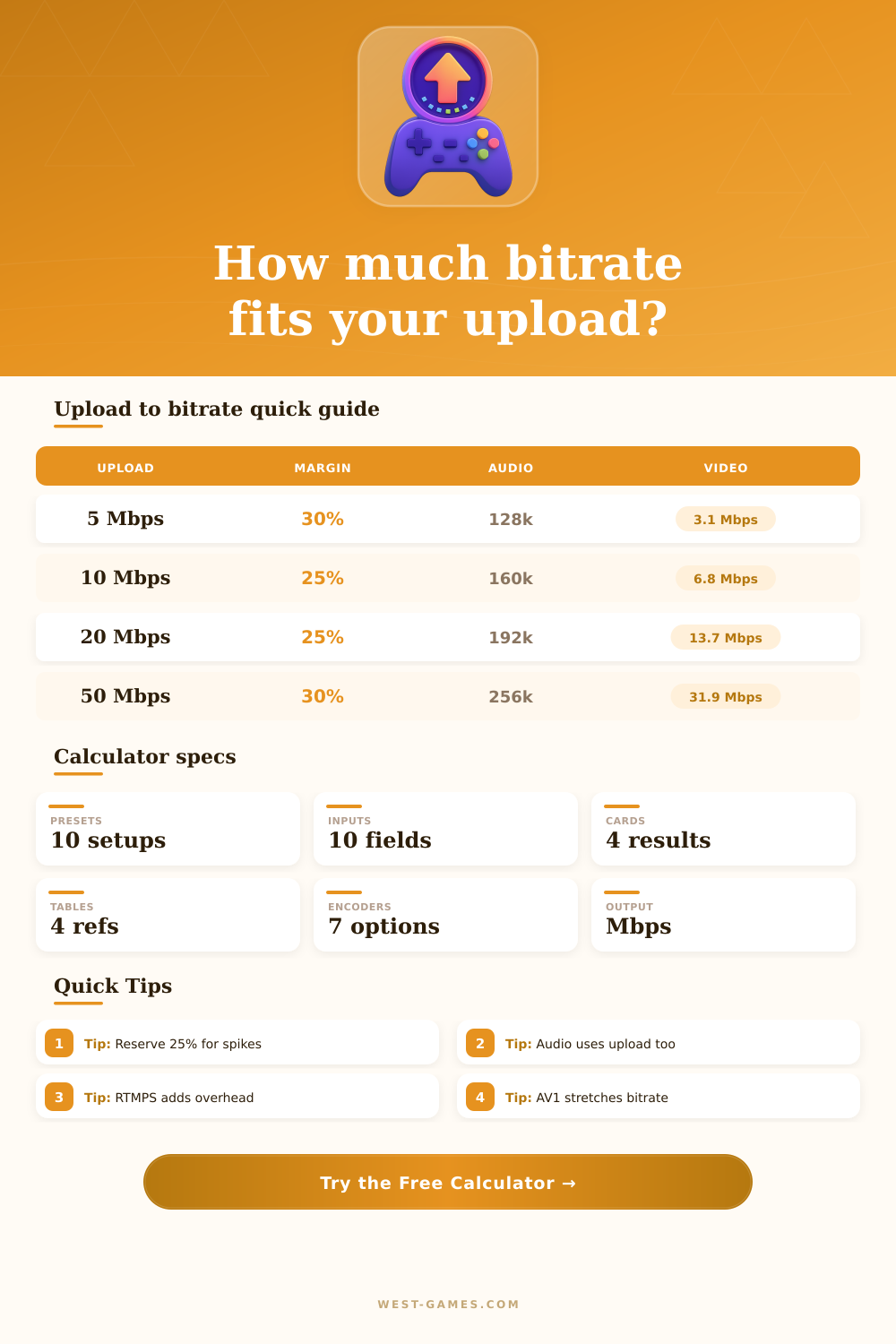
| 5 Mbps | 30% | 128 kbps | About 3.1 Mbps video for 720p |
| 8 Mbps | 25% | 160 kbps | About 5.4 Mbps video for 720p60 or 936p |
| 12 Mbps | 25% | 160 kbps | About 8.0 Mbps if the platform cap allows it |
| 20 Mbps | 25% | 192 kbps | About 13.7 Mbps video for 1080p or 1440p |
| 50 Mbps | 30% | 256 kbps | About 31.9 Mbps video for high resolution streams |
These examples assume 8% protocol overhead unless the connection is especially variable.
| Stream target | H.264 range | Efficient codec range | Best use |
|---|---|---|---|
| 720p30 | 2.0-3.5 Mbps | 1.5-2.8 Mbps | Mobile, talk, limited upload |
| 720p60 | 3.5-5.5 Mbps | 2.8-4.5 Mbps | Fast games on modest lines |
| 936p60 | 5.0-8.0 Mbps | 4.0-6.5 Mbps | H.264 platform compromise |
| 1080p60 | 6.0-12 Mbps | 4.5-9 Mbps | Mainstream game streams |
| 1440p60 | 12-24 Mbps | 8-18 Mbps | Sharp UI and VOD quality |
| 4K60 | 30-55 Mbps | 20-40 Mbps | Showcase and archive streams |
The calculator uses your exact upload math first, then compares the result with a resolution quality estimate.
| Path | Overhead input | What it covers | When to raise it |
|---|---|---|---|
| SRT tuned route | 5% | Efficient transport and stable path | Raise for packet recovery |
| RTMP wired | 7-8% | Container, transport, normal variance | Raise for busy home uplink |
| RTMPS | 9-10% | Encrypted ingest plus routing variance | Raise for Wi-Fi or VPN |
| Wi-Fi stream | 10-13% | Contention, retries, local bursts | Raise near weak signal |
| Hotspot | 13%+ | Mobile jitter and tower congestion | Raise during events or travel |
Protocol overhead is separate from the safety margin. Overhead models carried data, while margin reserves unused upload.
| Encoder preset | Calculator factor | Typical strength | Tradeoff |
|---|---|---|---|
| x264 veryfast | 1.10x | CPU compatibility | Needs more bitrate |
| x264 slow | 0.94x | Good H.264 quality | High CPU load |
| NVENC H.264 | 1.00x | Low game impact | Platform cap still matters |
| HEVC | 0.75x | Better compression | Support varies by ingest |
| AV1 hardware | 0.62x | Strong low-bitrate quality | Requires modern platform path |
A lower factor means the same quality target can be reached with less video bitrate.
| Preset | Upload | Reserve | Stream target | Practical read |
|---|---|---|---|---|
| Hotspot 720p | 5 Mbps | 35% | 720p30 H.264 | Prioritize stability over sharpness. |
| Twitch 936p60 | 10 Mbps | 25% | 936p60 H.264 | Good fast-game compromise under cap. |
| YouTube 1080p60 | 20 Mbps | 25% | 1080p60 H.264 | Room for cleaner detail and audio. |
| AV1 QHD | 28 Mbps | 25% | 1440p60 AV1 | Efficient path for sharp streams. |
| 4K Showcase | 80 Mbps | 30% | 4K60 HEVC | Needs a wide, quiet upload pipe. |
Run the calculator with your measured line speed and platform cap before choosing a final OBS or encoder bitrate.
While most of us probably pay for high-speed internet plan, the upload speed rating is deceiving. This represent the maximum speed available in an ideal environment. However, reality of streaming involves competing traffic like operating system updates and other app running over Wi-Fi. This can be interfered with by your neighbor’s devices and occasional packet loss.
To figure out whether you can manage 1080p60 or should of stick with the safe zone of 720p instead, plug in your true line stats into calculator on this page… It’ll do the number crunching for you.
How to Choose Your Video Quality
Most folks have the wrong idea: they take their speed test number and treat it as a hard limit on how much video they can sends. But it’s not. Your upload capacity has to supports more than just pixels of video. You’ve got audio data; there’s protocol overhead; and you reserve some amount as a safety margin in case there is sudden spikes in traffic. Give all the megabits to video? You’ll drop frames when there’s a little hiccup in the network, and those dropped frames look worse then slightly down-resed content.
In fact, you’re often getting a better picture from a stably streaming source, even if its bitrate isn’t quite as high. Consider your upload budget as your monthly data allowance. It’s a limited amount, so you need to divvy up the spend between things like audio and video.
Video bitrate is biggest line item in the streaming budget. Audio is more like a utility bill. Encrypted tunnels to the platform server and container format itself are part of the protocol overhead. Reserve bandwidth is the safety margin, or your emergency fund. Without some reserve bandwidth, any big surge of data will throw off the stream. This tool will subtract what you’re spending on necessary stuff… Then inform you how much video quality you can afford.
Video data dwarfs audio, so it’s easy to ignore the latter. Yet if your stream’s audio is a 192 kilobit per second stereo track, that’s still sending almost two hundred thousand bits every second through your router. And bandwidth count. The higher you crank the audio settings, the more professional that stream will sound (particularly with multiple speaker or music sources), so you can spends less on video. That’s your choice, and it’s direct: do you want crisp dialogue, or a bit blurrier game feed? Unless you’re streaming cards/text that don’t change, you probably want the former.
Quality also depends on encoder efficiency. Newer codecs such as HEVC and AV1 pack more visual quality into a smaller bit rate than their predecessors (such as H.264 standards). It’s the difference between putting your shirts in a box carefully, vs just throwing them in there. With newer encoders supported on your hardware, you can achieves high-resolution while still keeping upload speeds manageable. That is reflected in the reference tables on the page, which demonstrate how much headroom you get when you lower frame rates or switch to a new codec in high-motion scenes.
There is one more problem, which is Wi-Fi. By its very nature, wireless isn’t reliable; it compete with any number of other device for airtime. Ethernet offers a solid route for data to travel, whereas Wi-fi will have to contend with “traffic” like a congested road. In the case of Wi-Fi, you can bump up the overhead figure to adjust for lost packets and retries. Better to overestimate bad quality than be disconnected at a critical moment.
So at the end of the day, streaming is all about setting expectations. A 5 megabit connection will never be a 20 megabit one. And it’s just about lining everything up, your internet service, your hardware and the limits of whatever platform you’re using. When you get used to the cost of pushing bits out of your home, frustration subsides. It becomes about finding a happy medium where reliability meets quality. Bitrate numbers don’t matter to viewers as much as whether or not the stream is up and looking good.