🖥 Custom Timing Modeline Calculator
Build a display timing from active pixels, front porch, sync width, back porch, total pixels, refresh rate, pixel clock, CVT-RB style blanking, and estimated link bandwidth.
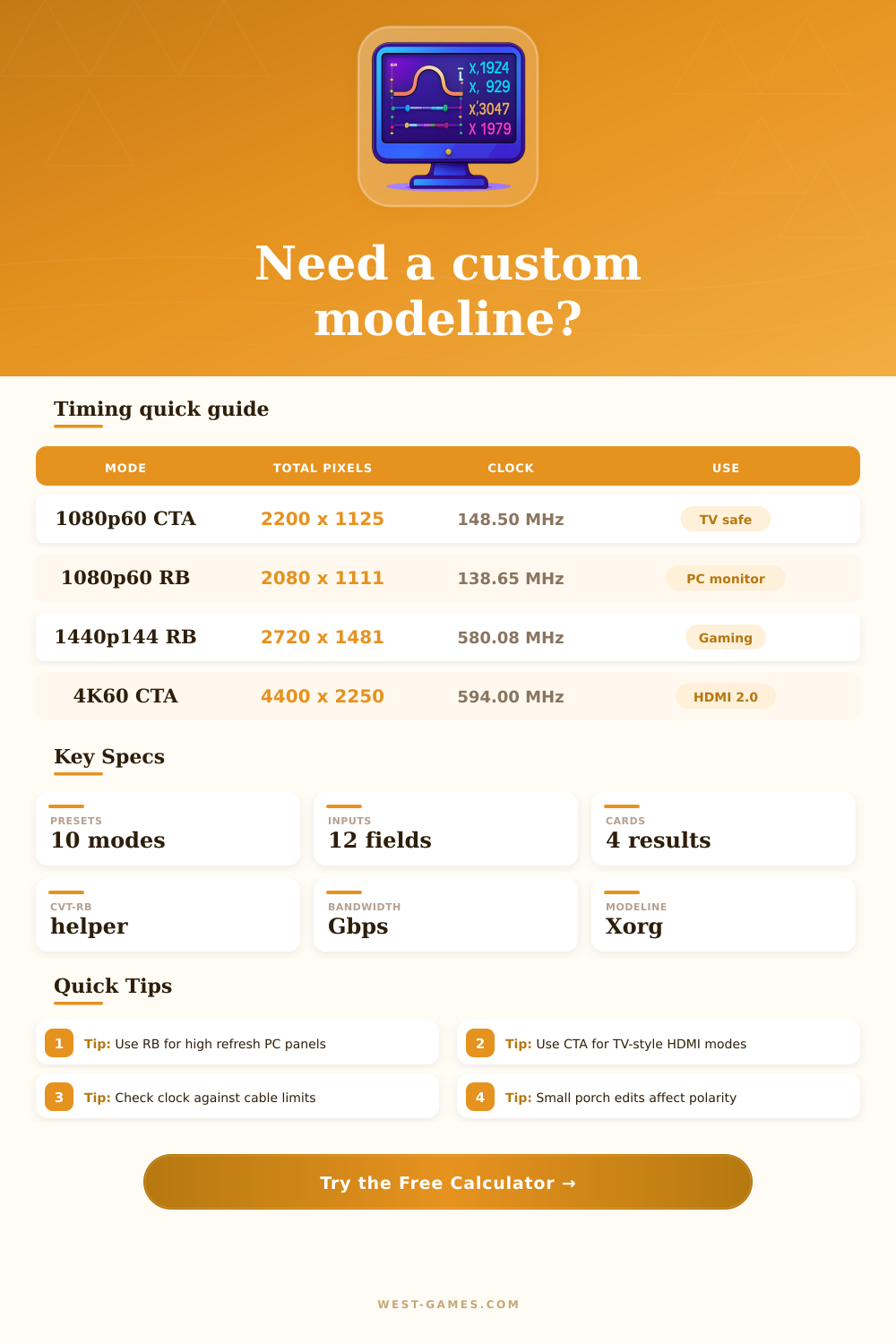
Modeline "2560x1440_144.00" 580.08 2560 2608 2640 2720 1440 1443 1448 1481 +HSync -VSync
Reduced blanking is useful when the monitor accepts PC-style timing and the link is close to its pixel clock ceiling.
TV and capture paths often expect broader blanking, especially common HDMI formats like 1080p60 or 4K60.
Use this when copying an EDID detailed timing, CRU entry, xrandr mode, or monitor service-menu value.
The calculator reports raw timing bandwidth, but final fit depends on the port, coding, chroma, DSC, and cable.
| Preset | Active | Total | Clock |
|---|---|---|---|
| 720p60 CTA | 1280 x 720 | 1650 x 750 | 74.25 MHz |
| 1080p60 CTA | 1920 x 1080 | 2200 x 1125 | 148.50 MHz |
| 1080p60 CVT-RB | 1920 x 1080 | 2080 x 1111 | 138.65 MHz |
| 4K60 CTA | 3840 x 2160 | 4400 x 2250 | 594.00 MHz |
These are practical starting points; panel firmware may round or reject unusual values.
| Helper | H front | H sync | H back |
|---|---|---|---|
| CVT-RB style | 48 px | 32 px | 80 px |
| CVT-RB2 style | 48 px | 32 px | 40 px |
| Conservative PC | 64 px | 48 px | 96 px |
| CTA broad blanking | Resolution based | Resolution based | Resolution based |
The helper is intentionally editable. Use monitor-specific EDID data when exact sync values matter.
| Field group | Formula | Example | Meaning |
|---|---|---|---|
| H active | H display | 2560 | Visible horizontal pixels |
| H sync start | active + front porch | 2608 | Horizontal sync begins |
| H sync end | sync start + sync width | 2640 | Horizontal sync ends |
| H total | active + all blanking | 2720 | Full line width |
Vertical fields follow the same active, sync start, sync end, and total pattern.
| Signal | 8 bpc RGB | 10 bpc RGB | Planning note |
|---|---|---|---|
| 1080p60 CTA | 3.56 Gbps | 4.46 Gbps | Easy for modern HDMI/DP |
| 1440p144 RB | 13.92 Gbps | 17.41 Gbps | Often DP 1.2+ territory |
| 4K60 CTA | 14.26 Gbps | 17.82 Gbps | Common HDMI 2.0 limit case |
| 4K120 RB2 | 28.97 Gbps | 36.21 Gbps | Usually needs HDMI 2.1, DP 1.4 DSC, or better |
These are raw RGB timing payloads before transport coding overhead or DSC compression.
| Approach | Strength | Risk | Best workflow |
|---|---|---|---|
| Copy EDID detailed timing | Most likely to match panel firmware | May preserve a bad vendor value | Use when repairing or cloning a known-good mode |
| CVT-RB style helper | Lower pixel clock for PC monitors | Some TVs reject reduced blanking | Start here for high refresh desktop modes |
| CTA-style broad blanking | Broad compatibility with video equipment | Higher clock and bandwidth | Use for capture cards, TVs, and standard HDMI modes |
| Manual porch tuning | Can solve centering or sync edge issues | Bad values can produce no image | Change one field at a time and keep a fallback mode |
Always keep a known working resolution available before testing an aggressive custom modeline.
It’s sixty hertz all neat and tidy instead of the hundred and forty four you desired. Unsupported frequency, the driver tells you. New cable. Panel claims support on paper but no picture will come. It isn’t often a problem with hardware, but rather that something has to be timed correctly. Your display doesn’t get pixels thrown into it, but has to have the right synchronization pulse and blanking interval handshakes to accept them. And tweaking those settings is less about rule-breaking and more about saying exacty what your monitor’s firmware wants to hear.
After plugging in the resolution in use and your preferred refresh rate, the calculator (above) does all the number crunching for you. No need to figure out complicated timing coefficients yourself. It creates a modeline, detailing where sync pulses happen horizontally and vertically in relation to displayed picture.
How to Fix Display Timing Problems
To begin, input the active pixels (e.g., two thousand five hundred and sixty by one thousand four hundred and forty for a QHD screen). Next, select refresh rate. Depending on which helper you choose (CTA video standards, CVT reduced blanking), tool will automatically fill in width of sync pulses and porches. This saves you from the time-consuming task of figuring out how many invisible pixel are between the active frame and the sync signal itself.
What is all this talk about blanking time and these blanking periods? It’s important when you’re troubleshooting your display problems to know why they exist. On older CRT-style monitors, for example, the electron beam had to travel back from far-right side of screen to the far-left side in order to draw a new image. This resulted in both horizontal “front” and “back” porches. Even though moddern-day LCDs don’t have any physical requirement for this traveling time at all, they kept same protocol so old TVs could still work with them.
If your PC’s high refresh rate signal is rejected by an HDMI TV, it is usually because the lower blanking standard is too narrow for the TV’s video decoder to process. The solution is to change CTA style timing and add extra overhead pixels that the TV expects to see. Small thing, huge difference in terms of compatibility.
Bandwidth limits also matter. Particularly if you’re pushing higher refresh rates or resolutions. The calculator estimates raw RGB bandwidth so that you know if your existing port type/version can handle the data load. For example, HDMI 2.0 maxes out at fifty-four gigabits per second gross; for comparison, DisplayPort 1.2 manages about twenty-one gigabits. So, if your calculated pixel clock is above those thresholds, you’ll have to either use something with a higher link rate setting, a better cable, or some kind of compression (such as DSC). The page has a handy reference table that compares commonly used presets versus their required bandwidths. This lets you know beforehand if one-hundred-twenty hertz at four kilohertz will fit inside your hardware capabilities without even having to plug it in.
In addition, many people wrongly assume shrinking the blanking down to nothing will shrink it back under their bandwidth constraint and/or get an extra bit of performance. Monitor firmware need a known width of sync in order to lock on to your display signal. If you make pulse too small, you’ll get a black screen or it will flicker. These fields are editable by hand with the tool if you want to match exact times from service menu or fix a corrupted set of EDID data. Be careful doing this yourself though, if you mess with one porch value and not another, you might tear or shift the image off center.
All that’s needed now is copy the generated text into your config file or third party utility such as Custom Resolution Utility on Windows. This contains all information you need: the screen size (active dimensions) and the polarity flag, which defines whether sync pulse is high or low depending on implementation. Digital is generally positive while some older standards are negative) and where it begins on the screen (sync start). If you get this part wrong, you’ll have nothing displayed at all. The calculator assumes default standard positive/negative values according to popular profiles, but make sure you check these against your own panel documentation to keep everything rock solid. You should of checked that earlier too.
So in conclusion: Display timing is a matter of compromise between the expected sink and available capability from the source. Bandwidth ceilings mean you can’t push a mode that the hardware simply won’t support. Firmware checks for specific blanking structures means you can’t go around them either. But by playing with wider/broader and narrower/reduced timings, you have control over modes which generic drivers flat-out don’t want to give you. And so instead of getting a “unsupported frequency” error, you’re presented with a solvable configuration puzzle. This is not just for an increased refresh rate, but for solid synchronization so you can make your display actualy do what it was built to do.