🖥 Refresh Rate to Frame Time Calculator
Convert monitor Hz into milliseconds, test FPS caps, model VRR range, render queue, scanout time, frame budget, and dropped-frame margin.
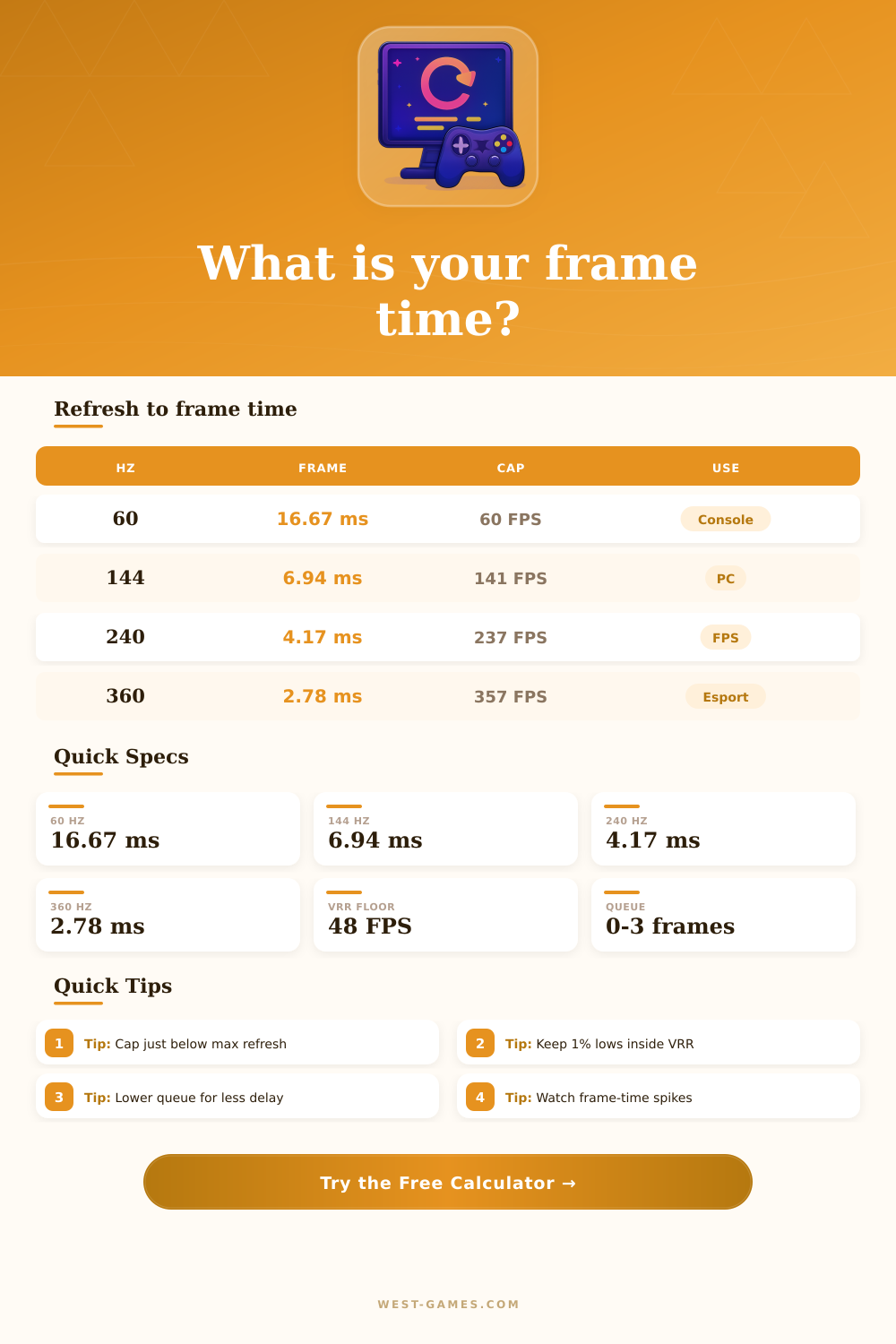
| Refresh rate | Frame time | Common FPS cap | Practical note |
|---|---|---|---|
| 60 Hz | 16.67 ms | 60 FPS or 58 FPS | Console baseline; dropped frames are highly visible. |
| 75 Hz | 13.33 ms | 72 FPS | Small upgrade over 60 Hz for desktop and casual play. |
| 90 Hz | 11.11 ms | 90 FPS or 88 FPS | Handheld OLED and VR-style smoothness target. |
| 120 Hz | 8.33 ms | 117 FPS | Common console performance mode and TV gaming target. |
| 144 Hz | 6.94 ms | 141 FPS | Classic PC gaming sweet spot with broad GPU support. |
| 165 Hz | 6.06 ms | 162 FPS | Common 1440p monitor overdrive mode. |
| 175 Hz | 5.71 ms | 172 FPS | Often seen on ultrawide OLED modes. |
| 240 Hz | 4.17 ms | 237 FPS | Competitive target where frame pacing matters a lot. |
| 280 Hz | 3.57 ms | 277 FPS | Overclocked 1080p esports LCD class. |
| 360 Hz | 2.78 ms | 357 FPS | High-end tactical FPS and aim trainer target. |
| 500 Hz | 2.00 ms | 497 FPS | Needs very high 1% lows to feel meaningfully smoother. |
| 540 Hz | 1.85 ms | 537 FPS | Elite esports mode with almost no frame-time slack. |
| FPS cap | Game frame time | Good refresh pair | Why it matters |
|---|---|---|---|
| 30 FPS | 33.33 ms | 60 Hz | Two refreshes per frame, visible judder if pacing drifts. |
| 60 FPS | 16.67 ms | 60 or 120 Hz | Clean cadence on 60 Hz and repeated frames on 120 Hz. |
| 90 FPS | 11.11 ms | 90 or 180 Hz | Useful handheld and VR-style cadence target. |
| 117 FPS | 8.55 ms | 120 Hz VRR | Common cap below 120 Hz to avoid hitting the VRR ceiling. |
| 141 FPS | 7.09 ms | 144 Hz VRR | Typical cap for 144 Hz G-SYNC Compatible and FreeSync play. |
| 162 FPS | 6.17 ms | 165 Hz VRR | Small cushion under a 165 Hz display ceiling. |
| 237 FPS | 4.22 ms | 240 Hz VRR | Popular competitive limiter setting for 240 Hz monitors. |
| 357 FPS | 2.80 ms | 360 Hz VRR | Very tight budget that exposes CPU and GPU spikes quickly. |
| VRR window | Frame-time window | Safe cap example | Risk outside range |
|---|---|---|---|
| 48-120 Hz | 20.83 to 8.33 ms | 117 FPS | Below 48 FPS needs low framerate compensation or repeats. |
| 48-144 Hz | 20.83 to 6.94 ms | 141 FPS | Cap too high can bounce into VSync behavior at the ceiling. |
| 48-165 Hz | 20.83 to 6.06 ms | 162 FPS | 1% lows below 48 FPS may stutter even if average is high. |
| 48-240 Hz | 20.83 to 4.17 ms | 237 FPS | Spikes above 4.17 ms miss the single-refresh budget. |
| 60-360 Hz | 16.67 to 2.78 ms | 357 FPS | Requires extremely stable CPU and GPU frame pacing. |
| 48-540 Hz | 20.83 to 1.85 ms | 537 FPS | Any tiny render spike can erase the high-refresh advantage. |
| Preset | Refresh | FPS cap | VRR range | Calculator focus |
|---|---|---|---|---|
| PS5 120 Hz OLED | 120 Hz | 120 FPS | 48-120 Hz | Console performance mode and TV scanout. |
| Steam Deck OLED 90 | 90 Hz | 45 FPS | 40-90 Hz | Half-rate cap with handheld power and smoothness balance. |
| ASUS 1080p 280 Hz | 280 Hz | 277 FPS | 48-280 Hz | Overclocked fast LCD esports timing. |
| ZOWIE 360 Hz FPS | 360 Hz | 357 FPS | 60-360 Hz | Tactical shooter frame budget and queue control. |
| ROG 540 Hz Esports | 540 Hz | 537 FPS | 48-540 Hz | Extreme refresh where 1% lows are the real limit. |
| LG 4K 144 Hz | 144 Hz | 141 FPS | 48-144 Hz | 4K GPU render-time margin. |
| OLED 1440p 240 Hz | 240 Hz | 237 FPS | 48-240 Hz | OLED response with competitive cap timing. |
| Alienware QD 360 | 360 Hz | 355 FPS | 48-360 Hz | High-refresh OLED with low display response allowance. |
| Setting | Typical value | Latency effect | Use in calculator |
|---|---|---|---|
| Reflex or low latency mode | 0-0.5 frames | Small queue delay | Use 0.2 to 0.5 when GPU is controlled and capped. |
| Normal render queue | 0.5-1 frame | Moderate delay | Good baseline for many modern games. |
| Traditional VSync queue | 1-2 frames | Large delay | Use when input feels delayed but frame pacing is smooth. |
| CPU/GPU bound queue | 1.5-3 frames | Heavy delay | Use for overloaded settings, streaming, or uncapped GPU load. |
| Top-screen scanout | 0-20% | Lower visible wait | Useful for crosshair or HUD timing near the top. |
| Middle-screen scanout | 50% | Average wait | Good default for aiming and camera motion. |
| Bottom-screen scanout | 80-100% | Higher visible wait | Use for worst-case visible timing estimates. |
The faster refresh rate monitor? You purchase it because you want smooth gaming action. The higher resolution display? You thought more pixels in a smaller space would work better. So you hook it up and set your frame rates to three hundred and sixty, and everything seem off somehow. Your input feels laggy different than crisp. Most gamers’ minds lock up right there.
We obsess over the highest refresh rating without considering millisecond-scale delays which inform just how quickly our screens respond to our hands. It is a minor detail, yet it are far more significant then the dollar amount on the box.
Why Your Fast Monitor Feels Slow
Here’s the thing: Frame time and refresh rate is two sides of the same coin, and they’re inversely related. Your 400 hertz display refreshes every two point five milliseconds. At that moment, however, your graphics card still has to draws the next frame… Let’s say it require three milliseconds. By the time that image leaves GPU, you’ve missed another refresh cycle.
The calculator above will crunch those numbers for you, but knowing how gap forms makes it possible to close. What do you want to know? Where does time go from when you press a button to when you see the action happen on screen?
The quiet killer of responsiveness is render queue depth. By default most drivers will keeps a couple of frames waiting to be rendered before letting GPU idle. Why? This keep your game rendering at a steady rate for smooth frame pacing, making it look good in graphs. That couple of milliseconds of delay can feel like mud if you’re playing something like a tactical shooter. While the overlay says you’ve got three hundred frames per second, you feels like you’re trying to aim through molasses.
Drop the queue down to nearly zero and any instability in your system will be exposed as CPU and GPU has to keep up with each individual frame. Harsher on performance, but it buys back latency.
Finally, there’s the scanout position. Many people completely ignore this one. The image drawn by your monitor is done top to bottom, and not in parallel. So if you’re pointing your crosshairs toward the top of the screen for example, the top portion of your frame was already being displayed when the bottom is being draw. Depending on what section of the frame your eyes are focusing on, that adds up to a fraction of a millisecond of lag. In a competitive match, having your eyes focused on the horizon instead of the center can make a system seem less responsive. It is not a hardware issue, but simply physics.
That means variable refresh rate fills in gaps where performance varies. When your framerate falls behind maximum refresh rate of the screen, VRR matches the screen’s refresh to what it receives from GPU and avoids tearing. There is a catch though: Below the refresh rate at which VRR will work (typically about forty-eight hertz), the game must either repeat frames or stutter them, which isn’t ideal. The page’s reference table makes that clear for various displays. Your lowest possible stable frame rate determine whether you should turn down your graphics settings or if you can tolerate some tearing instead. There’s no such thing as endless smoothness without making sacrifices elsewhere in the process.
Another distinction between folks who really do tune their rigs versus casual users is the idea of safety margin. If you aim for precisely two hundred and forty frames at a rate of two hundred and forty hertz, there’s no wiggle room. Even the slightest increase in CPU usage for background processes or spikes in CPU load cause a micro stutter or a dropped frame. If you set yourself to target around two-hundred-and-sixteen frames instead, there’s ten percent wiggle room; call it a ten percent safety margin. You think it sounds worse, but what you end up getting are more consistantly timed inputs as your system doesn’t spend every second struggling to meet an impossibly high ceiling.
But chasing bigger numbers doesn’t mean people look at their one percent lows. For instance, if your lowest frames average roughly four milliseconds half of the time, you’re wasting money on a five hundred hertz monitor. It will never provide a consistent smooth experience. It is better to run at lower settings and know your hardware can handle them consistantly than to have high specs that barely keep up.
Frame time optimization is all about being honest about what your hardware can do. You trade some raw peak performance for lower latency and fewer dropped frame. The numbers point to where your bottleneck is. When you know precisely how many milliseconds you’re losing to scanout or queue, there’s no more guesswork over what’s slowing you down. Knowing where the time go makes for smoother gameplay.