🚀 Elite Dangerous FOV Calculator
Calculate your ideal Field of View based on monitor size, distance & aspect ratio
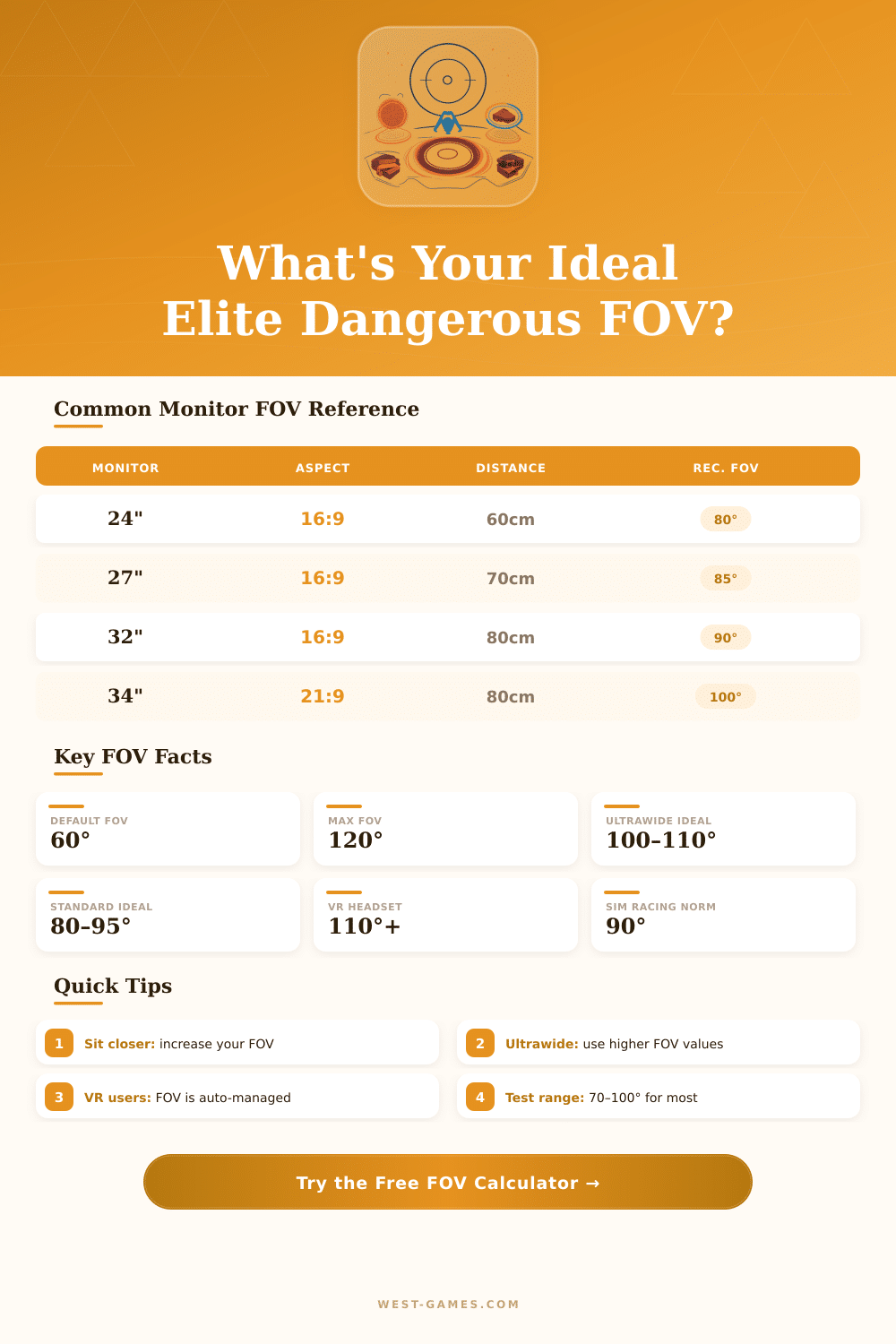
| Monitor Size | Aspect Ratio | Distance (in) | Rec. H-FOV | Rec. V-FOV | Category |
|---|---|---|---|---|---|
| 24" (60.9cm) | 16:9 | 24" (61cm) | 80° | 46° | Close Desktop |
| 24" (60.9cm) | 16:9 | 30" (76cm) | 72° | 41° | Standard Desk |
| 27" (68.6cm) | 16:9 | 28" (71cm) | 84° | 49° | Close Desktop |
| 27" (68.6cm) | 16:9 | 35" (89cm) | 76° | 44° | Standard Desk |
| 32" (81.3cm) | 16:9 | 35" (89cm) | 85° | 50° | Standard Desk |
| 34" (86.4cm) | 21:9 | 35" (89cm) | 98° | 46° | Ultrawide |
| 38" (96.5cm) | 21:9 | 35" (89cm) | 104° | 49° | Ultrawide |
| 49" (124.5cm) | 32:9 | 40" (102cm) | 116° | 40° | Super Ultrawide |
| 55" (139.7cm) | 16:9 | 72" (183cm) | 79° | 46° | TV Couch |
| 65" (165.1cm) | 16:9 | 84" (213cm) | 81° | 47° | TV Lounge |
| FOV Setting | Visual Effect | Situational Awareness | Recommended For |
|---|---|---|---|
| 60° – 70° | Zoomed in, cinematic | Low | Screenshots, VR |
| 70° – 80° | Moderate, natural | Medium | Small monitors |
| 80° – 90° | Balanced, comfortable | Good | Standard 16:9 play |
| 90° – 100° | Wide, immersive | High | Ultrawide screens |
| 100° – 110° | Very wide | Very High | Super ultrawide |
| 110° – 120° | Fish-eye distortion | Maximum | Extreme setups only |
Note: This article is based on real advice and details, that the community of Elite Dangerous shared.
The FOV in Elite Dangerous works according to quite a separate mode… It measures everything vertically. The reason is that the in-game slider for FOV reaches maximum at 60 degrees, what seems too narrow for many typical setups.
How to Change FOV in Elite Dangerous
The positive side? There is a real fix, that allows you to pass this ceiling by editing the settings file on your computer.
The file, that you need, is called Configurations.Xml and is found in a specific folder on your system. Go to C:\Users\(username)\AppData\Local\Frontier Developments\Elite Dangerous\Options\Graphics. Open it with Notepad or some other text editor, that you have handy.
Inside it, search the label for FOV (here is where the main magic happens). The real number hides between those marks. Simply change it to something more than 60, and you will pass the limit of the slider.
Save the file, and done. From my attempts, different computers find their ideal value in different spots. Some users stay at 68, others lkie 70, and many push it to 72 or even higher.
The possible range goes from around 54 to 120.
Because the game follows vertical FOV, you likely will want to count the horizontal match yourself. Here is how the math works: 45 degrees vertically match about 72 horizontal. If you go to 60 vertically, that gives around 91 horizontal.
Pushing to 90 vertically, you reach about 121 horizontal.
FOV at 90 degrees gives a truly more immersive feeling. Even so, play becomes very hard without at least a 32-inch screen. I saw setups with a 42-inch Sony television, where FOV is set at 68, and depending on how far you sit, it works surprisingly.
The best plan is simply experiment with various numbers, until something feels write.
Editing the settings file instead of depending on the slider deserves the effort, because the perfect value commonly passes the maximum of the slider. Even so, the slider itself causes big change in the gameplay. Lower FOV, for example around 86, indeed helps to follow moves on the screen.
Lowering it, everything seems also more slowly paced, what suits certain playstyles more well. Passing the default gives you clearer sight of the cockpit.
In that same file there is also a setting for stereo distance, that deserves attention. Combining FOV at 72 with stereo distance of 28 inches, you lower the fisheye distortion and get a much more clear sight.
VR headsets make everything even more natural. The Valve Index with its lens set to max delivers impressive range of FOV in Elite Dangerous. The vertical area is so vast, that the upper edge almost disappears from the sight.
You benefit from edge-to-corner sharpness, what means less need to turn the head to scan panels or travel targets. Other headsets act differently however. The Quest 2 only catches part of some lights in the cockpit.
The G2 with its stock cushion loses them entirely, but switching to aftermarket cushion and VR cover, sharplythose lights appear crystal clear.