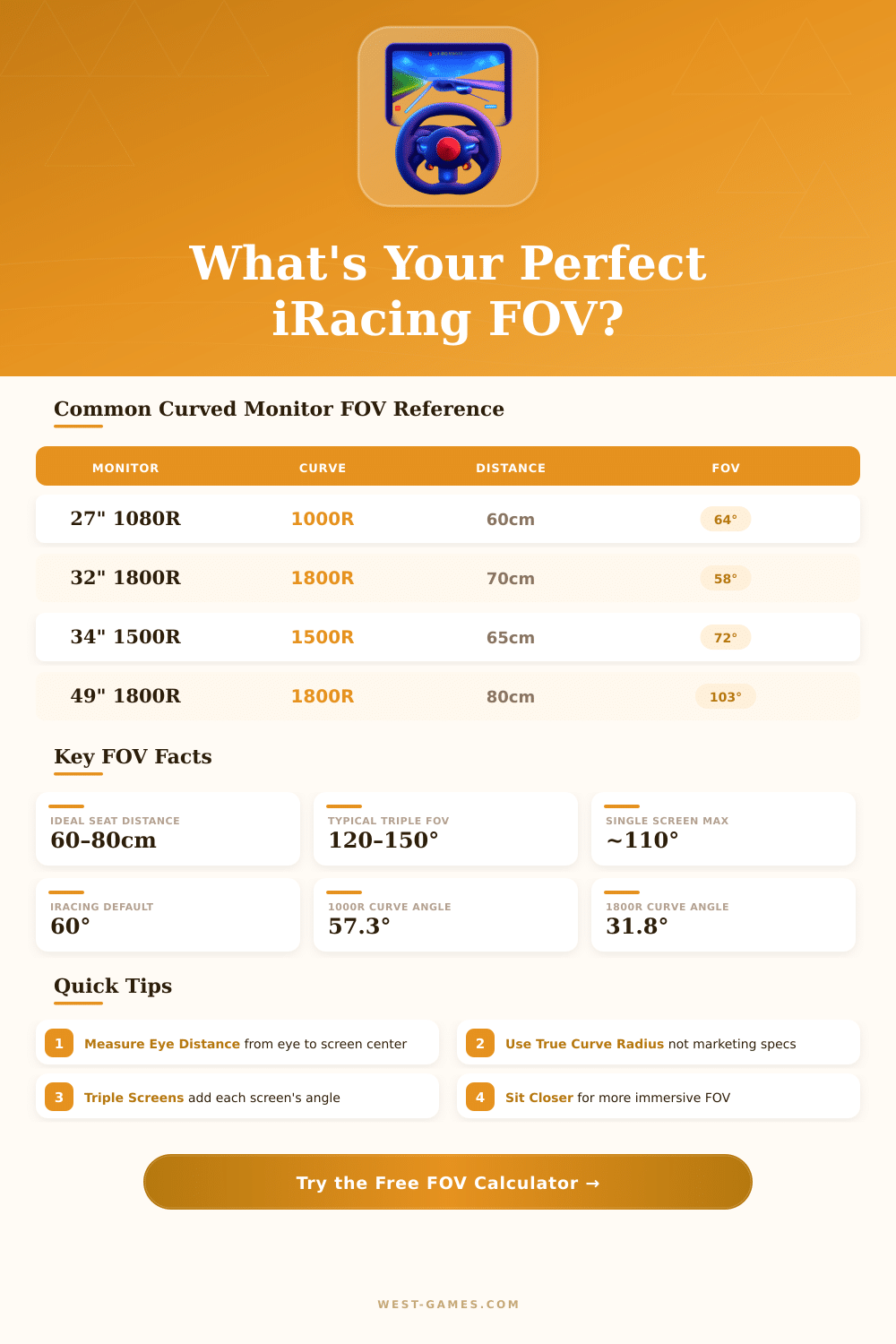
🏎️ iRacing FOV Calculator – Curved Monitor
Calculate your correct Field of View for curved single & triple screen sim racing setups
| Monitor | Curve | Aspect | 60cm FOV | 70cm FOV | 80cm FOV | Rating |
|---|---|---|---|---|---|---|
| 24" Standard | Flat | 16:9 | 43° | 37° | 33° | |
| 27" Standard | 1800R | 16:9 | 52° | 45° | 40° | |
| 32" Standard | 1800R | 16:9 | 61° | 53° | 47° | |
| 34" Ultrawide | 1500R | 21:9 | 74° | 64° | 57° | |
| 38" Ultrawide | 1800R | 21:9 | 80° | 70° | 62° | |
| 49" Super UW | 1800R | 32:9 | 106° | 93° | 83° |
| Triple Setup | Side Angle | 60cm FOV | 70cm FOV | 80cm FOV | Notes |
|---|---|---|---|---|---|
| 3x 24" 16:9 | 30° | 120° | 110° | 100° | Budget Triple |
| 3x 27" 16:9 | 30° | 133° | 122° | 111° | Popular Choice |
| 3x 27" 16:9 | 45° | 148° | 137° | 125° | More Immersive |
| 3x 32" 16:9 | 30° | 150° | 138° | 126° | Premium Triple |
| 3x 32" 1800R | 30° | 153° | 141° | 129° | Curved Triple |
| Radius | Curvature | Arc per 34" | Best For | FOV Boost vs Flat |
|---|---|---|---|---|
| 1000R | Very Aggressive | ~22° | Sim Racing Immersion | +8° to +12° |
| 1500R | Aggressive | ~15° | Sim Racing / Gaming | +5° to +8° |
| 1800R | Standard | ~12° | General Curved Gaming | +3° to +5° |
| 2300R | Gentle | ~9° | Office / Light Gaming | +1° to +3° |
| 3800R | Very Gentle | ~5° | General Use | +0° to +1° |
FOV, so, Field of Sight; simply means the visual angle that you see on your screen. In iRacing, one measures it in the horizontal direction using degrees. Here the key point: in real life your eyes catch almost 200 degrees of field of view.
Still many iRacing drivers that use a normal 16:9 monitor stay limited to around 80 degrees, which is really poor. That causes a big gap.
How to set the right FOV in iRacing
If you widen your FOV, the road seems to stretch more on the screen, and that strongly boosts the feeling of speed. Objects in the distance appear much more far away. This change in how you see distances is really big and so precise setup of the FOV has such big impact.
Really, most sim racers do not spend enough time to set this part, partly because the whole topic can seem a bit hard to understand.
There is no one right FOV that works for each person. It depends mainly on the size of your monitor and on the distnace, how closely you sit before it. The good news is that iRacing built a calculator in the settings menu, that really is your most helpful tool.
You enter data like the number of your monitors, your distance to the screen, the width of the bezels and the height of the monitor. If you do it correctly, you get a solid result. For instance, if you enter values for a 27-inch single monitor that stands 45 inches away, you will end with around 45 degrees.
When you finally set the right FOV, it looks quite narrow on won alone screen. That feeling maybe seems strange or small at the start, honestly. But simply follow the suggestion of the calculator, whatever it says.
The FOV stays set, unless you move your screen or change your sitting position.
Setups with three monitors open many new options. There are FOV calculators for many simulators… IRacing, Assetto Corsa, ACC, Automobilista 2, F1 24, F1 25, Le Mans Ultimate, rFactor 2, BeamNG.drive and others.
The angle of your side screens matters also a lot. Say you have three 32-inch monitors at 535 mm distance, with side angles at around 57 degrees; that gives you almost 160 degrees of FOV. During the setup you can also avoid bending on the side screens, plus set the position of the horizon in iRacing.
Curved monitors add extra trouble to the task. The built-in calculator of iRacing knows how to handle curves, and adjusts based on the degree of curvature. In one case the value changed from 90 to 103 degrees, when one went from flat to curved monitor, and the difference was clearly visible.
Still here is what does not work: setting FOV to a certain distance, say 56 cm, often results in a fisheye look on curved screens. Always better use thebuilt-in calculator with your real measurements than simply guess.
Monitors and televisions have a rectangular shape, because that works for the widest horizontal sight. That shape naturally fits with how racing simulators present the FOV.