🚚 ATS FOV Calculator
Calculate the perfect Field of View for American Truck Simulator based on your monitor setup
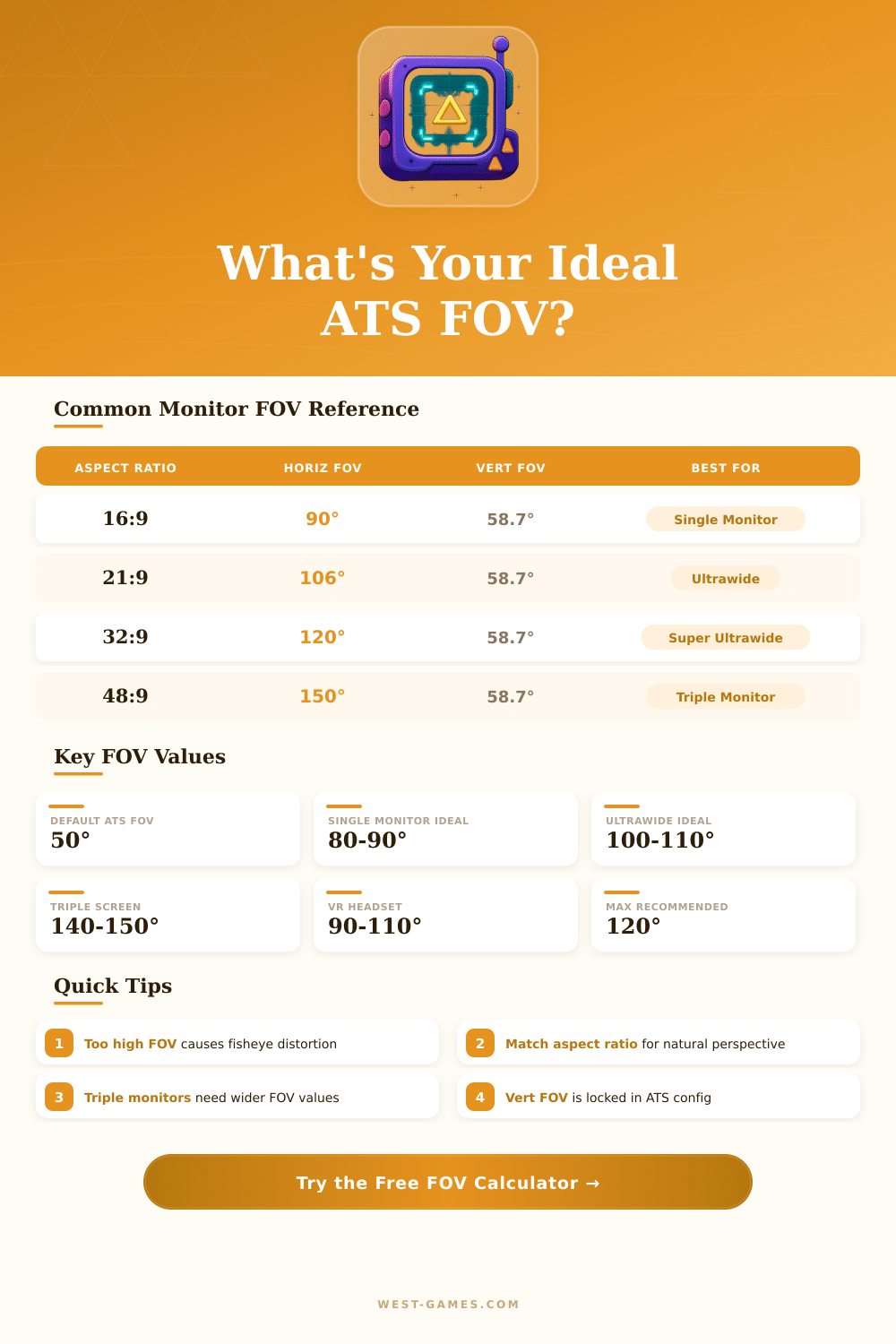
| Aspect Ratio | Horiz FOV (90° Vert) | Vert FOV | Typical Resolution | Recommended Use |
|---|---|---|---|---|
| 4:3 | 73.7° | 58.7° | 1024x768 | Legacy/CRT |
| 16:10 | 84.1° | 58.7° | 1920x1200 | Productivity |
| 16:9 | 90.0° | 58.7° | 1920x1080 / 2560x1440 | Standard Gaming |
| 21:9 | 106.3° | 58.7° | 2560x1080 / 3440x1440 | Ultrawide |
| 32:9 | 120.0° | 58.7° | 5120x1440 | Super Ultrawide |
| 48:9 (triple) | 150.5° | 58.7° | 5760x1080 | Triple 16:9 |
| Monitor Size | Distance 50cm | Distance 60cm | Distance 80cm | Distance 100cm |
|---|---|---|---|---|
| 24" (16:9) | 68.0° | 59.2° | 46.6° | 38.2° |
| 27" (16:9) | 74.4° | 65.0° | 51.4° | 42.2° |
| 32" (16:9) | 82.8° | 73.0° | 58.2° | 48.0° |
| 34" (21:9) | 93.2° | 82.6° | 66.2° | 54.8° |
| 49" (32:9) | 120.0° | 108.2° | 89.4° | 75.2° |
g_fov value in config.cfg accepts values from 1 to 120. Values above 90° can cause noticeable fisheye distortion. For triple monitor setups, values up to 150° (set as horizontal, converted) may be used. The config file is located at: Documents\American Truck Simulator\config.cfg
| Horiz FOV | Vert FOV (16:9) | Feel | Best For |
|---|---|---|---|
| 50 – 60° | 30 – 38° | Zoomed In / Cinematic | Screenshot / Video |
| 65 – 75° | 40 – 48° | Realistic / Immersive | Sim Enthusiasts |
| 80 – 90° | 52 – 59° | Natural / Comfortable | Most Gamers |
| 95 – 110° | 62 – 73° | Wide / Situational | Ultrawide Monitors |
| 115 – 150° | 77 – 100° | Very Wide / May Distort | Triple Screens |
Note: This article is based on real talks and notes from the community of truck simulators.
Settings of fov in ats really help to change the feeling of the game. The default fov for American Truck Simulator sits at 50 degrees and stays unchanged by default Only changing it through the F4 menu or the config file, one can go from that basic value. Setting the fov between 45 and 55 degrees fully changes the viewpoint in the game and often gives a surprisingly good experience.
How to Change the FOV in American Truck Simulator
There is no slider for fov by usual means. Changing the position of the seat, one can show more of the screen, but that is different from changing the real angle scope of the in-game camera. One finds the options for fov change in the menu of seat settings.
Press F4 three times, so that a screen with a slider for fov appears in the bottom part, together with steering parts of the cabin, right below.
The best fov ranges by the model of the truck, that one drives. It really must be quite broad, so that the left-hand mirror shows fully. For Peterbilt 389 with average mirrors, 67 degrees work well.
At Peterbilt 579, one can go even down to 53. Usually, when one starts fast tasks in ats, the first steps are to fix the seat and then fix the fov.
To reach a truly realistic value, the fov should match the part of the field of view, that the monitor covers. For instance, if the left-hand edge of the screen sits at a 45-degree angle from the head and the right edge matches that for the mirrors, then 90 degrees works best. On an ultra-wide monitor, 60 degrees give a good feeling of speed, although 50 can feel a bit too narrow for some setups.
Math calculators for fov exist, but they don’t always work for ats or ETS.
Without several monitors, too precise fov could hide the in-game panel of instruments or part of the side mirrors. When the site centers, the left-hand mirror shows to the edge, but not fully. At least 70 percent of the windshield should appear, and a bit of move of the camera to the right should show the right mirror fully.
In VR setups, set the in-game fov to at least 110 through the F4 menu to help correct the mirrors.
Worth checking also are mods. The mod Real Mirror fov adapts to weight, height and values of fov to copy real truck mirrors, where objects seem nearer, higher and narrower. The mod by stonefire for fov in ats is found in the Steam Workshop.
Even so, mind about mod support, because some fov mods for mirrors caused problems with certain versions of the game, including crash of garage data, that stopped the game from loading.
The favorite fov setting should apply to all cameras in the game, inside and outside. The slider for internal fov through F4 turns off during use of certain tools. Even so, the position of the seat stays unchanged and can be fixed as needed.
Such tools work insingle and multi-screen mode, because they are not regular mods.