🏎️ iRacing FOV Calculator
Calculate your mathematically correct Field of View for realistic sim racing immersion
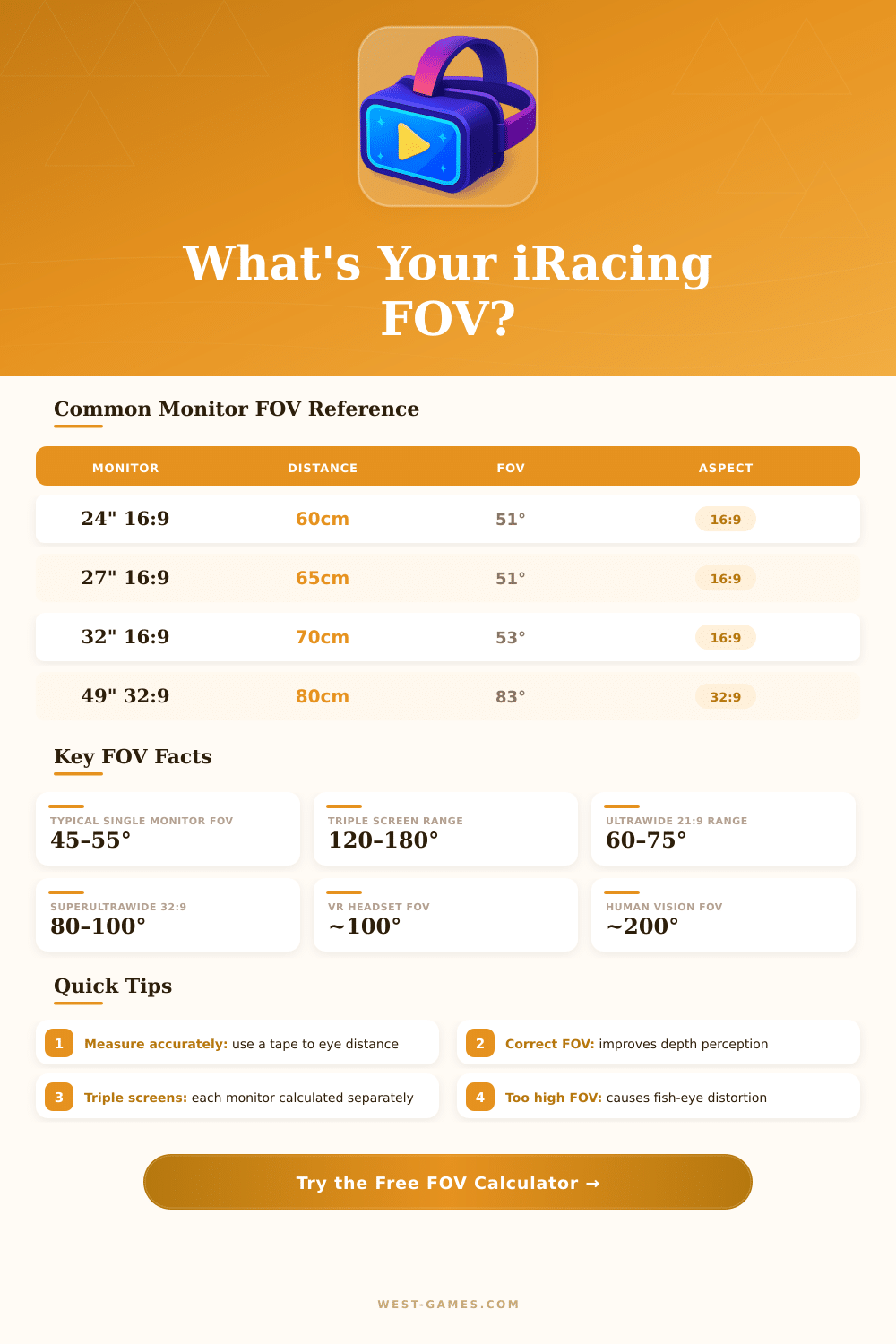
| Monitor Size | Aspect Ratio | Eye Distance | Correct FOV | Quality |
|---|---|---|---|---|
| 24" Single | 16:9 | 60 cm / 24" | 51° | ✅ Good |
| 27" Single | 16:9 | 65 cm / 26" | 51° | ✅ Good |
| 27" Single | 16:9 | 80 cm / 31" | 41° | ⚠️ Far |
| 32" Single | 16:9 | 70 cm / 28" | 53° | ✅ Good |
| 34" Ultrawide | 21:9 | 75 cm / 30" | 66° | 🌟 Excellent |
| 38" Ultrawide | 21:9 | 80 cm / 31" | 66° | 🌟 Excellent |
| 49" Super Ultrawide | 32:9 | 85 cm / 33" | 83° | 🌟 Excellent |
| Triple 24" | 48:9 | 65 cm / 26" | 140° | 🌟 Immersive |
| Triple 27" | 48:9 | 70 cm / 28" | 148° | 🌟 Immersive |
| 55" TV | 16:9 | 120 cm / 47" | 53° | ✅ Good |
| Size (diagonal) | 16:9 Width | 16:9 Height | 21:9 Width | 21:9 Height |
|---|---|---|---|---|
| 24" | 52.9 cm / 20.8" | 29.8 cm / 11.7" | — | — |
| 27" | 59.8 cm / 23.5" | 33.6 cm / 13.2" | — | — |
| 32" | 70.8 cm / 27.9" | 39.8 cm / 15.7" | — | — |
| 34" | — | — | 79.9 cm / 31.5" | 34.2 cm / 13.5" |
| 38" | — | — | 89.3 cm / 35.2" | 38.2 cm / 15.0" |
| 49" | — | — | 121.4 cm / 47.8" | 34.1 cm / 13.4" (32:9) |
| Method | Location | Setting Name | Notes |
|---|---|---|---|
| In-Session | Ctrl+F12 | Camera Tool → FOV | Live adjustment |
| app.ini File | Documents\iRacing\app.ini | fov=XX.XX | Persistent setting |
| Triple Screen | app.ini | triplescreens=1 | Enable first |
| Bezel Correction | app.ini | triplebezelwidth=X | In pixels |
| VR Mode | Auto-set | Headset driven | No manual FOV |
Note: This article is based on real advice from the community of sim racers.
Field of sight or FOV is truly important setting in iRacing. It decides the view angle on the screen. In iRacing one measures FOV by horizontal degrees.
How to Set the Right FOV in iRacing
In real life the human eye reaches around 200 degrees of sight. However the default value in iRacing usually stays at about 80 degrees for drivers with one standard 16:9 monitor. That difference is huge, so it matters to care about the right settings here.
Wide view angles, that show more stuff on the screen, can boost the feeling of speed, because distant objects seem even more distant. This seriously affects the sense of distances. If you choose bigger FOV, you will see more of the car itself and less of the road, so always worth weighing the pros against cons.
There is no one single ideal for FOV. It changes based on the used monitor and the sitting distance of the driver. The built-in calculator for FOV in the settings of iRacing stays the most reliable tool for that task.
Almost all sim racing games, including iRacing, offer their own FOV-calculator in teh menu, so an outside one you must not use. On the other hand, there are already some full tools, that work for several programs like iRacing, Assetto Corsa, ACC, Automobilista 2, F1 24, F1 25, Le Mans Ultimate, rFactor 2 and more.
One counts the right FOV based on the amount of monitors, the distance to the screen, the thickness of the frames around them and even the height of the driver. On curved monitors the curve grade also plays a role. For instance, one changed from 90 degrees to 103 after adjusting for a curved screen, and that gave really good results.
For one-screen setup, enter the new FOV in the section View of the Driver. With three-screen setups, the corners of the screens go in the tab Chart. Three-screen systems allow you to also correct bends on the side monitors and set the horizontal line write.
One such three-screen with 32-inch monitors at 535 mm distance, with max side angles of 57 degrees, in the end reached FOV of 160.
Right FOV usually causes quite zoomed-in looks, especially on one single screen. A 27-inch monitor at 45 inches distance would need around 45 degrees. Here it can feel too close at first.
You can move the seat using the control of the cockpit cameras, but the steady FOV setting helps to reach more real sight.
FOV stays a permanent setting. Unless you physically move the screen or the seat, you should set it one time and leave it alone. The right FOV greatly beats the amount of road visible on the screen.
Setting the right FOV is among themost important tasks in iRacing.