⚡ Input Lag Calculator
Calculate your total system latency from display, peripherals, and frame time
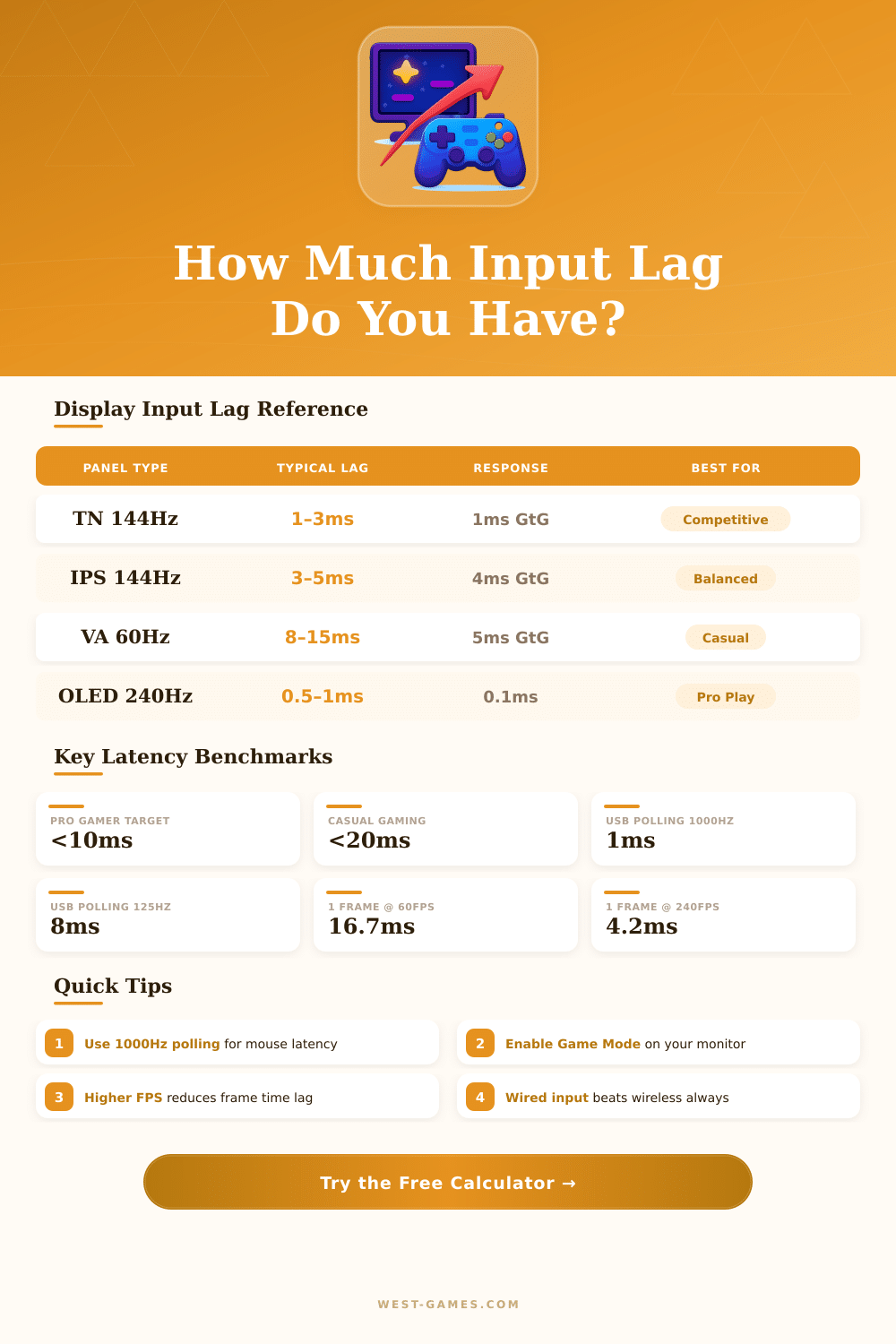
| Panel & Refresh | Measured Input Lag | Response Time (GtG) | Frame Time | Best Use |
|---|---|---|---|---|
| TN 144Hz | 1–3ms | 1ms | 6.9ms | Competitive FPS |
| TN 240Hz | 0.5–2ms | 0.5ms | 4.2ms | Pro Esports |
| TN 360Hz | 0.3–1ms | 0.3ms | 2.8ms | Tournament Play |
| IPS 60Hz | 8–16ms | 4–5ms | 16.7ms | Productivity |
| IPS 144Hz | 3–5ms | 4ms | 6.9ms | Balanced Gaming |
| IPS 240Hz | 1–3ms | 1ms | 4.2ms | High Perf. Gaming |
| VA 60Hz | 8–15ms | 4–8ms | 16.7ms | Casual / Console |
| VA 144Hz | 4–8ms | 4ms | 6.9ms | Mid-Range Gaming |
| OLED 240Hz | 0.5–1ms | 0.1ms | 4.2ms | Premium Gaming |
| OLED 480Hz | 0.2–0.5ms | 0.03ms | 2.1ms | Ultra Competitive |
| Polling Rate | Report Interval | Added Latency | Common Devices |
|---|---|---|---|
| 125 Hz | 8ms | 8ms | Budget mice, older devices |
| 250 Hz | 4ms | 4ms | Mid-range wired mice |
| 500 Hz | 2ms | 2ms | Gaming mice standard |
| 1000 Hz | 1ms | 1ms | Logitech G Pro, Razer DeathAdder |
| 2000 Hz | 0.5ms | 0.5ms | Razer Viper 8K, SteelSeries |
| 4000 Hz | 0.25ms | 0.25ms | Razer HyperPolling, Wooting |
| 8000 Hz | 0.125ms | 0.125ms | Pulsar Xlite V3, Ninjutso |
| Target FPS | Frame Time (ms) | Total Render Contribution | Latency Rating |
|---|---|---|---|
| 30 FPS | 33.3ms | High | 🔴 Poor |
| 60 FPS | 16.7ms | Moderate | 🟡 Acceptable |
| 90 FPS | 11.1ms | Moderate-Low | 🟡 Good |
| 120 FPS | 8.3ms | Low | 🟢 Very Good |
| 144 FPS | 6.9ms | Low | 🟢 Excellent |
| 165 FPS | 6.1ms | Low | 🟢 Excellent |
| 240 FPS | 4.2ms | Very Low | 🟢 Pro Level |
| 360 FPS | 2.8ms | Ultra Low | 🟢 Tournament |
Note: This article is based on real experiences and technical talks from various groups of gamers.
Lag is the time that passes from the press of a button until the action shows on the screen. For instance, if the Lag on the controller is 0.1 second, then reacting to an attack 0.09 seconds before it lands is not quite fast enough. The character simply would not respond in time.
What Is Lag and How to Fix It
For games based on fast reactions, that is very serious because even tiny delays can ruin the fun.
Lag and response time do not match. Lag measures how much time the screen needs to prepare and show a frame. The response time relates to the time that pixels need to change their state.
Those values on spec pages often lie and do not always show the real results in practice.
V-Sync ranks among the main causes of Lag. Usually best to turn it off. When V-Sync runs, frames that send more quickly than the refresh rate of the screen cause visible Lag.
Turning it off, the GPU can push frames as quiclky as possible, although then image tearing can appear, if a new frame arrives before the old one finishes showing.
FPS has big influence too. Higher FPS means shorter gaps between frames, which lowers the Lag. Dividing 1000 by the FPS, you get the milliseconds for one frame.
Limiting FPS in competitive games is not the best idea, because more frames lower the Lag, even if the monitor does not manage to show all of them.
The game mode on televisions really matters for everyday gaming. It turns off heavy layers of processing, like motion smoothing and fake sharpening, that add 20 to 80 milliseconds of Lag. Always look for support for ALLM and compatibility with HDMI 2.1.
Playing on a computer monitor mostly gives the lowest Lag, between 2 and 18 milliseconds.
Wireless input devices can cause extra Lag. Some players feel it more strongly then others. Nvidia Reflex is a tool that detects and lowers the Lag in supported games, and the level of Lag depends on the GPU.
Removing unnecessary parts from Nvidia drivers using Display Driver Uninstaller, including telemetry, helps also lower the Lag.
Turning off Steam input in the game settings helped to remove Lag in titles like Monster Hunter World, Elden Ring and Tekken 7. Turning off overlays from Discord or Steam can also fix problems with mouse and input. Setting the brightness of the screen to zero also brought back lower Lag for some computer setups, which is weird, but itworks as a good fix.
Really, Lag can totally destroy a game, if you do not watch for it.