🌡️ Thermal Paste Lifespan Calculator
Estimate when to replace thermal paste in your gaming laptop based on usage patterns, temps & paste type
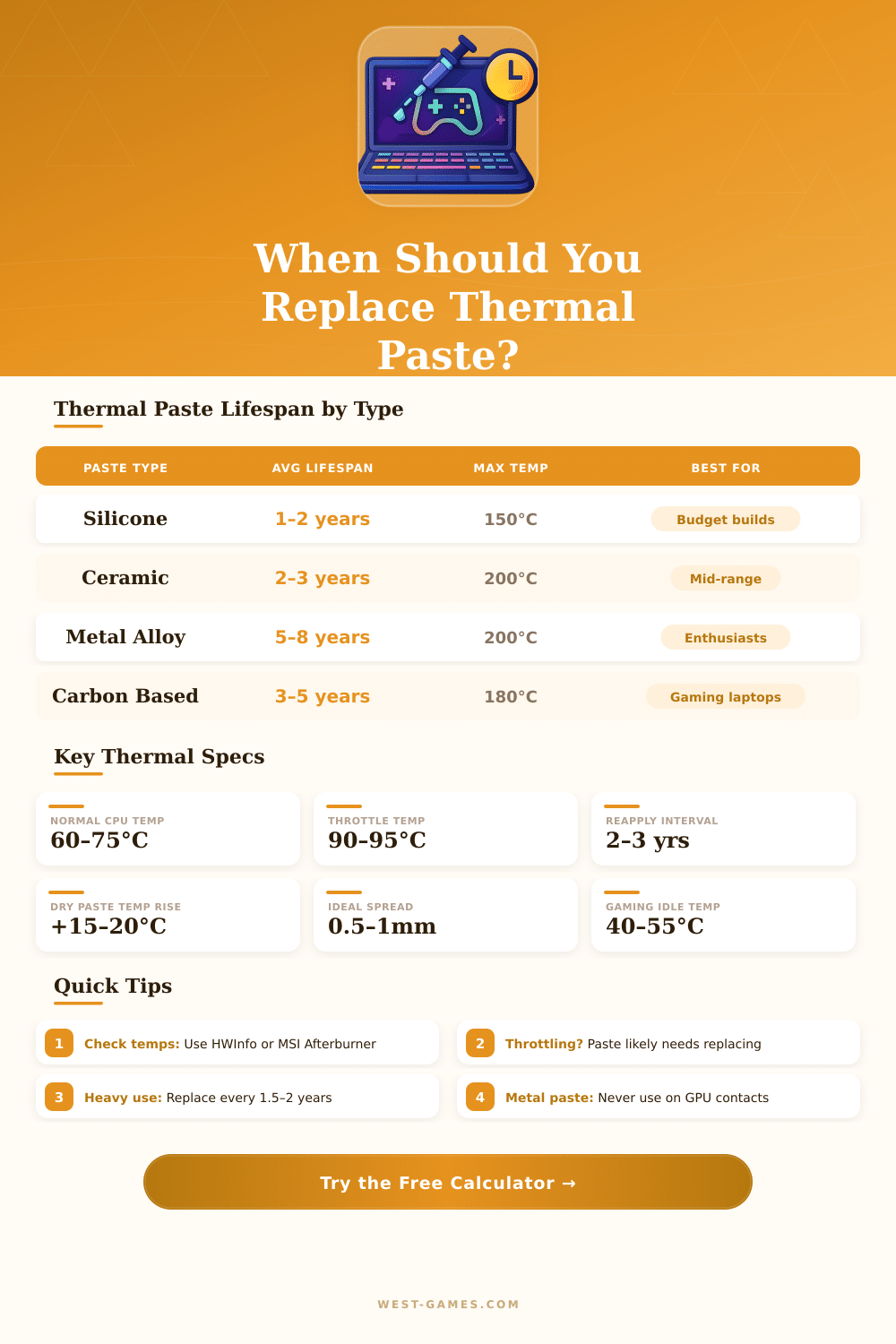
| Paste Type | Typical Lifespan | Max Temp Rating | Conductivity | Best For |
|---|---|---|---|---|
| Silicone-based (stock) | 1 – 2 years | 150°C | 3–6 W/mK | Budget / OEM laptops |
| Ceramic-based | 2 – 3 years | 200°C | 4–8 W/mK | Mid-range gaming laptops |
| Carbon-based (Kryonaut) | 3 – 5 years | 180°C | 12–14 W/mK | Enthusiast gaming rigs |
| Metal Alloy (Conductonaut) | 5 – 8 years | 200°C | 73 W/mK | Advanced users, no GPU use |
| Liquid Metal (factory) | 3 – 6 years | 200°C | 38–73 W/mK | ASUS ROG / high-end OEMs |
| Phase-change | 2 – 4 years | 180°C | 4–10 W/mK | Workstations |
| Usage Pattern | Hours/Day | Ceramic Paste | Carbon Paste | Warning Signs |
|---|---|---|---|---|
| Light / Office use | 1–2 hrs | 3–4 years | 5–6 years | Temps rarely spike |
| Moderate Gaming | 2–4 hrs | 2–3 years | 3–4 years | Gradual temp increase |
| Heavy Gaming | 4–6 hrs | 1.5–2 years | 2–3 years | Throttling starts |
| Streaming + Gaming | 6–8 hrs | 1–1.5 years | 1.5–2 years | FPS drops, loud fans |
| Extreme / 24/7 Use | 8+ hrs | Under 1 year | 1–1.5 years | Constant throttling |
| Symptom | Severity | Likely Cause | Action |
|---|---|---|---|
| CPU temps 90–100°C gaming | 🔴 Critical | Dried / degraded paste | Replace immediately |
| FPS drops mid-session | 🔴 Critical | Thermal throttling | Replace + clean fans |
| Fans always at max speed | 🟡 High | Excessive heat buildup | Replace paste + dust fans |
| +10°C vs 1 year ago | 🟡 High | Paste drying out | Replace within 2 months |
| Idle temps above 60°C | 🟠 Medium | Partial paste breakdown | Schedule replacement |
| Occasional game crashes | 🟠 Medium | CPU/GPU overtemp shutdown | Inspect and reapply |
thermal paste works under several names. One also calls it thermal compound, thermal grease, thermal pad, thermal gel, grease for CPU, heat sink paste or thermal interface material, or simply TIM. It does not matter what one calls it it does the same task.
thermal paste aims to mainly cover little tiny spaces between the chip and its heatsink. The surfaces of processor pieces and bases of heatsinks are full of tiny bumps and rough spots. Because air traps heat, those spaces block good heat transfer.
What Thermal Paste Is and How to Use It
The paste closes those holes and allows heat to easily move from the CPU to the heatsink. Without that help, the chip hardly cools.
Normal thermal paste is good at moving heat, but not electricity. It works as a bridge for warmth. A smooth layer works best.
Too much paste can actually raise the resistance instead of help lower it. An amount around half a pea is enough for a pair of CPU and heatsink, whether in a gaming laptop or in a desktop computer.
One can apply it in many ways. A common way is to lay a tiny dot on the center of the chip, then the heatsink spreads it during pressure. An X shape also makes a good choice, because it reduces the risk of tiny lumps.
Some prefer to spread it first with a card, but many believe that a blob or X shape pushes heir away more effectively during pressure. The best way depends on the kind of chip. For instance, a line across the chip helps to cover all cores on some models, while a center spot works well on others.
Popular brands include Arctic MX-4, MX-5, MX-6, Noctua NT-H1, Arctic Silver 5 and Thermal Grizzly Kryonaut. The MX-4 from Arctic is known for easy use and good results. It uses carbon tiny bits to close small holes, which gives high heat flow and fast removal of heat from CPU or GPU.
Thermal Grizzly Kryonaut ranks among the best for results, but it costs more and is a bit harder to apply. Liquidmetal does not work for normal users and is most commonly used for serious overclocking attempts.