🌀 PC Fan Curve Calculator
Build a custom fan curve based on your temperatures, fan specs & cooling goals
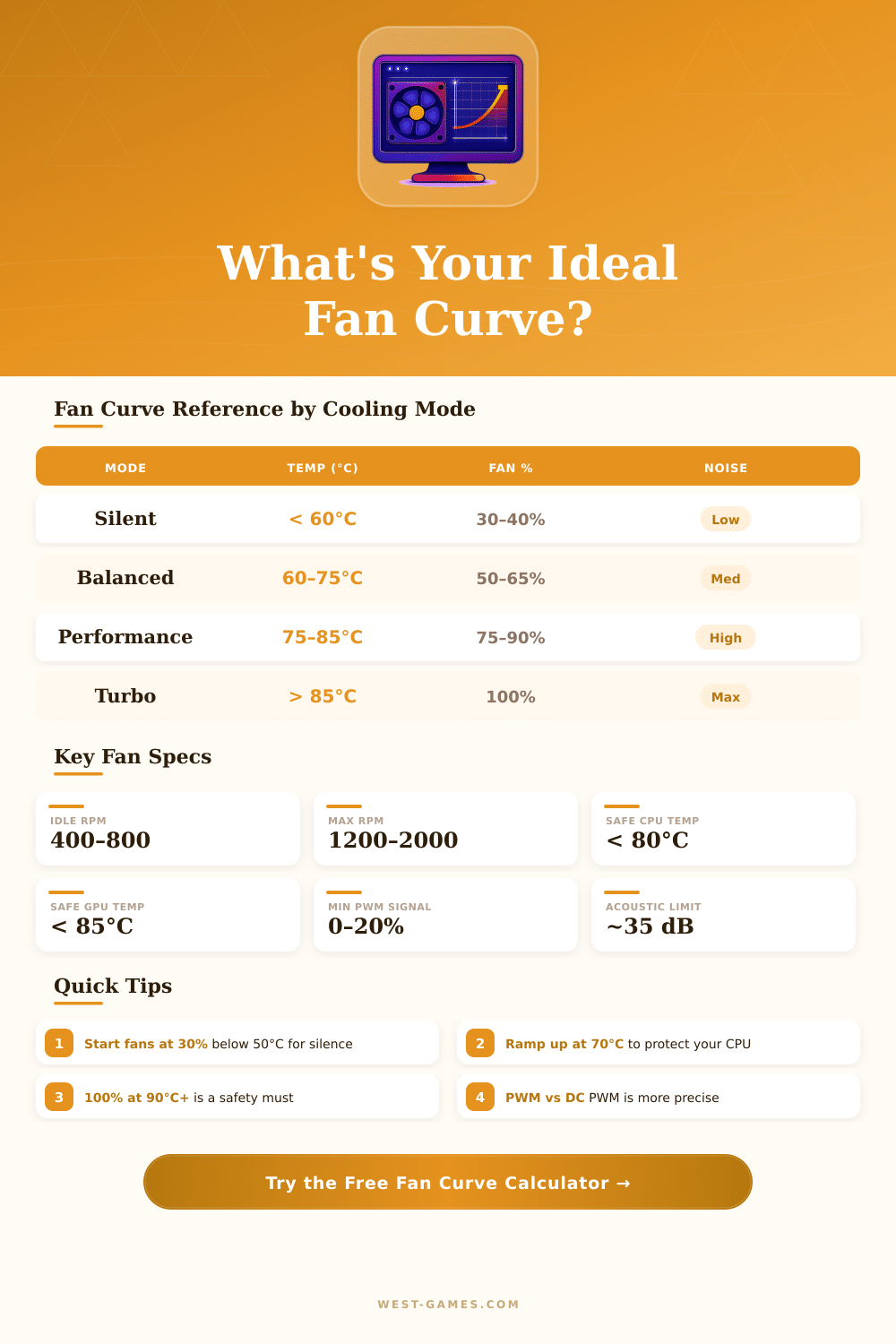
| Zone | CPU Temp (°C) | Fan % (Silent) | Fan % (Balanced) | Fan % (Performance) | Est. Noise |
|---|---|---|---|---|---|
| Idle | < 45 | 20% | 30% | 40% | ~20 dB |
| Light Load | 45–60 | 30% | 45% | 55% | ~25 dB |
| Moderate | 60–70 | 45% | 60% | 70% | ~30 dB |
| Heavy Load | 70–80 | 60% | 75% | 85% | ~35 dB |
| Near Limit | 80–90 | 80% | 90% | 100% | ~42 dB |
| Critical | > 90 | 100% | 100% | 100% | Max |
| Component | Ideal Idle (°C) | Normal Load (°C) | Max Safe (°C) | Status |
|---|---|---|---|---|
| Intel CPU (13th–14th Gen) | 35–45 | 65–80 | 100 | Tjunction |
| AMD Ryzen 7000 | 40–55 | 70–85 | 95 | Tctl/Tdie |
| AMD Ryzen 5000 | 35–50 | 65–80 | 90 | Normal |
| NVIDIA GPU (RTX 40xx) | 30–45 | 70–83 | 90 | Normal |
| AMD GPU (RX 7000) | 35–50 | 75–85 | 110 | Junction |
| NVMe SSD | 25–40 | 50–65 | 70 | Throttles |
| HDD | 25–35 | 35–45 | 55 | Check |
| Fan Model | Size | RPM Range | Max CFM | Noise (Max) | Control |
|---|---|---|---|---|---|
| Noctua NF-A12x25 | 120mm | 450–2000 | 60.1 CFM | 22.6 dB | PWM |
| be quiet! Silent Wings 4 | 120mm | 400–1600 | 50.5 CFM | 15.9 dB | PWM |
| Corsair LL120 | 120mm | 600–1500 | 43.3 CFM | 24.8 dB | PWM |
| Noctua NF-A14 | 140mm | 300–1500 | 82.5 CFM | 24.6 dB | PWM |
| Arctic P12 | 120mm | 200–1800 | 56.3 CFM | 22.5 dB | PWM |
| Lian Li UNI Fan SL120 | 120mm | 800–1900 | 58.4 CFM | 32.6 dB | PWM |
| DeepCool FC120 | 120mm | 500–1850 | 54.9 CFM | 28 dB | PWM |
Fan Curve is simply a chart that shows the activity of the fan. In PCs the axis of the Fan Curve points to the temperature, usually that of the CPU, while the vertical axis shows the speed of the fan. One can change the curve by moving spots on the chart to other places.
The main idea is to control when and how quickly the fan spins, depending on the heat of the parts.
Fan Curves: How to Control PC Fan Speed
Using a Fan Curve helps to reach the most silent system possible, while one keeps temperature safe and good. Everything depends on the actual PC, on the CPU, on the surrounding temperature and on the cooling system. Really, the perfect curve tries to find the level, at which the noise of the fan starts to bother.
For curves of CPU-fan a style with plates works well. So, one keeps the speed of the fan low and steady from zero until about 65 degrees, then a new plate between 67 and 80 degrees, and finally full speed until the maximum at 90 degrees. Set minimal speed for the fan during low temperatures and then 100 percent, when the CPU reaches 70 to 75 Celsius, is another popular mode.
One can set that in the BIOS or through programs like FanControl, for more freedom in Windows.
When dealing about the fan of the CPU, if the highest temperatures during heavy tasks stay under TJMax minus 15 degrees, everything goes well. Most CPUs have TJMax at 100 Celsius. So, if a chip like the i5-12600K stays under 85 degrees, silent mode is fully good.
Running a program like CoreTemp always helps too control the maximum temperatures after long sessions.
For the GPU it is usual that it warms more and reaches its limit first. Using the curve of the main board, based on the temperature of the CPU, for the case fan works well. The automatic settings of Fan Curves answer most for average PCs, but overclocked systems maybe need fans at 100 percent, to fully cool the GPU.
The case fan does not need the same curve as that of the CPU. Having a separate curve for the CPU and another that turns a bit less than the CPU speed for the case fans is a good approach, if the air flow is enough.
Mixed curves of fans do things another way. Combining several curves of fans and adding a function like the maximum or the average gives new logic for control. Different curves bind to various sensors of temperature and combine also.
In portable devices like the Steam Deck, SteamOS 3.2 launched a new curve ruled by the system, meant to make it more silent. Extra programs like Wonderful through Decky Loader allow using curves for fans based on any temperature. Keeping the automatic curve, except in case of heat problems, is a good practical rule.
Lowering the graphical settings or limiting the TDP sometimes helps more thanaltering the curve to control the heat.