💾 SATA Hard Drive Lifespan Calculator
Estimate how long your HDD will last based on usage, temperature, and workload
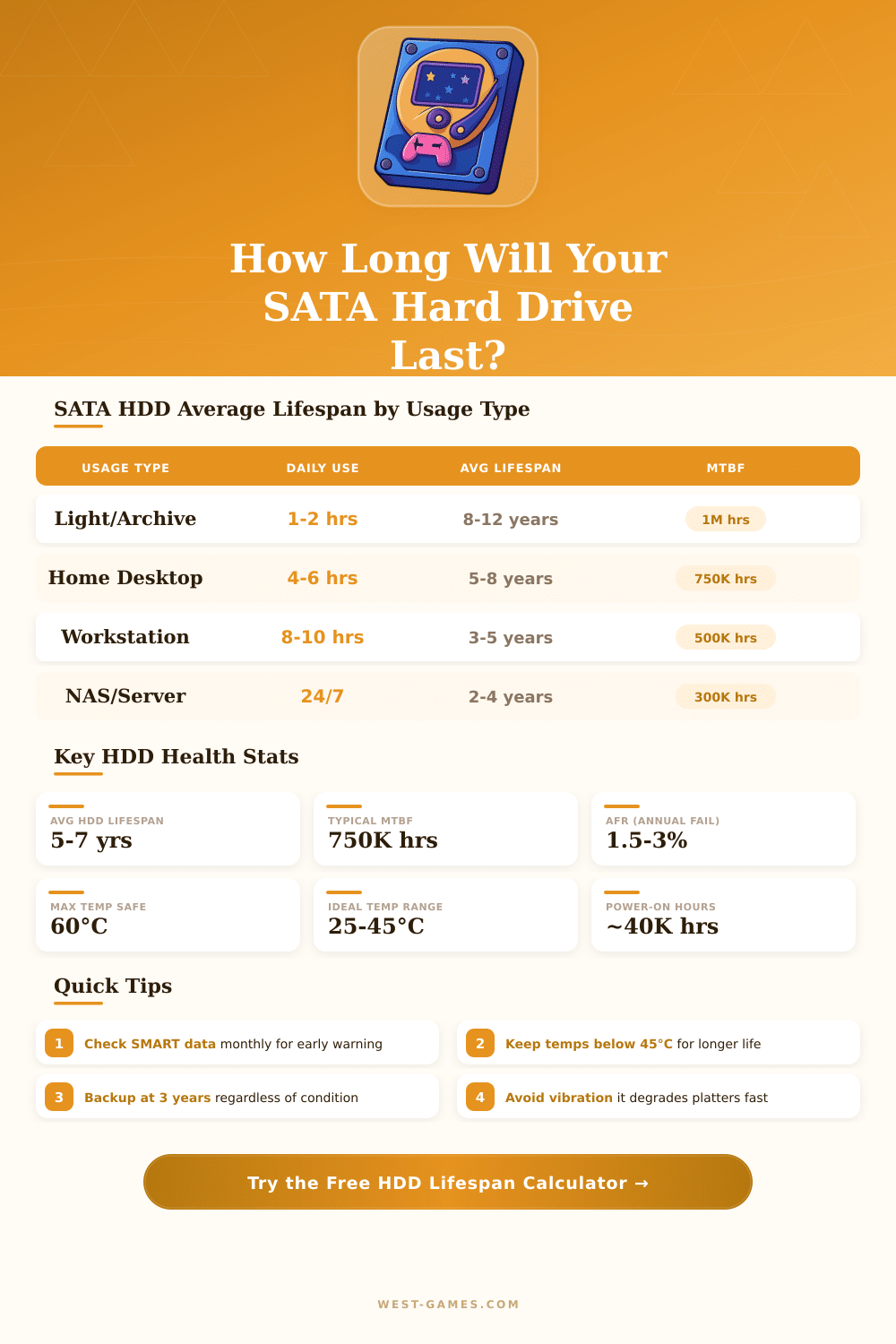
| Usage Type | Daily Hours | Avg Lifespan | Annual Fail Rate | MTBF (hrs) |
|---|---|---|---|---|
| Light / Archive | 1–2 hrs | 8–12 years | 0.5–1% | ~1,000,000 |
| Home Desktop | 4–6 hrs | 5–8 years | 1–2% | ~750,000 |
| Gaming PC | 4–8 hrs | 4–7 years | 1.5–2.5% | ~600,000 |
| Creative / Workstation | 8–10 hrs | 3–5 years | 2–3.5% | ~500,000 |
| NAS (Home) | 12–24 hrs | 3–6 years | 2–4% | ~400,000 |
| Surveillance DVR | 24 hrs | 2–4 years | 3–5% | ~300,000 |
| Enterprise Server | 24 hrs | 2–4 years | 4–8% | ~200,000 |
| Temp Range (℃) | Temp Range (℉) | Status | Lifespan Impact | Notes |
|---|---|---|---|---|
| Below 20℃ | Below 68℉ | Too Cold | −15–20% | Condensation risk on startup |
| 20–30℃ | 68–86℉ | Excellent | +10–15% | Optimal operating range |
| 30–40℃ | 86–104℉ | Good | Baseline | Normal operating temp |
| 40–50℃ | 104–122℉ | Caution | −10–20% | Improve airflow recommended |
| 50–60℃ | 122–140℉ | Warning | −30–50% | High failure risk; add cooling |
| Above 60℃ | Above 140℉ | Critical | −60–80% | Immediate shutdown risk |
| Brand / Model | Tier | MTBF (hrs) | Warranty | Typical Lifespan |
|---|---|---|---|---|
| WD Gold / Seagate Exos | Enterprise | 2,000,000 | 5 yrs | 5–10 years |
| WD Red Plus / Seagate IronWolf | NAS Premium | 1,000,000 | 3–5 yrs | 4–8 years |
| WD Blue / Seagate Barracuda | Desktop | 750,000 | 2–3 yrs | 4–7 years |
| Toshiba P300 / X300 | Desktop | 600,000 | 2–3 yrs | 4–6 years |
| WD Green / Seagate SkyHawk | Archive / Surveillance | 500,000 | 2–3 yrs | 3–6 years |
| Budget / No-name | Budget | 200,000–400,000 | 1 yr or none | 1–4 years |
SATA; Serial Advanced Technology Attachment, simply said is the usual interface that lets Hard Drive communicate with the motherboard of your computer. That technology physically binds your storage to the circuit board, allowing the move of data. Over years it stayed one of the mainstream kinds of interfaces for computer Hard Drive.
The technology progressed over time, where SATA 3 Gbps and SATA 6 Gbps form the two most common variants in general use. Here is where the confusion happens commonly: when a Hard Drive with SATA advertises 6 Gbps, it means the maximum theoretical speed of the interface itself, not what the Hard Drive genuinely reads or writes. Mechanical Hard Drive simply do not spin fast enough to fill such a 6 Gbps link.
What is SATA and How It Works
What genuinely reaches that speed is the cache, that sends its content… The same Hard Drive itself? Not even close to filling that stream of bandwdith.
Every SATA Hard Drive owns two connectors physically. The shorter one carries data, moving information between the storage and motherboard. The longer one connects the energy from your power supply.
When you see a slim, flat cable bound to the Hard Drive, that is SATA. On the other hand, older Hard Drive used thicker PATA cables.
Compared to old standards, the installation of SATA is very easy. IDE and SCSI Hard Drive required much knowledge about building computers, but SATA entirely changed that. It fits almost everywhere, works in nearly every system that you find.
Also, most SATA Hard Drive (except the main one with your operating system) can bee exchanged during work, so you can remove them without turning off the machine.
SATA Hard Drive have capacities from 1 TB until 18 TB, and producers already push for 32 TB as bigger capacities unroll. That makes them great for expanding the storage in already existing systems. What is the main benefit over USB?
SATA offers bigger data transfer for internal ties. USB works well for outside portability, but it usually does not reach the speeds of SATA.
SSDs also benefit from the SATA interface, and here start the interesting parts… SATA SSDs read and write around six times more quickly than mechanical Hard Drive. Those speed differences seem huge.
Basic SATA SSDs beat spinning Hard Drive in activity. Loading big games happens without lag. On the other hand, formats like M.2 and NVMe also exist, that are even faster, but also more expensive.
For daily use, the step to NVMe does not genuinely justify the extra price in many cases. Good SATA SSDs should include DRAM cache for smoother activity. Models like the Crucial MX500 got a strong name as cheap, safe choices.
Match the right SATA version to your Hard Drive andmotherboard to escape problems later.