🎮 Input Lag Calculator
Calculate your total system latency from controller input to pixels on screen
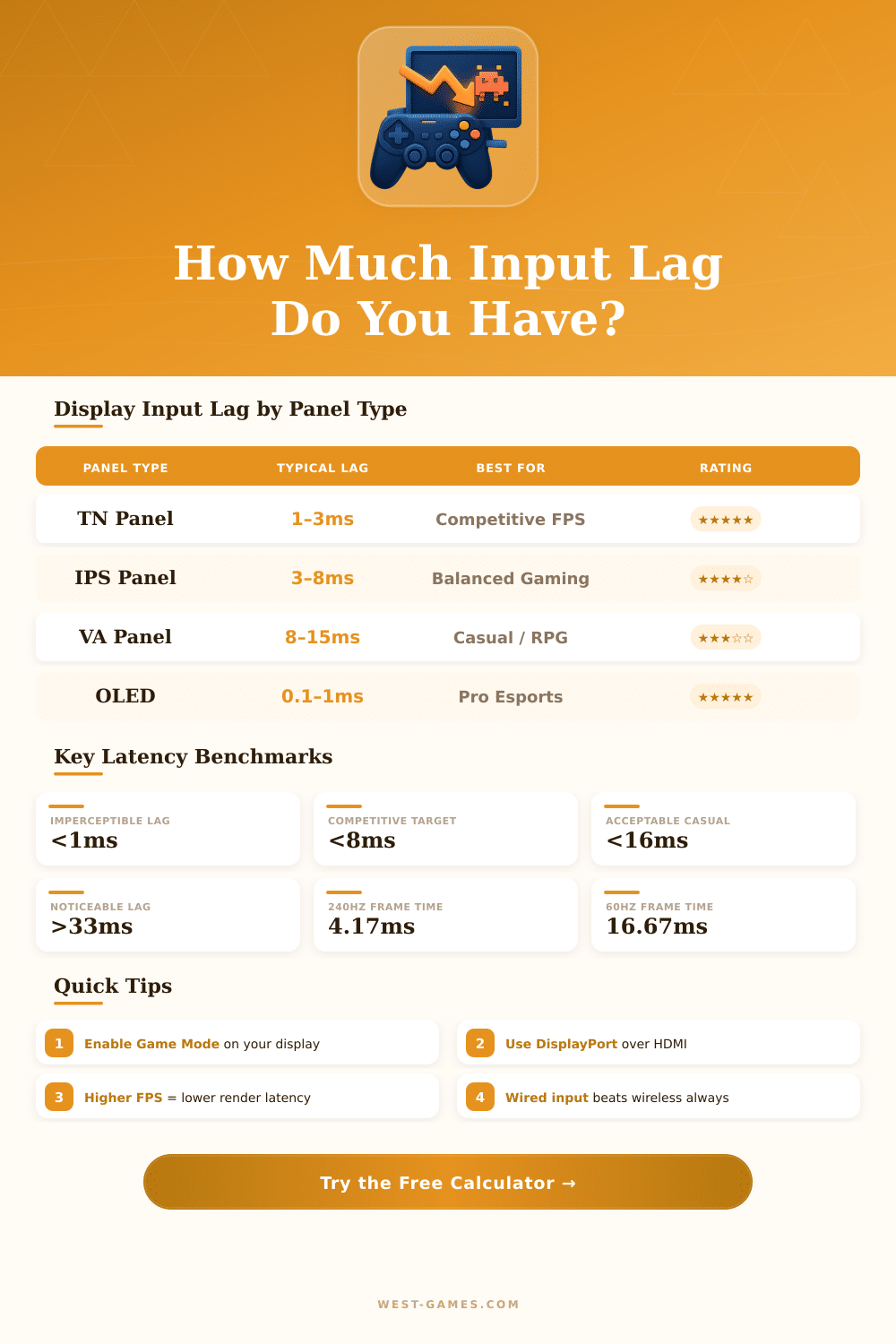
| Panel Type | Typical Input Lag | Pixel Response | Best Use Case | Game Mode |
|---|---|---|---|---|
| TN Panel | 1–3ms | 0.5–1ms GtG | Competitive FPS, Esports | N/A (already fast) |
| IPS Panel | 3–8ms | 1–4ms GtG | Balanced Gaming | Drops to ~3ms |
| VA Panel | 8–15ms | 4–8ms GtG | Casual / RPG / Singleplayer | Drops to ~6ms |
| OLED (LG, Samsung) | 0.1–1ms | 0.1ms GtG | Pro Esports, Console HDR | N/A (native) |
| QLED / Mini-LED | 6–12ms | 2–6ms GtG | Console Gaming, HDR | Drops to ~5ms |
| LCD TV (60Hz) | 15–40ms | 8–20ms | Casual / Non-Competitive | Drops to ~10ms |
| Input Device | Connection | Polling Rate | Typical Latency | Best For |
|---|---|---|---|---|
| Wired Gaming Mouse | USB | 1000Hz (1ms) | 0.5–1ms | PC FPS (optimal) |
| Wired Controller (Xbox/PS) | USB | 125Hz (8ms) | 1–2ms | Console / PC gamepad |
| DualSense (USB) | USB | 250Hz | ~1ms | PS5 / PC wired |
| Xbox Wireless (2.4GHz) | Proprietary RF | 125Hz | 6–10ms | Casual console gaming |
| DualSense Wireless | Bluetooth 5.1 | 125Hz | 8–14ms | Casual / couch gaming |
| Bluetooth Controller | Bluetooth 4.x | 125Hz | 10–20ms | Mobile / casual only |
| 8000Hz Polling Mouse | USB | 8000Hz (0.125ms) | 0.1–0.3ms | Pro esports mouse |
| Total Input Lag | Rating | Perception | Typical Setup |
|---|---|---|---|
| < 1ms | 🟢 Imperceptible | Undetectable by humans | OLED + 500Hz + pro mouse |
| 1–5ms | 🟢 Excellent | Not noticeable | TN 240Hz + wired peripherals |
| 5–10ms | 🟡 Good | Barely perceptible | IPS 144Hz + wired input |
| 10–20ms | 🟡 Acceptable | Slightly perceptible | Console 120Hz standard setup |
| 20–33ms | 🟠 Noticeable | Clearly felt in fast games | Console 60Hz, wireless input |
| 33–66ms | 🔴 Poor | Hurts gameplay significantly | TV + VSync + Bluetooth input |
| > 66ms | 🔴 Unplayable | Severe handicap | Cloud streaming on bad connection |
| Network Latency (Ping) | Game Type Impact | FPS / Battle Royale | RTS / MOBA | Cloud Gaming |
|---|---|---|---|---|
| < 10ms | 🟢 Excellent | Optimal | Optimal | Good (low-latency service) |
| 10–30ms | 🟢 Good | Competitive viable | No impact felt | Acceptable |
| 30–60ms | 🟡 Acceptable | Noticeable in pro play | Minimal impact | Playable for casual |
| 60–100ms | 🟠 Poor | Significant disadvantage | Slightly noticeable | Poor experience |
| > 100ms | 🔴 Unplayable | Unviable competitive | Frustrating | Very poor / unusable |
Note: This article is based on real feedback and discussions from gaming communities and technical forums.
input lag is the time that the system needs from the moment when you press a button until you see the action happen on the screen. For instance, if a display has 0.1-second input lag then even reacting 0.09 seconds before an attack hits would not be quite fast enough. The player simply would not respond on time.
What Is Input Lag and How to Reduce It
That especially matters for reaction-based games, where even tiny delays make the game feel slow and unresponsive.
input lag is not the same as response time. Input lag more relates to how long the screen needs to process a frame. Response time, rather, is how long individual pixels need to change their state.
The numbers in spec sheets about response time can be tricky and do not always show real-world results. No screen on the market truly has 1 ms or fewer input lag. Such a number usually deals with response tiem instead.
Playing on a computer monitor usually gives the lowest input lag, around 2 to 18 milliseconds. A good television can be around 100 milliseconds. Meanwhile people themselves usually add 220 to 280 milliseconds of reaction time.
So the screen still has a big role in the whole chain.
V-sync is one of the most common causes of input lag. It does not change how quickly the CPU processes input commands. When commands are sent more quickly than the screen refreshes, a visible delay appears.
Turning off V-sync both in the game and in the settings of Nvidia commonly helps too reduce that problem.
Also FPS really matters. The higher the FPS, the less time passes between frames. If you divide 1000 by the FPS, you get the milliseconds per frame.
In competitive games, limiting the FPS is not a very good idea, even if the monitor only runs at 240 or 360 Hz. Higher FPS usually means less input lag. Limiting FPS makes more sense in story-driven games.
The GPU also matters: Nvidia Reflex can measure and reduce input lag in supported games, although using its boost mode could cost some frames.
Wireless input devices sometimes add extra lag. Some folks feel those delays more than others. One weird fix that worked for some laptop users was setting screen brightness to zero.
Default Nvidia drivers can carry unnecessary data that increases input lag, so removing them with Display Driver Uninstaller and doing a clean install helps. Turning off Steam input in game settings helped to remove lag in titles like Monster Hunter: World, Elden Ring and Tekken 7. Turning off overlays like those from Discord or Steam also can makea difference.
input lag, honestly, can destroy a game. It is commonly the most overlooked part of the technical side of gaming, even though it makes the biggest difference.