🎯 FOV Sensitivity Calculator
Convert your mouse sensitivity across different fields of view & games with precision
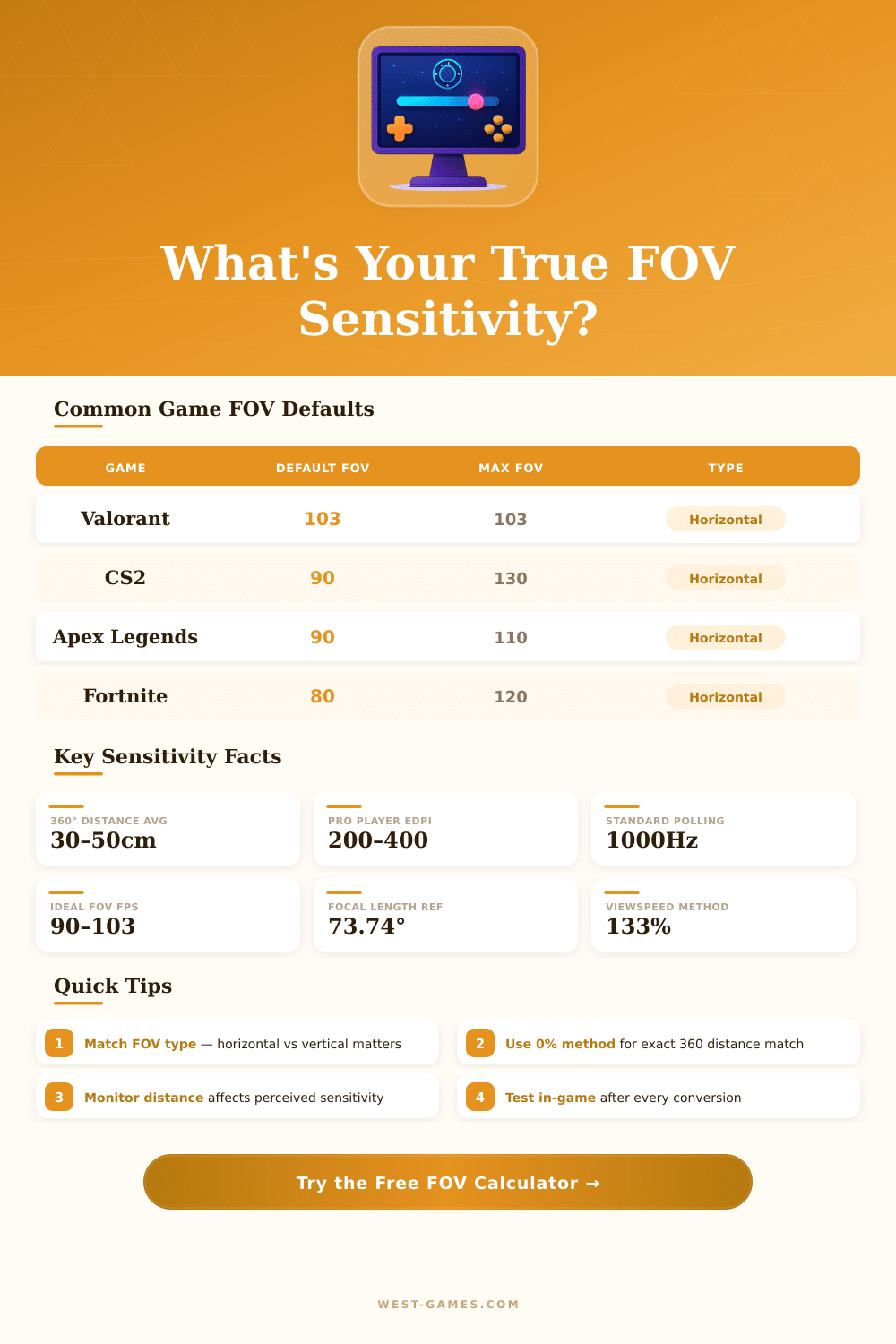
| Game | Default FOV | Max FOV | FOV Type | Sens Scale |
|---|---|---|---|---|
| Valorant | 103° | 103° | Horizontal | 0–10 |
| CS2 / CS:GO | 90° | 130° | Horizontal | 0–20 |
| Apex Legends | 90° | 110° | Horizontal | 1–5 |
| Fortnite | 80° | 120° | Horizontal | 0–100% |
| Overwatch 2 | 103° | 103° | Horizontal | 1–100 |
| Call of Duty: Warzone | 80° | 120° | Horizontal | 1–20 |
| Rainbow Six Siege | 60° | 90° | Vertical | 1–100 |
| Battlefield 2042 | 74° | 90° | Horizontal | 1–200% |
| Player | Game | DPI | In-Game Sens | eDPI | 360° Distance |
|---|---|---|---|---|---|
| TenZ | Valorant | 800 | 0.408 | 326 | ~66cm |
| ScreaM | Valorant | 400 | 0.78 | 312 | ~69cm |
| s1mple | CS2 | 400 | 3.09 | 1236 | ~17cm |
| ZywOo | CS2 | 400 | 2.0 | 800 | ~27cm |
| Imp | Valorant | 800 | 0.35 | 280 | ~77cm |
| Shroud | Various | 450 | 2.4 | 1080 | ~20cm |
| Timmy | Apex | 800 | 1.4 | 1120 | ~19cm |
| Bugha | Fortnite | 400 | 9.0% | — | ~36cm |
| Method | Matches | Best For | Feel |
|---|---|---|---|
| 0% (360 Match) | Full rotation distance | Muscle memory transitions | Faster at edges on larger FOV |
| 50% Monitor Distance | Mid-screen tracking | General aim, most popular | Balanced feel across FOVs |
| 100% Monitor Distance | Full-screen edge tracking | Large FOV adjustments | Slower center tracking |
| Viewspeed (133%) | Perceived speed | Quick-scope & flick consistency | Most natural visual match |
The Sensitivity of FOV commonly confuses many players, and honestly, it deserves to matter. FOV means the field of sight so it shows how broadly the world of the game shows on your screen. The difficult part is how it affects the feeling of the mouse.
Here the key spot: changing FOV does not truly change your basic Sensitivity. The turn, that same distance of mouse move, stays the same. Even so it does feel entirely different, when you adjust to a new value.
How FOV Changes Mouse Feel
Imagine it like this. Assume that your FOV is 90 degrees, and moving the mouse 5 centimetres turns your sight 90 degrees. Now expand it to 125, that same move still gives 90-degree turn according to the calculations.
The difference lies in how much world the screen covers with that movement. With 125 FOV, even a 120-degree turn does not reach the edges of the screen. But with 115 FOV, that same turn already goes across the whole screen.
Because of that your mind sees it as faster movement, although the input itself did not change.
FOV does not change the cursor speed directly. Instead, it shrinks or extends the distance that the mouse must cover for a full 360-degree turn. Think about staring at a globe, the globe shrinks or grows, but your turning speed stays the same.
Here is where it becomes especially weird. Some games do not follow the usual rules. In certain versions of Call of Duty, the Sensitivity for 360-degree turn adjusts according to FOV.
Most other games leave it fixed. Competitive players usually set low FOV, DPI and in-game Sensitivity, so that the distance for 360-degree turn stays the same threw different games.
If you lower FOV to 60, reaching the edge of the screen requires only 30-degree turn, instead of more. The mouse must move two-thirds less far to touch the limit of the sight. That exactly explains why ADS with a scope feels faster.
Using the same cm/360 for 1x and 3x zoom, they do not feel the same, because 3x has narrower FOV.
For most FPS games, choosing something between 102 and 110 degrees works well. You get better sight without lowering the performance or twisting the look. Players of Apex Legends commonly choose 96 to 104.
Going to 90 or up to 120 also works, if that fits you.
Online calculators for Sensitivity exist just for that. They consider DPI, resolution, aspect ratio, size of the monitor and ADS zoom levels. Comparison of focal distance is another method.
You measure how far your eyes are from the monitor, and then set everything so that hipfire and ADS feel equally smooth.
Low FOV makes enemies seem bigger and nearer, but you lose side awareness. Expanding it gives good side sight, although targets in the distance become harder to hit. Either way, it affects the feeling of the moves, but thebasic math stays the same.